#14
www.istorage-uk.com
18. How to determine the device Version Number in Admin mode
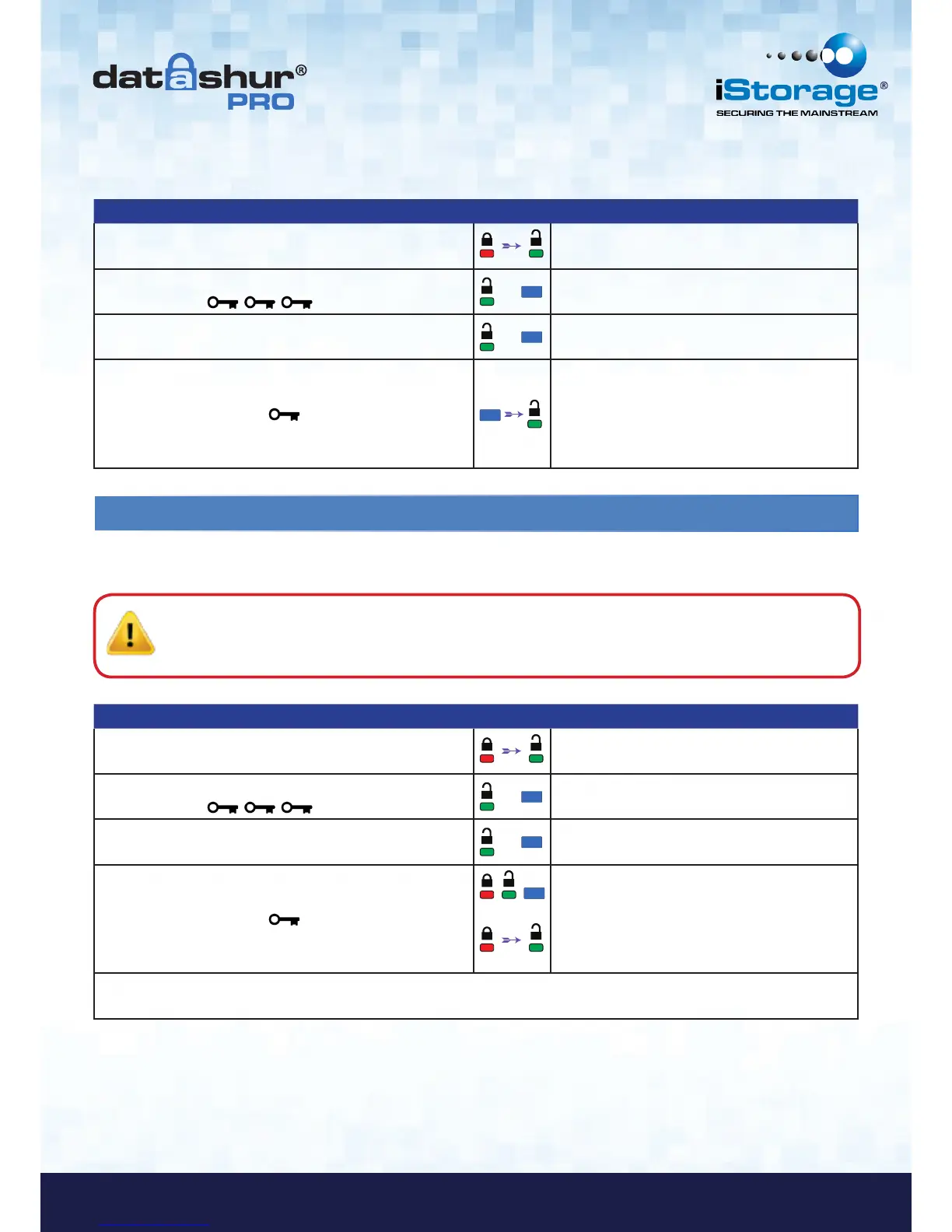
Instructions LED LED State
1. Unlock the datAshur Pro with Admin PIN
Red solid LED followed by a flickering Green
LED indicating successful Admin PIN entry
2. Press the KEY button three times
(treble-click)
&
Green and Blue LED’s flicker together
3. Within 10 seconds begin to press the number 8 (tuV)
button followed by the number 6 (mNo) button (86)
&
Green and Blue LED’s continue to flicker
together
4. Press KEY button once
Red, Green & Blue LED’s will quickly blink
together once followed by the Red LED blinking
to the most significant digit of revision and
the Green LED will blink according to the least
significant digit of the revision number
For example, if the revision number is ‘1.8’, the Red LED will blink once (1) and the Green LED will blink eight (8) times.
Once the sequence has ended the Red, Green & Blue LED’s will blink together once and then to flickering Green LED.
Instructions LED LED State
1. Unlock the datAshur Pro with Admin PIN
Red solid LED followed by a flickering Green
LED indicating successful Admin PIN entry
2. Press the KEY button three times
(treble-click)
&
Green and Blue LED’s flicker together
3. Within 10 seconds begin to press the number 7 (pqRs)
button followed by the number 9 (Wxyz) button (79)
&
Green and Blue LED’s continue to flicker
together
4. Press KEY button once
Blue LED quickly fades out and Green LED
continues to flicker. when the datAshur Pro is
inserted into a USB port the Green LED is solid
indicating the datAshur Pro is Read/Write
enabled
To display the device Version Number of the datAshur Pro do the following.
Caution: Entering the Admin PIN to access a locked drive will clear the User PIN. For security reasons, we
highly recommend that a new User PIN be created immediately once the drive has been unlocked
using the Admin PIN. Refer to section 13 on page 11.













 To Next Page