#15
www.istorage-uk.com
iStorage datAshur Personal
®
Manual – v 31
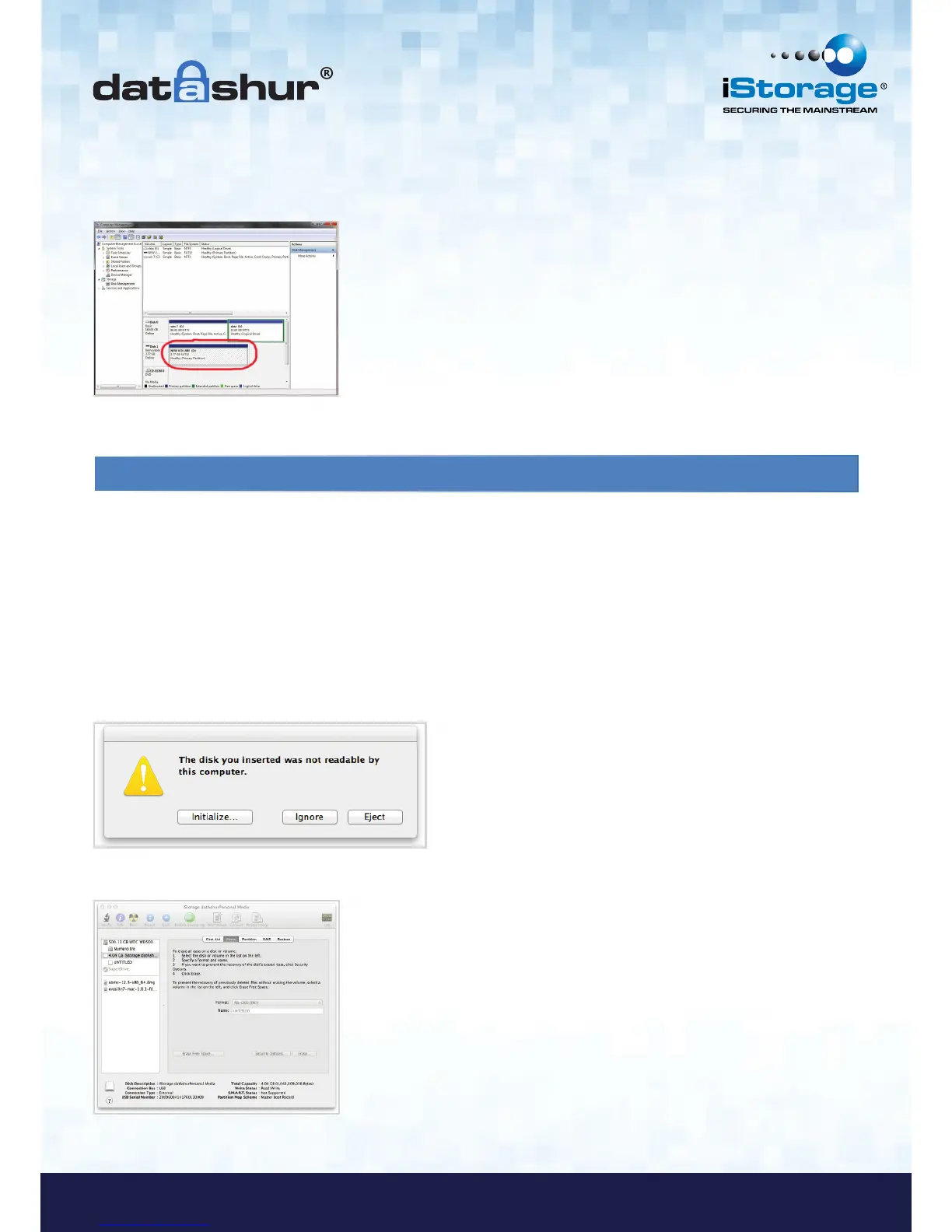
6. The procedure will finish formatting and return to the Disk Management window.
While the datAshur is formatting the BLUE LED will start flashing.
12. Configure the drive with Mac OS
In the event that hacking detection has been triggered by entering the incorrect PIN 10 times in succession or the drive
has been reset, all data on the drive will be lost forever.
Once a New User PIN has been created, the datAshur will need to be initialised and formatted.
To format your datAshur on Mac OS computers, do the following:
1. Create a New User PIN (see section 4).
2. Unlock the datAshur by entering the New User PIN and connect to a Mac computer’s USB port.
3. The system will prompt you with INITIALIZE window.
When finished, the BLUE LED becomes solid and your datAshur is ready for use.
4. Press INITIALIZE and select the datAshur in the Disk Utility window.












 To Next Page