A complete reset of the diskAshur PRO SSD will erase all information and partition settings. You will need to initialize and
format the diskAshur PRO SSD.
To initialize your diskAshur PRO SSD, do the following:
1. After a complete reset, attach the diskAshur PRO SSD to the computer.
2. Press UNLOCK + 9 buttons. The LED will change to Solid BLUE / Blinking GREEN.
3. Enter the new Admin PIN and press UNLOCK key. If accepted the LED will
flash 3 short blinks of the GREEN LED, then return to Solid BLUE and Blinking
GREEN.
4. Re-enter the Admin PIN and press the UNLOCK key. If accepted the GREEN
LED will be Solid for 3 seconds.
5. LED will then turn BLUE and remain in Admin mode for 30 seconds or if the
LOCK key is pressed, will return the drive to a standby state.
6. The Admin PIN is now set and will allow access to the drive or the Admin
features.
7. To UNLOCK the drive, enter the new PIN and press UNLOCK.
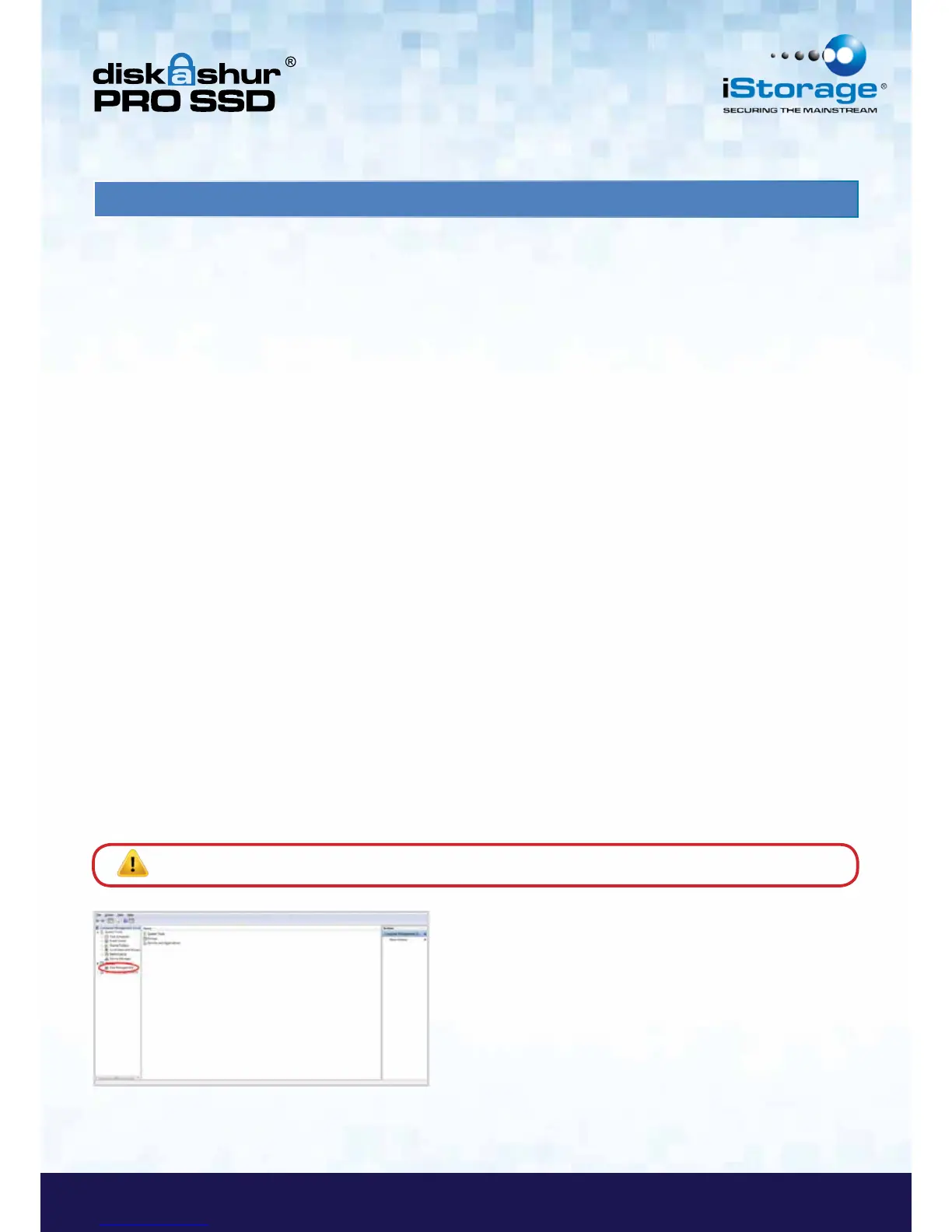
8. Windows 7 and earlier: Right-click My Computer, and then click Manage from
the Windows desktop.
Windows 8: Right click left corner of desktop and select Disk Management.
16. Initializing and formatting the diskAshur PRO SSD after a complete reset
9. In the Computer Manage window, click Disk Management. In the Disk Management window, the diskAshur PRO SSD
is recognized as an unknown device that is uninitialized and unallocated.
Note: If the Initialize Disk Wizard window opens, click Cancel.












 To Next Page