Single Phase Voltage Regulator RAV-2
with control CTR-2
Instruction Manual MI-010
Page: 17/27
Rev. 06/2017
S.
Shortcut
Name Description Date Time Unit
Resettable
Remote
resets
11 76
PNOM
Power rating on the "Load" - kVA - display
12 77
PATV
Active power on the "Load" - kW - display
13 78
PRTV
Reactive power on the "Load" - kVAr - display
14 79
COC
Partial operation counter - - Yes
display and
resets
15 80
QTREG
Amount of stored registers - - Yes display
16 81
CBLC
Current on the low side "Load" - mA - display
17 82
CBLF
Current on the low side "Source" - mA - display
18 83
DHTV
Rate of harmonic distortion of the voltage - % - display
18 84
DHTI
Rates of harmonic distortion of the current. - % - display
Note: when the “QTREG” (shortcut 80) value is reseted stored values are eliminated
SETTINGS IN CONTROL – GENERAL VIEW
CTR-2 control has 3 groups or sets of parameters for operation in direct power flow whose activation will depend of
date and time for beginning and ending. Those groups are called MAPS and include parameters that can
occasionally change. Also a group of independent parameters for operation in inverse power flow is available
Navigation through the adjustment screens
To adjust control operation parameters:
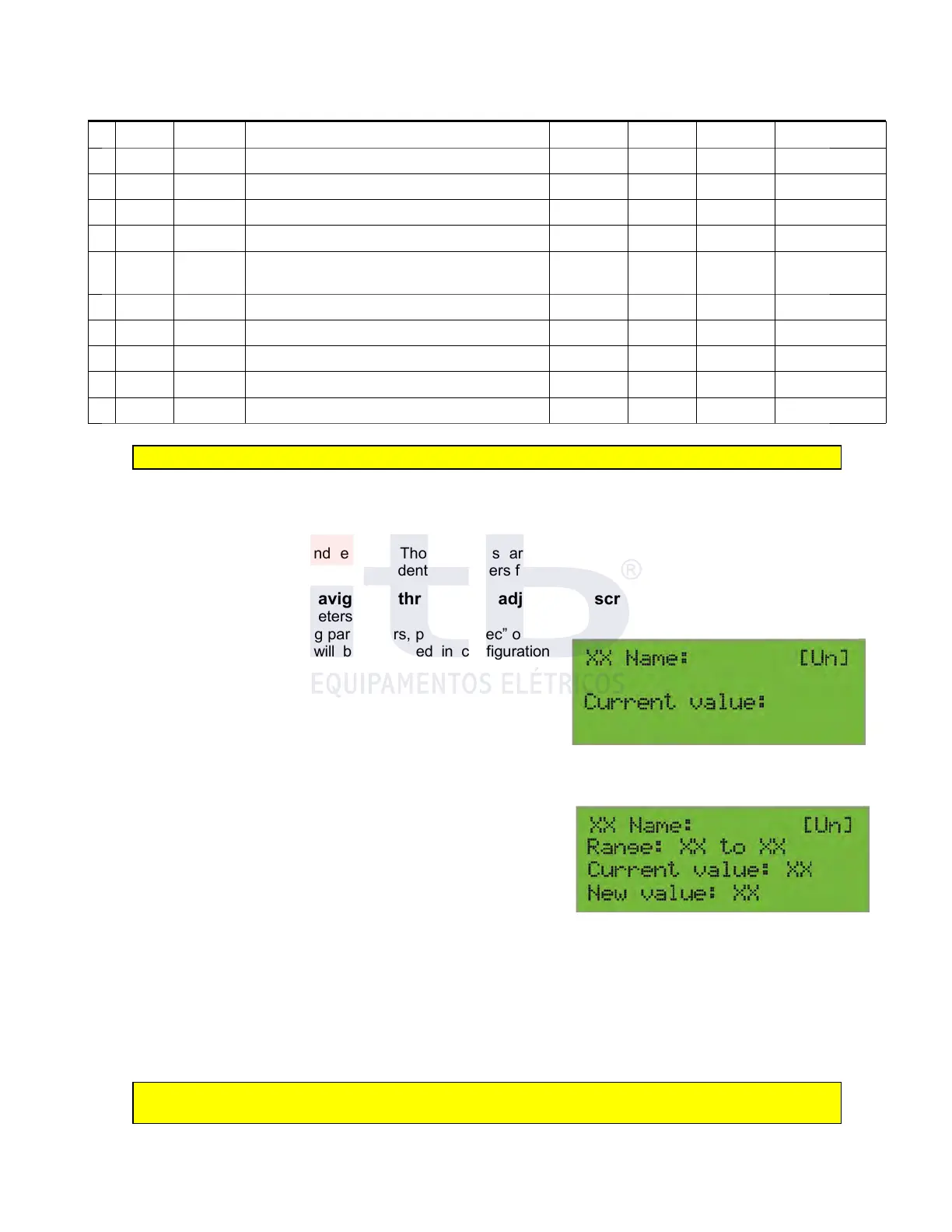
1. From any screen of measuring parameters, press “Selec” once,
the first settings parameter will be displayed in configuration
screen (figure 19) as well as its actual value:
1. In the “XX” field, the number of screen for shortcut Access
is displayed;
2. In the “Name” field the measured identifier will appear as
described in “Name” column of table 7;
3. In field between brackets the unit of value (when
appropriate) will be displayed.
2. Press keys “+” or “-” to change that digit between 0 and 9 as shown in figure 7;
From any screen of settings visualization, when “Conf” key is
pressed variable settings mode is accessed, as shown in Figure 20
with two additional fields compared to visualization screen:
1. The range field that shows the máximum and mínimum
allowable value for the parameter on display;
2. The “New Value” field that will show the same “Valor
actual” (actual value) but with a cursor in the position of the
most significant digit
To modify the selected setting of parameter, follow the sequence:
1. Press the “+” o “-” keys to navigate between 0 and 9;
2. Press “Selec” or “Conf” key to navigate between different digits;
3. Repeat operation until all digits are as desired;
4. With cursor under the least significant value, press “Conf” key to accept value for the complete “New value”
which will now be displayed in “Current Value” and that will be exhibited in the adjust visualization screen;
Note: If adjusted value is outside the range, 1 to 84, message “Invalid Number” will be
displayed in the bottom line and “new value” will remain as “Actual value” as in setting screen
5. If “Conf” key is pressed while cursor is under the most significant value no action will be taken;
6. To return to standard screen from setting visualization screen, press twice “Selec” key;
7. Settings will be displayed in sequence shown in Figure 7.
ITB - Equipamentos Elétricos Ltda.
Figure 19: Adjustment visualization screen
Figure 20: Adjustment modification screen.



 To Next Page