EasyManua.ls Logo

J.Burrows Elite MK350 - User Manual

J.Burrows Elite MK350
8 pages
Print Icon
To Next Page IconTo Next Page
Loading...
Work Anywhere Keyboard
and Mouse Combo
Elite MK350
INSTRUCTION MANUAL
Compatible with:
Windows® 10 or later
Mac OS X 10.10 or later
OFFICEWORKS LTD
236-262 EAST BOUNDARY ROAD
EAST BENTLEIGH VIC 3165 AUSTRALIA
MADE IN CHINA
1/8
Question and Answer IconNeed help?

Do you have a question about the J.Burrows Elite MK350 and is the answer not in the manual?

Summary

Functions

Installation Guide - 2.4 GHz Connectivity

Installation Guide - Bluetooth Connectivity

Connecting to Bluetooth Device 1

Steps for pairing the keyboard and mouse with the first Bluetooth device.

Connecting to Bluetooth Device 2

Steps for pairing the keyboard and mouse with the second Bluetooth device.

DPI Settings

Indicator Lights

Product Specifications

Product Warranty Information

Overview

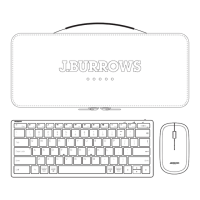
The J.Burrows Elite MK350 Work Anywhere Keyboard and Mouse Combo is a versatile input solution designed for seamless connectivity and portability across various operating systems. This combo includes a wireless keyboard, a wireless mouse, a USB-A / USB-C receiver, a charging cable, an instruction manual, and a quick start guide.

The keyboard and mouse offer multiple connectivity options, including 2.4GHz wireless and Bluetooth 4.2, allowing users to connect to up to three different devices simultaneously (one via 2.4GHz and two via Bluetooth). This multi-device capability makes it ideal for users who switch between a desktop, laptop, tablet, or smartphone.

Keyboard Features:

The keyboard features a full set of shortcut keys located on the top row, providing quick access to various functions depending on the operating system. These shortcuts include:

  • 2.4GHz Connectivity: A dedicated key to switch to 2.4GHz mode.
  • Bluetooth Connectivity (BT1, BT2): Two dedicated keys for switching between Bluetooth devices.
  • Multimedia Controls: Keys for music playback, previous track, play/pause, next track, mute, volume down, and volume up.
  • Brightness Controls: Keys for brightness down and brightness up.
  • Browser/Homepage: A key to open the IE browser or homepage.

By default, pressing ESC to F12 directly activates the multimedia functions. To use the standard F-key functions (F1-F12), users need to press Fn + ESC to F12. It's important to note that the multimedia keys' functions may vary slightly depending on the specific versions of Windows, Android, iOS, and macOS being used.

Mouse Features:

The mouse is designed for comfort and functionality, featuring:

  • Left and Right Buttons: Standard mouse click functions.
  • Scroll Wheel: For vertical scrolling.
  • Receiver Compartment: A hidden compartment for storing the USB receiver, secured by a magnetic closure.
  • Optical Sensor: For precise tracking on various surfaces.
  • Charging Port: For recharging the mouse.
  • Mode Button: To switch between connectivity modes.
  • On/Off Switch: To power the mouse on or off.
  • Indicator Light: Provides visual feedback on connectivity and battery status.

The mouse also offers adjustable DPI (Dots Per Inch) settings, allowing users to customize cursor sensitivity. To modify the DPI, users press the left button and scroll wheel together for more than three seconds. The mouse supports three DPI levels: 1000 DPI, 1600 DPI, and 2400 DPI. The red LED indicator light will flash once for 1000 DPI, twice for 1600 DPI, and three times for 2400 DPI, providing clear visual confirmation of the selected sensitivity.

Installation and Connectivity:

2.4GHz Connectivity:

  1. Retrieve Receiver: Remove the magnetic top cover of the mouse to access and retrieve the USB receiver. Reattach the top cover.
  2. Plug In Receiver: Plug the USB receiver into an available USB-A or USB-C port on your computer.
  3. Power On: Turn on the power switch for both the keyboard and the mouse. A white light will flash once on both devices, indicating successful connection.

Bluetooth Connectivity (Device 1):

  1. Mouse Pairing: Press the round mode button on the mouse. The white light will flash once. To enter pairing mode, hold the round button for more than 3 seconds until the white light flashes quickly.
  2. Keyboard Pairing: Press the BT1 key on the keyboard. The red light will flash once. To enter pairing mode, hold the BT1 key for more than 3 seconds until the red light flashes quickly.
  3. Device Pairing: Go to the Bluetooth settings on your device (computer, tablet, or smartphone). Select "Elite MK350-KB" for the keyboard and "Elite MK350-MS" for the mouse from the list of available devices. Follow any on-screen instructions to complete the pairing process. The indicator lights on both devices will turn off once Bluetooth pairing is successful.

Bluetooth Connectivity (Device 2):

The process for connecting to a second Bluetooth device is similar:

  1. Mouse Pairing: Press the round mode button on the mouse. The white light will flash once. To enter pairing mode, hold the round button for more than 3 seconds until the white light flashes quickly.
  2. Keyboard Pairing: Press the BT2 key on the keyboard. The blue light will flash once. To enter pairing mode, hold the BT2 key for more than 3 seconds until the blue light flashes quickly.
  3. Device Pairing: Go to the Bluetooth settings on your device. Select "Elite MK350-KB" for the keyboard and "Elite MK350-MS" for the mouse. The indicator lights will turn off after successful pairing.

Maintenance Features:

Battery and Charging:

Both the keyboard and mouse are equipped with rechargeable lithium batteries. It is recommended to fully charge both devices before their first use. Ensure that both the wireless keyboard and mouse are turned off before charging.

Mouse Indicator Light:

  • Low Power: A red LED light will flash when the mouse battery is low.
  • Charging: A blue LED light will be on during charging.
  • Fully Charged: The LED light will turn off once the mouse is fully charged. Full charging time is approximately 4 hours.

Keyboard Indicator Light:

  • Low Power: The mode LED light will flash alternately when the keyboard battery is low.
  • Charging: The blue LED light on the right side of the top panel will be on during charging.
  • Fully Charged: The light will turn off once the keyboard is fully charged. Full charging time is approximately 4 hours.

Compatibility:

The J.Burrows Elite MK350 combo is compatible with a wide range of operating systems, including Windows® 10 or later, Mac OS X 10.10 or later, Android™ 10 or later, and iOS systems.

Important Safety Warning:

Users are advised not to connect the provided charging cable to products other than the Elite MK350 wireless keyboard and mouse. Connecting this cable to other devices may cause damage to both the cable and the device.

J.Burrows Elite MK350 Specifications

General IconGeneral
BrandJ.Burrows
ModelElite MK350
ConnectivityWired
InterfaceUSB
TypeMechanical
Keycap TypeABS
CompatibilityWindows

Related product manuals