This document serves as the instruction manual for the J.Burrows Elite MK400 Wireless Keyboard Mouse Combo. It provides details on its functions, technical specifications, installation, and maintenance.
Function Description
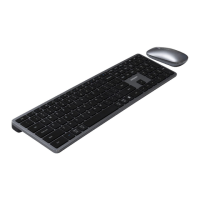
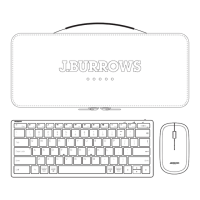
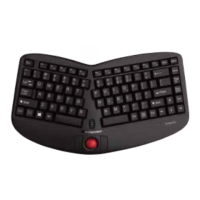
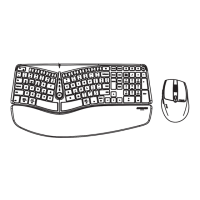
The Elite MK400 is a wireless keyboard and mouse combo designed for versatile connectivity. It supports both 2.4GHz wireless connectivity via a USB-A receiver and Bluetooth 4.2 for connecting to up to two separate devices. The keyboard features a split ergonomic design, while the mouse offers adjustable DPI settings. The top row of the keyboard includes dedicated shortcut keys for various multimedia and system functions, which can be accessed directly or by pressing the Fn key in combination with the F-keys (ESC to F12). The mouse also has a connect button for Bluetooth pairing and a DPI button for adjusting sensitivity.
Important Technical Specifications
- Product Model: Elite MK400
- Officeworks Product Code: JBKB368167
- Bluetooth Version: 4.2
- Rating:
- Keyboard: 3.7V === 2mA
- Mouse: 3.7V === 8mA
- Working Frequency: 2.4GHz
- Device Connectivity:
- 1 x 2.4GHz (via USB-A receiver)
- 2 x Bluetooth 4.2
- Operating Range: 8m
- Receiver: USB-A
- Rechargeable Battery:
- Keyboard: Lithium 500mAh
- Mouse: Lithium 300mAh
- Dimensions:
- Keyboard: 449 x 234 x 48 mm
- Mouse: 108 x 69 x 41 mm
- System Requirements:
- Windows® 10 or later
- Mac OS X 10.10 or later
- Android™ 10 or later
- iOS system
Usage Features
2.4GHz Connectivity:
- Retrieve the USB receiver from the compartment at the bottom of the mouse.
- Turn on the power switch for both the mouse and keyboard.
- Plug the USB receiver into a computer port.
- The mouse DPI can be adjusted using the DPI button, cycling through 800, 1200, 1600, and 2400 DPI settings.
Bluetooth Connectivity:
The device supports connection to two Bluetooth devices (BT1 and BT2).
- Keyboard Pairing:
- Press the BT button and select either BT1 or BT2; the green light will flash once.
- Hold the BT button for 5 seconds to enter Bluetooth pairing mode.
- Mouse Pairing:
- Press the connect button and select either BT1 or BT2; the white light will flash once.
- Hold the Connect button for 5 seconds to enter Bluetooth pairing mode.
- Pairing Process: Once in pairing mode, go to the Bluetooth settings on your device and select "Elite MK400 KB/MS" to complete the pairing. The indicator light will turn off upon successful pairing.
- Switching Devices: After setting up connections with up to two Bluetooth devices, you can switch between them by pressing the BT button on the keyboard and the connect button on the mouse.
Keyboard Shortcut Keys:
The top row of the keyboard provides shortcuts for various functions.
- Esc: Escape
- F1 (Brightness -): Decreases brightness (or N/A on some Android/iOS systems)
- F2 (Brightness +): Increases brightness (or N/A on some Android/iOS systems)
- F3 (Previous track): Skips to the previous track
- F4 (Play/pause): Plays or pauses media
- F5 (Next track): Skips to the next track
- F6 (Mute): Mutes/unmutes audio
- F7 (Volume -): Decreases volume
- F8 (Volume +): Increases volume
- F9 (Copy): Copies selected content
- F10 (Paste): Pastes content
- F11 (Search): Opens search function (or N/A on some Android/iOS systems)
- F12 (Select Input Method): Changes input method (or N/A on some Android/iOS systems)
- Win Switch: Switches between Windows (or N/A on some systems)
- Calculator: Opens calculator (Windows only)
- Printer: Initiates printing (Windows only)
- Setting: Opens system settings (Windows only)
- Lock Screen: Locks the screen (or N/A on some systems)
Note on Shortcut Keys:
- Directly pressing ESC to F12 activates multimedia functions.
- Pressing Fn + ESC to F12 activates the standard F-key functions.
- Multimedia key functionality may vary depending on the operating system (Windows, Android, iOS, MacOS).
Maintenance Features
Indicator Lights:
- Low Power: Keyboard will flash a green LED light; mouse will flash a red LED light.
- Charging: A red LED light will be on for both keyboard and mouse.
- Fully Charged: A green LED light will be on for both keyboard and mouse.
- Full Charging Time: Approximately 2 hours.
Charging:
- It is recommended to fully charge the Elite MK400 before first use.
- Ensure the wireless keyboard and mouse are turned off before charging.
- WARNING: Do not connect the charging cable to products other than the Elite MK400 wireless keyboard. Connecting it to other devices may cause damage to both the cable and the device.
Product Warranty (for Australian customers only):
Officeworks Ltd provides an 8-year warranty from the date of purchase against defects and intended functionality. If the product is found to be defective within this period, Officeworks will, at its discretion and expense, repair or replace it.
This warranty does not cover:
- Cosmetic damage.
- Damage caused by consumables (e.g., batteries).
- Damage due to non-compliance with provided instructions.
- Damage from fair wear and tear.
- Damage from unreasonable use.
- Intentionally or negligently damaged products.
- Products where the customer has attempted repairs.
To make a warranty claim, return the product with proof of purchase to an Officeworks store or contact 1300 633 423. This warranty is in addition to rights under the Australian Consumer Law, which entitles consumers to a replacement or refund for major failures and compensation for foreseeable loss or damage, and repair or replacement for goods that fail to be of acceptable quality but do not constitute a major failure.

 Need help?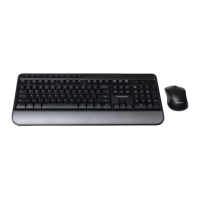


 To Next Page
 General