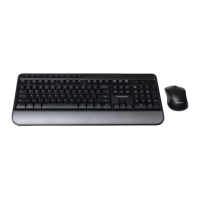
This document describes the J.BURROWS Wireless Ergonomic Keyboard and Mouse Combo, model JBERGCOMBO, a peripheral set designed for comfortable and efficient computer interaction.
Function Description
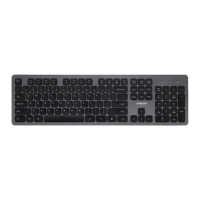
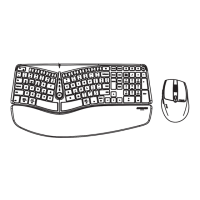
The JBERGCOMBO provides a wireless keyboard and mouse solution for desktop computing. The keyboard features an ergonomic design, aiming to reduce strain during prolonged use. Both devices connect wirelessly to a computer via a single USB receiver, offering a clutter-free workspace. The keyboard includes dedicated hotkeys for internet, multimedia, and system functions, enhancing productivity. The mouse is equipped with a scrolling wheel, DPI switch for adjustable sensitivity, and navigation buttons.
Important Technical Specifications
Keyboard & Mouse Wireless Technology: 2.4GHz RF
Keyboard & Mouse Working Range: Up to 10 meters
Keyboard & Mouse Battery Type: (2) AAA Batteries per device (total of 4 AAA batteries included)
Keyboard Layout: 122-Key US
Key Type: Membrane
Keyboard Hotkeys: 17 Hotkeys (Windows, Internet and Multimedia)
Keyboard Indicators: Battery Low, Num Lock & Caps Lock
Keyboard Dimensions: 19.8" x 8.3" x 1" (503 x 212 x 25 mm)
Mouse Tracking Method: Optical Sensor
Mouse DPI: 3 Levels - 800, 1200 (Default), 1600
Mouse Dimensions: 4.5" x 2.9" x 1.5" (115 x 74 x 38mm)
System Requirements:
Operating System: Windows® 10/8/7/XP, Mac OS X 10.7 or later
Connectivity: Spare USB port for wireless receiver
Usage Features
Ergonomic Design: The keyboard's ergonomic layout is intended to provide a more natural typing posture, potentially reducing wrist and hand strain.
Wireless Convenience: Both the keyboard and mouse operate wirelessly, allowing for flexible placement and reducing cable clutter. The 2.4GHz RF technology ensures a reliable connection up to 10 meters.
Multimedia Hotkeys: The keyboard integrates 17 hotkeys for quick access to various functions including:
- Music: Launches default media player application.
- Play/Pause: Plays or pauses track in multimedia software.
- Stop: Stops track from playing in multimedia software.
- Previous Track: Takes you to previous track in multimedia software.
- Next Track: Takes you to next track in multimedia software.
- Volume Down: Decreases computer main volume.
- Volume Up: Increases computer main volume.
- Mute: Mutes computer main volume.
- Home: Accesses Homepage.
- Email: Launches default email application.
- Back: Back to the previously viewed webpage.
- Forward: Go to the next viewed webpage.
- Search: Launches search bar.
- Calculator: Launches calculator.
- Sleep: Sets computer to sleep mode.
- Wake Up: Wakes computer up.
- Power Off: Shuts down computer.
Note: Hotkey functions are based on Windows operating system. When used on Mac, these may vary or not function.
Adjustable Mouse DPI: The mouse features a DPI switch, allowing users to cycle through three sensitivity levels (800, 1200, 1600 DPI) to suit different tasks and preferences. The default DPI is 1200.
Plug and Play: The device is designed for automatic connection. Once the USB wireless receiver is plugged into a computer's USB port, the system should automatically detect and connect to the keyboard and mouse without requiring additional drivers.
Battery Indicators: The keyboard includes indicators for Num Lock, Caps Lock, and a low battery warning. The mouse also has a low battery indicator.
Maintenance Features
Battery Replacement: Both the keyboard and mouse require two AAA batteries each. The battery compartments are easily accessible for replacement.
- To change batteries:
- Remove the battery cover from the mouse and keyboard battery compartment.
- Insert two AAA batteries into each device, ensuring correct polarity.
- Close the battery compartment cover.
Power Switches: Both the keyboard and mouse are equipped with power switches (ON/OFF) to conserve battery life when not in use. It is recommended to turn off devices when leaving your desk for more than an hour to save battery life and enable longer battery life.
Troubleshooting Guide: The manual provides troubleshooting tips for common issues:
- Device not operating: Check if AAA batteries are correctly inserted and if the power switch is ON.
- Connection issues: Ensure the USB receiver is correctly connected to the computer's USB port and move other devices 30 cm away from the receiver to avoid interference.
- Reconnecting/Re-pairing: If devices cannot connect efficiently, press the "CONNECT" button on the bottom of the keyboard and mouse. For the mouse, hold the middle and right buttons together while pressing the CONNECT button. Ensure the keyboard or mouse is close to the USB receiver (within 30 cm) during re-pairing.
- Wireless Interference: If experiencing interference, relocate wireless appliances away from the keyboard and mouse.

 Need help?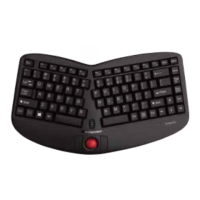


 To Next Page
 General