This document is an instruction manual for the J.BURROWS Elite MK300 Wireless Keyboard and Mouse. It provides details on the product's functions, installation, specifications, and warranty information.
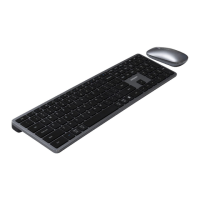
The J.BURROWS Elite MK300 is a wireless keyboard and mouse combo designed for versatile connectivity and ease of use. It supports multiple connection methods, including 2.4GHz wireless and Bluetooth, making it compatible with a wide range of devices.
Function Description:
The Elite MK300 combo offers a full range of functions for both the keyboard and mouse.
Keyboard Functions:
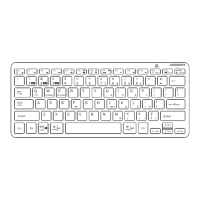
The keyboard features a top row of shortcut keys (F1-F12) that provide quick access to various multimedia and system functions. These functions are categorized by operating system (Windows, iOS, Android, Mac) and include:
- Mute (F1): Mutes audio output.
- Volume down (F2): Decreases audio volume.
- Volume up (F3): Increases audio volume.
- Previous track (F4): Skips to the previous audio track.
- Play/Pause (F5): Toggles play and pause for media.
- Next track (F6): Skips to the next audio track.
- Brightness down (F7): Decreases screen brightness.
- Brightness up (F8): Increases screen brightness.
- Select all (F9): Selects all content.
- Copy (F10): Copies selected content.
- Paste (F11): Pastes copied content.
- Cut (F12): Cuts selected content.
- Search: Initiates a search function.
- Home page: Navigates to the home page (N/A for Mac).
- 2.4GHz: Activates 2.4GHz wireless mode.
- BT1: Activates Bluetooth device 1 mode.
- BT2: Activates Bluetooth device 2 mode.
Note on Keyboard Functions:
- Pressing
FN + Q locks the multimedia function, disabling the F-keys' special functions.
- Multimedia key functions may vary depending on the specific versions of Windows, Android, iOS, and macOS.
Mouse Functions:
The mouse features standard controls:
- Left button: Primary click function.
- Right button: Secondary click function.
- Scroll wheel: For scrolling through content.
- Mode button (11): Used for switching connectivity modes.
- On/Off switch (12): Powers the mouse on or off.
Note on Mouse Sensitivity:
- Pressing the left button and scroll wheel together for more than three seconds allows modification of the DPI/mouse sensitivity.
Important Technical Specifications:
Product Model: Elite MK300
Officeworks Product Code: JB130C880
Working Frequency: 2.4GHz
Keyboard Specifications:
- Device Connectivity: 3 devices total (1x 2.4GHz, 2x Bluetooth 4.2).
- Rechargeable Battery: Lithium 300mAh.
- Dimensions: 434 x 119 x 21 mm.
- Rating: 3.7V === 5mA.
Mouse Specifications:
- Device Connectivity: 3 devices total (1x 2.4GHz, 2x Bluetooth 4.2).
- Receiver: USB-A / USB Type-C®.
- DPI: 1000 / 1600 / 2400 (adjustable).
- Rechargeable Battery: Lithium 300mAh.
- Dimensions: 108 x 61 x 31 mm.
- Rating: 3.7V === 10mA.
System Requirements:
- Windows® 10 or later.
- Mac OS X 10.10 or later.
- Android™ 10 or later, or iOS system.
Usage Features:
Connectivity Options:
The Elite MK300 offers flexible connectivity:
- 2.4GHz Connectivity:
- Mouse: Remove the magnetic top cover to retrieve the USB receiver (USB-A / USB-C compatible). Plug the receiver into a computer port. Turn on the mouse's power switch. A white light will flash once to indicate activation.
- Keyboard: Turn on the keyboard's power switch. A white light will flash once to indicate activation.
- Bluetooth Connectivity (Device 1 & 2):
- Mouse: Press the round button on the mouse. A white light will flash once. To enter pairing mode, hold the round button for more than 3 seconds until the white light flashes quickly.
- Keyboard: Press the BT1 (for device 1) or BT2 (for device 2) key. A white light will flash once. To enter pairing mode, hold the respective BT key for more than 3 seconds until the white light flashes quickly.
- Pairing: Once in Bluetooth pairing mode, go to the Bluetooth settings on your device. Select "Elite MK300" for the keyboard and "MK300 Mouse" for the mouse. Follow the on-screen instructions to complete pairing. The light will turn off once pairing is successful.
Indicator Lights:
- Low Power: A red LED light will flash on the mouse and the mode keys on the keyboard will flash alternately when power is low.
- Charging: A blue LED light will be on near the charging port of both the keyboard and mouse.
- Fully Charged: The LED light will turn off when fully charged.
Maintenance Features:
Charging:
- Both the keyboard and mouse are rechargeable.
- A charging cable is included (USB-A to USB-C).
- Full charging time is approximately 4 hours for both devices.
- It is recommended to fully charge the Elite MK300 before first use.
- Ensure the wireless keyboard and mouse are turned off before charging.
Warranty (for Australian customers only):
Officeworks Ltd provides an 8-year warranty from the date of purchase against defects and non-performance as intended. If a defect occurs during the Warranty Period, Officeworks will repair or replace the product at its expense.
Warranty Exclusions:
The warranty does not cover:
- Cosmetic damage.
- Damage caused by consumables (e.g., batteries).
- Use not in accordance with provided instructions.
- Damage from fair wear and tear.
- Unreasonable use.
- Intentional or negligent damage.
- Customer attempts to repair the product.
Making a Warranty Claim:
Return the product with your receipt or proof of purchase to an Officeworks store or contact 1300 633 423. This warranty is in addition to rights under the Australian Consumer Law, which entitles consumers to replacement or refund for major failures and compensation for foreseeable loss or damage, and repair or replacement for goods that fail to be of acceptable quality but do not amount to a major failure.
Safety Warning:
Do not connect the provided charging cable to products other than the Elite MK300 wireless keyboard and mouse. Connecting the cable to other devices might cause damage to both the cable and the device.

 Need help?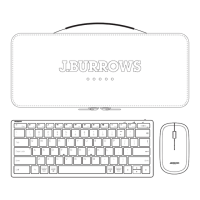


 To Next Page
 General