
 Need help?
Do you have a question about the J.Burrows KB210 and is the answer not in the manual?
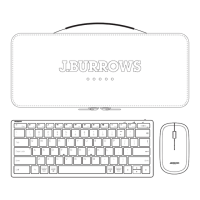
The J.Burrows KB210 is a wireless slim keyboard designed for versatile use across multiple operating systems and connectivity types. This instruction manual provides comprehensive guidance on its functions, installation, and connectivity, ensuring users can maximize their experience with the device.
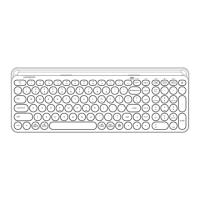
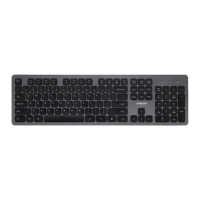
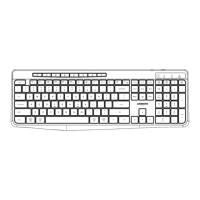
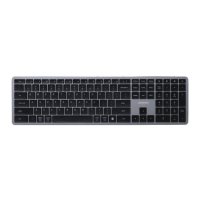
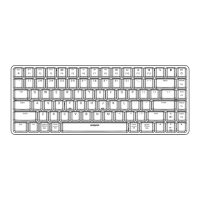
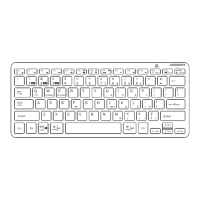
The KB210 keyboard offers a full QWERTY layout with a dedicated row of shortcut keys (F1-F12) that provide quick access to various multimedia and system functions. These shortcut keys are context-aware, meaning their primary function can differ slightly depending on the operating system being used.
For Windows users, the F1-F12 keys, when pressed in conjunction with the Fn key, offer traditional multimedia controls such as previous track, play/pause, next track, search, refresh, IE browser, setting, volume down, volume up, mute, use number pad, print screen, and sleep. On iOS, MAC, and Android devices, these multimedia functions are often directly accessible by pressing the F1-F12 keys without the Fn modifier. For instance, F1 typically controls the previous track, F2 for play/pause, and F3 for the next track across all supported operating systems. F4 on Windows is for search, while on Android it acts as a backspace. F5 on Windows is for refresh, whereas on Android it opens email. F6 on Windows opens the IE browser, while on iOS and MAC it triggers a screenshot or mission control, respectively. F7 on Windows is for settings, and on iOS and Android, it brings up the keypad. F8, F9, and F10 consistently control volume down, volume up, and mute across all platforms. F11 on Windows activates the number pad, while on other systems it's often used for search. F12 on Windows is for print screen, and on other systems, it manages language settings. The "Sleep" function, typically activated by the dedicated "delete Sleep" key, acts as a screen lock across iOS, MAC, and Android.
The keyboard supports three distinct connectivity modes: 2.4GHz wireless and two separate Bluetooth channels (Bluetooth 1 and Bluetooth 2). This multi-device connectivity allows users to seamlessly switch between up to three different devices, making it ideal for environments where multiple computers, tablets, or smartphones are in use.
To set up the 2.4GHz connection, users must first retrieve the USB-A receiver from the battery compartment. After inserting the included AAA batteries into the compartment, ensuring correct polarity, the power switch on the keyboard should be turned to the "ON" position. The USB receiver is then plugged into an available USB port on the computer. To initiate pairing, users press the Fn key along with the "1 2.4G" key. A quick flash of the red indicator light three times confirms that the keyboard is attempting to establish a 2.4GHz connection. This mode is typically used for devices that do not have Bluetooth capabilities or for users who prefer a dedicated wireless connection.
The KB210 offers two independent Bluetooth channels for connecting to different devices.
Once in pairing mode, users need to ensure their device has a functional Bluetooth feature enabled. They should then search for "Bluetooth device" on their device and select "KB210" from the list of available Bluetooth devices to connect. This multi-channel Bluetooth functionality is particularly useful for switching between, for example, a laptop and a tablet without needing to re-pair each time.
The keyboard is designed to be compatible with a wide range of operating systems. To optimize performance and key mapping for specific systems, users can select the appropriate system mode:
For Windows users, the keyboard includes a virtual number pad function. To activate this, users press Fn + F11 (the key marked "Q Num"). When activated, the green indicator light will illuminate, indicating that the number pad functionality is active. This allows users to input numerical data more efficiently, even on a slim keyboard without a physical dedicated number pad.
The KB210 is designed for ease of use and minimal maintenance. The primary maintenance aspect involves battery management. The keyboard uses AAA batteries, which are included with the device. The manual provides clear instructions on how to access the battery compartment and insert the batteries correctly, ensuring proper polarity.
A crucial maintenance feature is the low battery indicator. The indicator light on the keyboard will flash red once every two seconds when the batteries are running low. This visual cue alerts the user that it's time to replace the batteries, preventing unexpected power loss during use. Regular replacement of batteries ensures uninterrupted operation of the keyboard.
The power switch, located on the underside of the keyboard, allows users to turn the device off when not in use. This helps conserve battery life, extending the time between battery replacements.
The slim design of the keyboard also contributes to its ease of maintenance, as it is less prone to accumulating dust and debris compared to more complex designs. The smooth surface allows for simple cleaning with a soft cloth.
In summary, the J.Burrows KB210 wireless slim keyboard is a versatile and user-friendly input device offering multi-device connectivity, system-specific optimizations, and clear indicators for status and maintenance. Its intuitive design and comprehensive manual ensure a smooth experience for users across various platforms.
 General
| Connection | Wired |
|---|---|
| Key Switch Type | Membrane |
| Color | Black |
| Number of Keys | 104 |
| Cable Length | 1.5 m |
| Layout | Full Size |
| Special Feature | Spill Resistant |



 To Next Page