EasyManua.ls Logo

J.Burrows Elite KB280 - User Manual

J.Burrows Elite KB280
6 pages
Print Icon
To Next Page IconTo Next Page
Loading...
Instruction Manual
Wireless Keyboard
Model No. Elite KB280
1/6
Question and Answer IconNeed help?

Do you have a question about the J.Burrows Elite KB280 and is the answer not in the manual?

Overview

This document is an instruction manual for the J.BURROWS Elite KB280 Wireless Keyboard.

Function Description

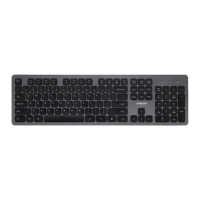
The J.BURROWS Elite KB280 is a versatile wireless keyboard designed for use with various devices, including tablets, smartphones, and PCs. It supports multiple connection modes, including 2.4G wireless and Bluetooth (BT1 and BT2), allowing it to connect to up to three devices simultaneously. The keyboard features a built-in stand for tablets and smartphones, enhancing its utility for mobile computing. It includes dedicated multimedia function keys (F1-F12) that can be switched between standard F-key functions and multimedia controls. The keyboard also incorporates brightness controls, a multi-screen display function, and audio controls. A battery indicator light provides visual feedback on power status.

Important Technical Specifications

  • Connectivity: 2.4GHz wireless and Bluetooth 3.0/Bluetooth 5.0.
  • Working Distance: 2.4GHz wireless up to 10m; Bluetooth up to 10m.
  • Power Supply: 2xAAA batteries (included).
  • Interface: USB wireless receiver.
  • Keyboard Size: 394x145x23mm.
  • Rating: 3V 2.5mA.
  • Built-in Tablet/Smartphone Stand: Depth below 10mm, Width below 363mm.
  • Bluetooth Compatibility: Bluetooth 5.0 is not supported on Windows 7 and below, and can change to Bluetooth 3.0 to use. The device ID for Bluetooth 3.0 is "KB280-BT3.0", while for Bluetooth 5.0 is "KB280-BT5.0".
  • System Requirement: USB port, Bluetooth 3.0/Bluetooth 5.0, Windows 7 or later, Android 3.2 and above, Mac OS 10.5 or later. Note that multimedia functions are partially invalid in different OS versions.

Usage Features

2.4G Wireless Connection:

  1. Open the battery compartment cover.
  2. Place the 2xAAA batteries (included) into the battery compartment with correct polarity.
  3. Take out the USB receiver and close the cover.
  4. Plug the receiver into a USB port of a PC.
  5. Turn on the power switch on the keyboard.
    • Note: The default setting of the connection mode of the keyboard is 2.4G mode. If the connection is successful, the 2.4G mode indicator will automatically turn off.

Bluetooth Connection:

  1. Ensure the keyboard power is ON.
  2. Select the Bluetooth mode to be connected (BT1 or BT2) by long pressing the Bluetooth mode switch key. The corresponding indicator on the top will flash quickly, indicating it's waiting for Bluetooth pairing.
  3. Turn on Bluetooth on your computer or other devices, search for and select "KB280-BT3.0" or "KB280-BT5.0", and start Bluetooth pairing until the connection is completed.

Mode Switching: The keyboard has three channels: 2.4G, Bluetooth 1, and Bluetooth 2, allowing connection to three devices at the same time. To switch between modes, short press the mode switch button. The corresponding mode indicator on the top will turn on. After being connected successfully, it will be off. If the switch to the corresponding equipment is completed, but the mode indicator is flashing slowly, it means that the mode has not been connected successfully.

iOS/Mac/Win Layout Switch: Press and hold for 3 seconds to switch the system layout:

  • iOS: Fn + G
  • Mac: Fn + I
  • Win: Fn + P
    • Note: The default setting is Windows layout.
    • To "wake up" the keyboard from sleep mode, press any key.

F1-F12/Multimedia Function Switch: The factory default setting of F1-F12 multimedia function keys is multimedia function. To switch between multimedia function and standard F1-F12 function, press the "Fn" key and the "esc" key simultaneously.

Packaging Contents:

  1. Wireless keyboard
  2. USB-A 2.0 receiver
  3. 2xAAA batteries
  4. Instruction manual
  5. Quick start guide

Maintenance Features

Trouble Shooting:

  1. USB receiver not correctly plugged: Make sure that the USB wireless receiver of the product is correctly plugged into the USB port of the computer.
  2. Minimum system requirement: Make sure the computer meets the minimum system requirement.
  3. Distance between product and receiver: If the distance between the product and the receiver exceeds an effective range, please reduce the distance for better performance.

Product Warranty: Officeworks Ltd warrants that this product will be free from defects and work as intended for 3 years from the date of purchase by the original customer. The warranty does not apply to:

  • Cosmetic damage.
  • Damage caused by consumables used in connection with the product (such as batteries).
  • Products not used in accordance with all provided instructions.
  • Damage arising from fair wear and tear.
  • Products not subject to reasonable use.
  • Products intentionally or negligently damaged; and/or if the customer has attempted to repair the product.

To make a claim under this warranty, return your product with your receipt or proof of purchase to your nearest Officeworks store or contact 1300 633 423. This warranty is provided in addition to any rights you may be entitled to under the Competition & Consumer Act 2010. You are entitled to a replacement or refund for a major failure and compensation for any other reasonably foreseeable loss or damage. You are also entitled to have the goods repaired or replaced if the goods fail to be of acceptable quality and the failure does not amount to a major failure.
J.Burrows Elite KB280 Specifications

General IconGeneral
BrandJ.Burrows
ModelElite KB280
CategoryKeyboard
LanguageEnglish

Related product manuals