3/6
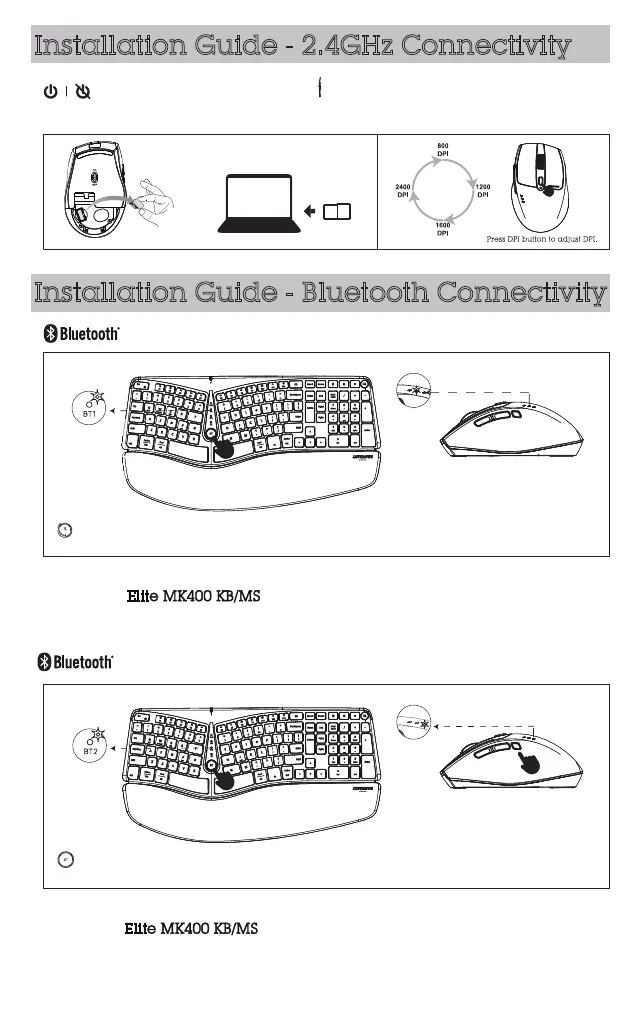
Installation Guide - 2.4GHz Connectivity
Installation Guide - Bluetooth Connectivity
Connecting to bluetooth device 1.
Connecting to bluetooth device 2.
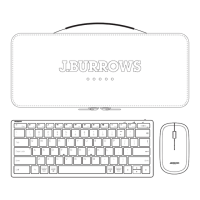
Remove cover and retrieve USB receiver
from the mouse.
Take out USB receiver from the receiver compartment of the mouse bottom.
Turn on the power switch of mouse and keyboard.
Plug the USB receiver in computer port.
and select .
Now it is in Bluetooth pairing mode. Go to Bluetooth setting on your device
Follow the onscreen instructions to complete
the pairing. The light will turn off once Bluetooth pairing is successful.
and select .
Now it is in Bluetooth pairing mode. Go to Bluetooth setting on your device
Follow the onscreen instructions to complete
the pairing. The light will turn off once Bluetooth pairing is successful.
Press BT button and select BT1, the green light flashes once.
Hold and press the BT button for 5s to enter Bluetooth pairing mode.
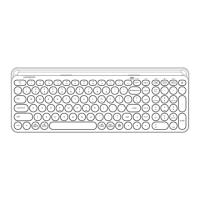
Keyboard:
Press connect button and select BT1,
the white light flashes once.
Hold and press the Connect button for
5s to enter Bluetooth pairing mode.
Mouse:
Press BT button and select BT2, the green light flashes once.
Hold and press the BT button for 5s to enter Bluetooth pairing mode.
Keyboard:
Press connect button and select BT2,
the white light flashes once.
Hold and press the Connect button for
5s to enter Bluetooth pairing mode.
Mouse:



 To Next Page