Note: pls install usb driver first, if you use usb wire.
2. Parameter settings in scale:
"PERI" = "EXCEL" (external device)
"BAUD" = "2400"/"4800"/"9600" (baud rate)
"PRT.M" = "KEY"/"STABLE" (printing model)
"PRT.F" = "PRT.F01" (printing format)
Enable the function of “Use Serial Keys” in the computer
Set Windows XP as a example:
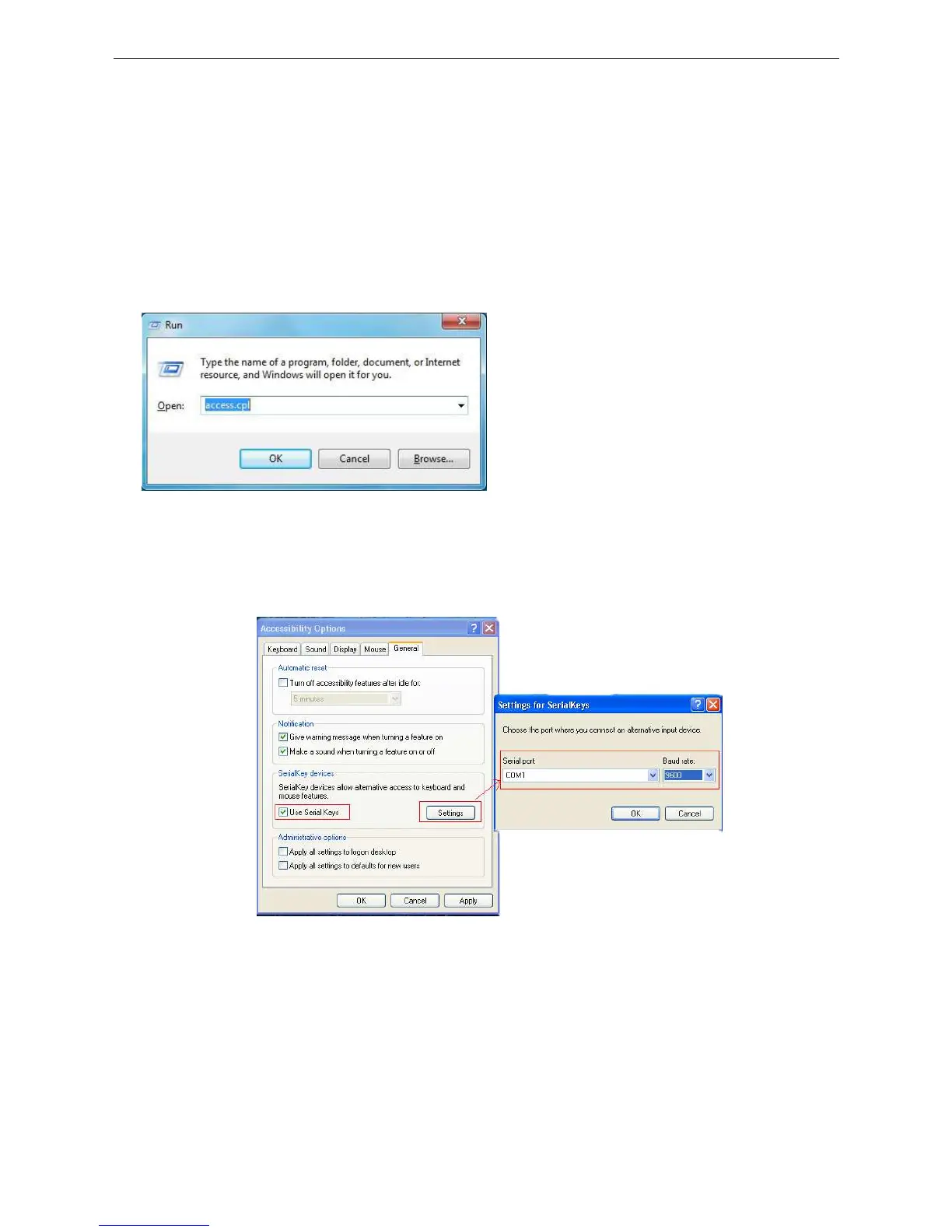
1. Press “Start” ->"Run", and enter “access.cpl” ->”OK”.
2. In the dialog box ”Accessibility Options”, enter General option, choose “Use Serial Keys”
and press “Settings”.
In the dialog box ”Settings for SerialKeys” , set the corresponding Serial port and Baud
rate, which should be same as Baud rate in scale.
3. Test if Serial Keys works well.
Open a Text Document, and press the Print buotton on the scale. The Serial Keys works
well, if pc exports the weighing data to Text.


 To Next Page