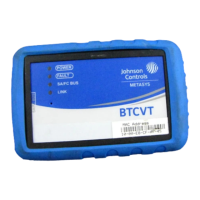
Callout Description
D The A button, for display scrolling
E USB-C port
F Micro SD card slot
G The B button, for mode selecting
H End-of-line switch (bottom side)
Screen layout
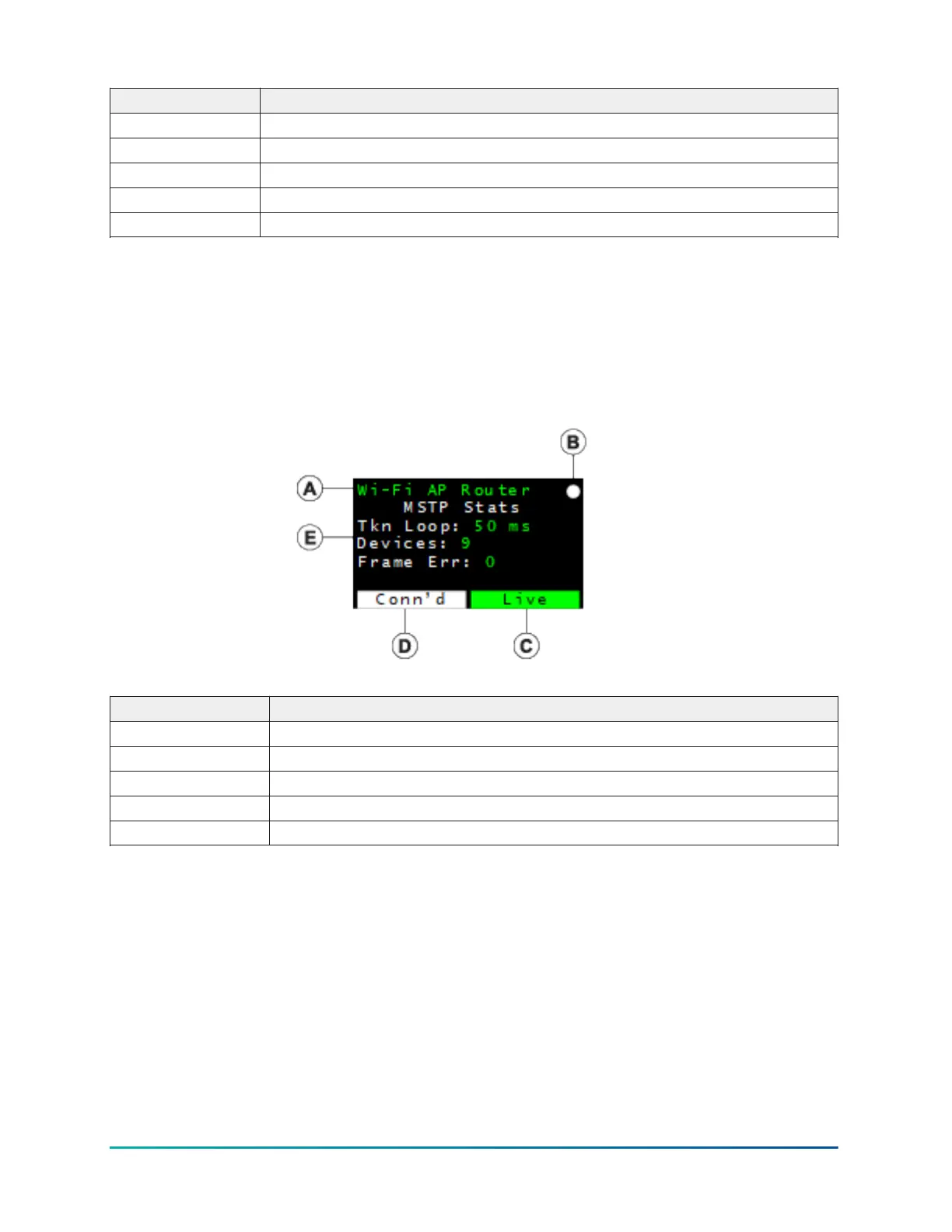
The general screen layout consists of the current wireless mode, the heartbeat, end-of-line switch,
and SD card system icons, page information that is specific to that page, and status of the wireless
and MS/TP connections.
Figure 2: CWCVT screen
Callout Description
A Current wireless mode
B System icons
C MS/TP connection status
D Wireless connection status
E Page title and information
Display rotation
The display can rotate 180 degrees to make the CWCVT easier to use for both right- and left-handed
users.
About this task:
To rotate the display, complete the following steps:
1. Press and hold the A button to rotate the display to the opposite orientation.
2. Release the button to lock the display into that view.
CWCVT Wireless MS/TP Converter User Guide6



 To Next Page