Chapter 6 GPS/GNSS 69
Importing Waypoints and Tracks
Waypoint and track le formats must be .kml, .kmz or .csv.
CSV les must contain a column for both latitude and
longitude.
To import a waypoint or track le, place the le into the \
My Documents\My Waypoints or \My Tracks directory. You
can create subdirectories to organize your data if you want.
Once you place a waypoint or track le into the proper
directory or subdirectory, it appears in the list of les.
An imported track le can only contain one track if you
are going to navigate to a specic track. If a le contains
multiple tracks, a key inside of JSNav is available to extract
the tracks into separate les.
Navigating to a Waypoint or Track
You can navigate back to any saved waypoint or track.
Select the le you want to navigate to as described in the
previous section, Managing Waypoints and Tracks. Select
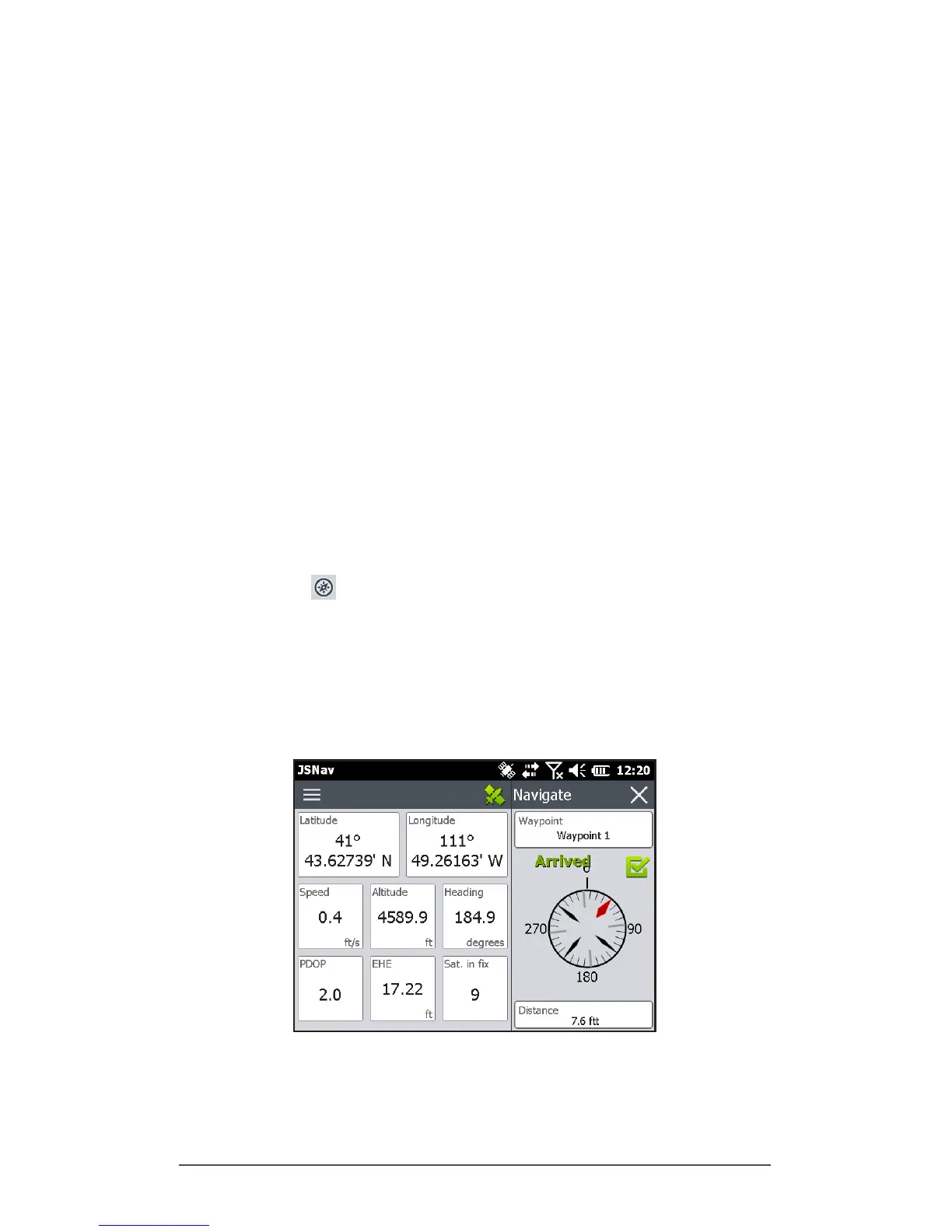
the compass icon.
A rotating compass is shown. Travel in the direction of the
red arrow. The distance shown decreases as you get closer.
When you reach the navigation distance threshold set up
in the settings, text saying Arrived is shown and you hear a
beep if audio notication has been set up.



 To Next Page