Fast Track to Rack Installaon and Power
SUMMARY
This procedure guides you through the simplest
steps for the most common installaon to get your
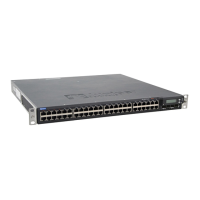
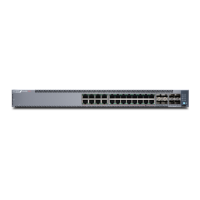
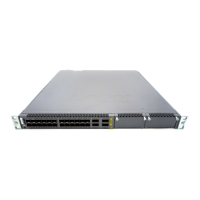
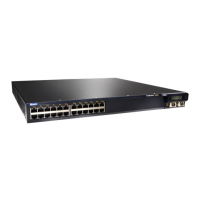
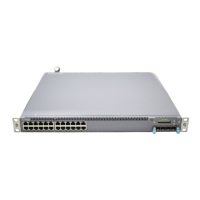
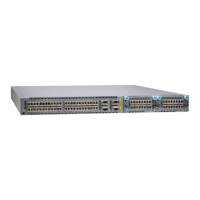
EX4400 switch in a rack and connect it to power.
Have more complex installaon needs? See "Install
the EX4400 Switch" on page 143.
IN THIS SECTION
Install the EX4400 in a Rack | 2
Connect to Power | 3
Install the EX4400 in a Rack
You can install the EX4400 switch on a desktop or other level surface, in a two-post or four-post rack, or
on a wall. We’ll walk you through the steps to install an AC-powered switch in a two-post rack.
Before you install, review the following:
• "EX4400 Site Guidelines and Requirements" on page 118.
• General Safety Guidelines and Warnings.
• "Packing List for an EX4400 Switch" on page 144.
1. Place the switch on a at, stable surface.
2. Wrap and fasten one end of the ESD grounding strap around your bare wrist, and connect the other
end to a site ESD point.
3. Aach the mounng brackets to the sides of the EX4400 switch using the eight screws in the rack
mount kit and a screwdriver.
4. Li the switch and posion it in the rack. Posion the switch so that the AIR IN labels on the fan
modules are facing the cold aisle, or the AIR OUT labels on the fan modules are facing the hot aisle.
2




 To Next Page