• (Oponal) Stac routes to remote prexes with access to the management port
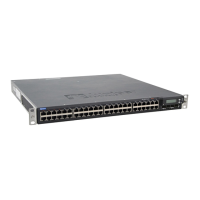
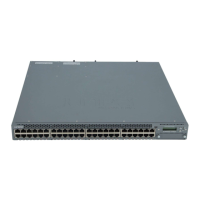
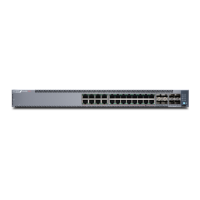
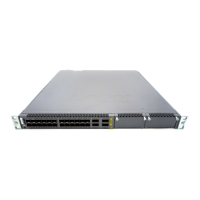
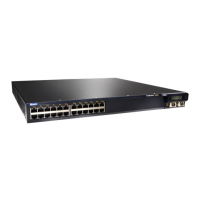
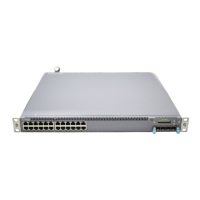
We ship the EX4400 switch with Junos OS preinstalled and ready to be congured when the switch is
powered on. You must perform the inial conguraon of the EX4400 through the console port (labeled
CON) on the rear panel of the switch by using the command-line interface (CLI).
This procedure describes how to perform the inial conguraon on the switch and to connect it to the
network. For the complete informaon about enabling the switch to forward trac, including examples,
see the Junos OS conguraon guides.
To perform the inial conguraon on the switch and to connect it to the network:
1. Power on the switch.
2. Connect the console port (labeled CON) to a management host such as a laptop or PC by using an
RJ-45 to DB-9 serial port adapter. On EX4400 switch models except EX4400-24X, the console port
is on the rear panel. On the EX4400-24X model, the console port is on the front panel.
NOTE: We no longer include the RJ-45 console cable with the DB-9 adapter as part of the
device package. If the console cable and adapter are not included in your device package, or
if you need a dierent type of adapter, you can order the following separately:
• RJ-45 to DB-9 adapter (JNP-CBL-RJ45-DB9)
• RJ-45 to USB-A adapter (JNP-CBL-RJ45-USBA)
• RJ-45 to USB-C adapter (JNP-CBL-RJ45-USBC)
If you want to use RJ-45 to USB-A or RJ-45 to USB-C adapter you must have X64 (64-Bit)
Virtual COM port (VCP) driver installed on your PC. See, hps://dichip.com/drivers/vcp-
drivers/ to download the driver.
3. At the Junos OS login prompt, type root to log in. You don't need to enter a password. If the
soware boots before you connect to the console port, you might need to press the Enter key for
the prompt to appear.
login: root
4. Start the CLI.
root@:RE:0% cli
root>
180




 To Next Page