Uploading the License Key File Contents
To upload the license key file, follow these steps:
1. Open the Juniper Networks Authorization Codes e-mail you received and follow the
directions.
2. Open the license key text file attached to the e-mail and copy all the contents.
3. In Junos Space Application Chooser, click the Network Application Platform application
icon.
4. In the task ribbon, click the Administration workspace icon. The Administration
dashboard appears.
5. In the task ribbon, click the Manage Licenses task icon. The Manage Licenses inventory
page appears.
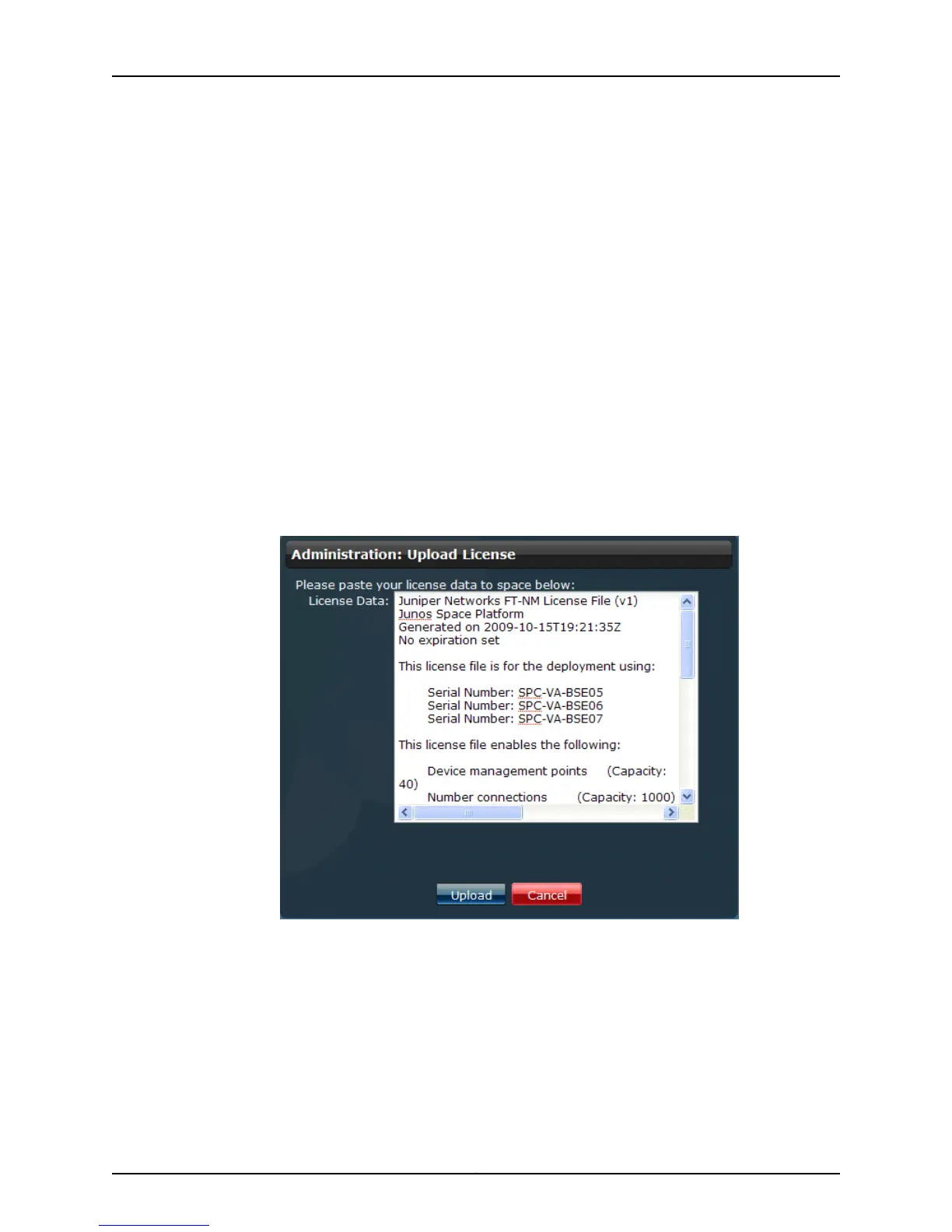
6. In the task ribbon, click the Upload License icon. The Upload License page appears.
7. Paste the contents of the license key text file in the License Data text field using the
Web browser Edit > Paste command.
8. Click Upload. The license key data is uploaded in Junos Space database. The License
Information screen displays the license upload results.
9. Click OK. The license appears on the Manage Licenses inventory page.
Copyright © 2010, Juniper Networks, Inc.46
Junos Space Virtual Appliance Installation Guide



 To Next Page