16 Mesa Rugged Notepad Owner’s Manual
Mesa Hardware Components
This chapter discusses the Mesa Rugged Notepad hardware
features and usage.
Navigating Around Your Mesa
Using Gestures and Making Selections
The Windows
®
Embedded Handheld operating system
enhances the Mesa’s ability to recognize touch gestures,
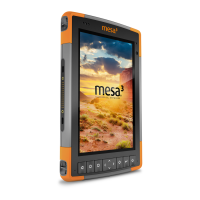
making it easy to use a nger to navigate. The Mesa buons
can also be used. Navigation options vary depending on the
screen you are on. Here is a partial list of options:
Vertical and Horizontal Movement
1. Flick up, down or sideways on the touchscreen.
2. For more precise positioning, touch, hold, and move the
screen in the desired direction.
3. Use the scroll bar if it is available.
4. Use the arrow buons on the ve-way directional buon.
5. On control panels press the le or right arrow keys at the
top of the screen to scroll horizontally (this feature replaces
tabs).
Making a Selection
1. Press or tap the item you want to select, turn on, or activate.
2. Press and hold an icon to bring up a conguration screen,
menu, or list.
3. Press the action buon in the center of the ve-way
directional buon.



 To Next Page