72 Mesa Rugged Notepad Owner’s Manual
Barcode Scanner
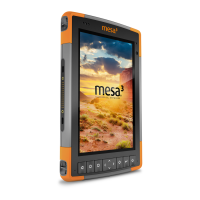
The Mesa Rugged Notepad
™
with a barcode scanner and
Barcode Connector
™
utility allows you to read 1D and 2D
barcodes and easily import barcode data into standard or
custom programs running on the Mesa.
Using the Barcode Scanner
To use the Mesa with the barcode scanner, follow these steps:
1. When the Mesa is turned on or power is applied, the
Barcode Connector
™
utility automatically opens. If it
doesn’t, open it by selecting the Barcode Connector icon
from the Mesa Home screen
.
2. From the Barcode Connector
™
utility screen, select Barcode
Setup. Congure the barcode seings as described in the
next section.
3. Minimize the Barcode Connector
™
utility to see the Home
screen. Open a document to receive the barcode data.
Microso
®
Oce Excel
®
Mobile, Microso
®
Word Mobile,
and Notes are provided on the Mesa.
Note: If the application you want isn’t shown on the Home screen,
tap the Windows so key to view and select an application.
4. Put the cursor where you want the barcode data to be
placed on the document.



 To Next Page