18 Mesa Rugged Notepad Owner’s Manual
Display and Touchscreen
The Mesa has a bright color display and touchscreen with a
diagonal viewing area of 5.7 inches (145 mm). It is easy to view
outdoors and sealed against water and dust.
Adjusting Display Settings
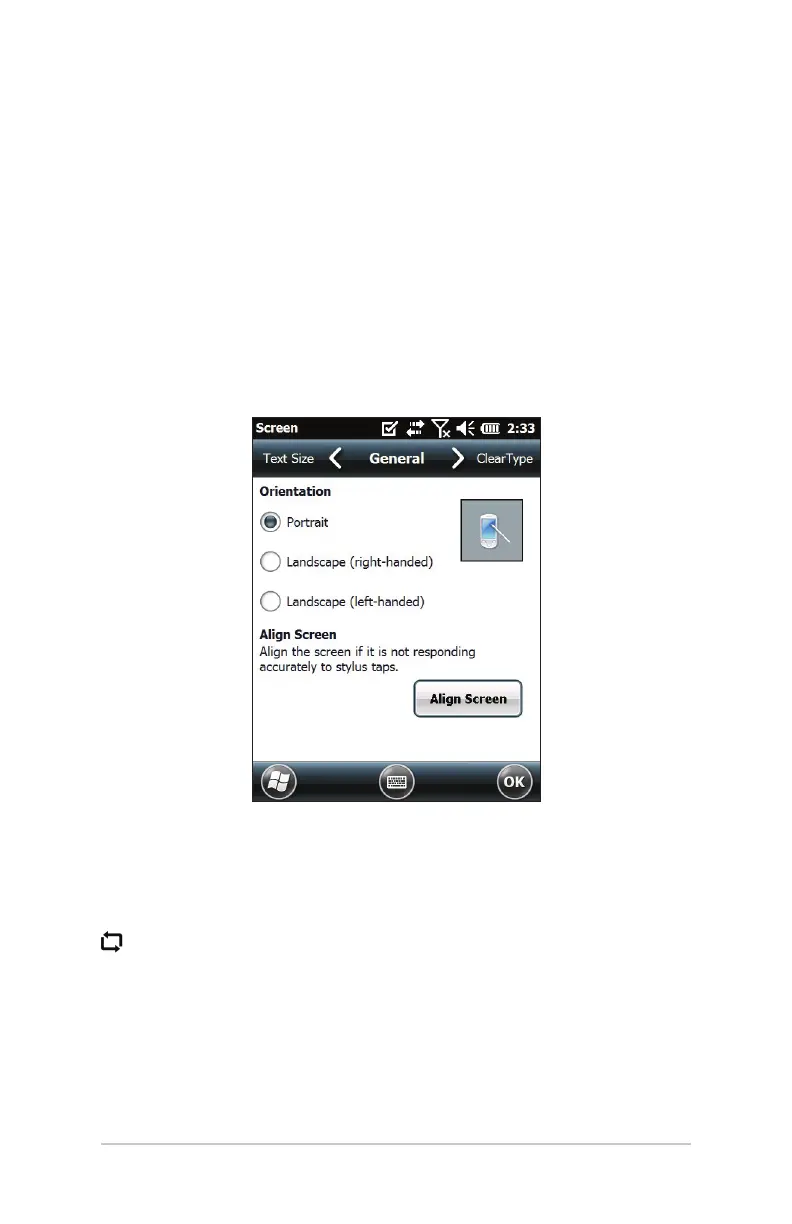
To adjust the default display seings including the text size,
alignment and orientation, go to the Screen control panel, Start
> Seings> System > Screen. There are also shortcuts to some of
the seings described in the text that follows.
Screen Orientation
The Mesa screen can be used in either portrait or landscape
mode. The default is portrait mode. To switch the screen
orientation, press and release the screen orientation buon
. The default landscape orientation is right-handed. To select
le-handed orientation, go to Start > Seings > System > Screen.
Screen Alignment
The Mesa touchscreen is precalibrated. If it needs to be
adjusted, tap the Align Screen buon and follow the prompts.
We recommend that you use a stylus to align the screen.



 To Next Page