&KDSWHU&RQILJXULQJWKH'HYLFH
,QVWDOOHU·V*XLGH
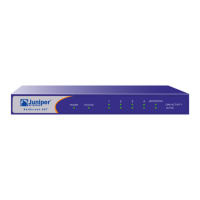
To set the IP address of the NetScreen-50 Trust zone interface:
1. Choose an unused IP address within the current address range of your Local
Area Network.
2. Set the IP address of the Trust zone interface to this unused IP address by
executing the following command:
set interface ethernet1 ip ip_addr/mask
For example, to set the IP address and subnet mask of the Trust zone interface
to 10.100.2.183 and 255.255.0.0, respectively:
set interface ethernet1 ip 10.100.2.183/16
3. To confirm the new port settings, execute the following command:
get interface
You should see that the IP address for the Trust zone interface is the IP address
you set.
&RQQHFWLQJ8VLQJ7HOQHW
To establish a Telnet session with the NetScreen-50 device:
1. Connect an RJ-45 cross-over cable from the Trust zone interface on the
NetScreen-50 device to the internal switch, router, or hub in your LAN (see
“Connecting the Device to a Network” on page 14).
2. Open a Telnet session, specifying the current IP address for the Trust zone
interface. For example, in Windows, click Start >> Run, enter telnet ip_addr
(where ip_addr is the address of the Trust zone interface), and then click OK.
For example, if the IP address of the Trust zone interface is 10.100.2.183, enter:
telnet 10.100.2.183
3. At the Username prompt, type netscreen.
4. At the Password prompt, type netscreen.
5. (Optional) By default, the console times out and terminates automatically after
10 minutes of idle time. To change the timeout value, execute the following
command:
set console timeout number
where number is the length of idle time, in minutes, before session termination.
To prevent automatic termination, specify a value of 0.
Note: Use lowercase letters only. Both Username and Password are case-
sensitive.


 To Next Page