Chapter 3 Configuring the Device
12 User’s Guide
ESTABLISHING A CONSOLE SESSION
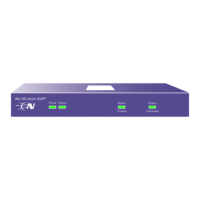
The NetScreen-5XP device has a serial port (called the Console port) that enables you to
establish a console session with ScreenOS, the device operating system.
To establish a console session:
1. Plug the female DB-9 end of the serial cable into the serial port of your
computer. (Be sure that the DB-9 clip is seated properly in the port.)
2. Plug the male DB-9 end of the serial cable into the Console port of the
NetScreen-5XP device. (Be sure that the DB-9 is seated properly in the port.)
3. Launch a serial terminal program. (A commonly-used terminal program is
Hilgraeve HyperTerminal.) Typical settings to launch a console session with
your NetScreen-5XP device are as follows:
• Baud Rate to 9600
• Parity to No
• Data Bits to 8
• Stop Bit to 1
• Flow Control to none
4. At the login prompt, type netscreen.
5. At the password prompt, type netscreen.
CHANGING YOUR ADMIN NAME AND PASSWORD
Because all NetScreen products use the same admin name and password (netscreen), it
is highly advisable to change your admin name and password immediately. Enter the
following commands:
set admin name name_str
set admin password pswd_str
save
For information on creating different levels of administrators, see “Administration” in the
NetScreen Concepts & Examples ScreenOS Reference Guide.
Important: For the console connection, you will need to obtain a serial cable with a male
DB-9 connector on one end and female DB-9 connector on the other end.
Note: Both login and password are case-sensitive.



 To Next Page