Using the “Theater Optimizer”
1
Press the [MENU] button to display the menu, followed by selecting “Installation” "
“Screen Setting” to display the “Screen Setting” menu.
0
You can also display the menu by selecting “Screen Setting” from the “Theater Optimizer” menu.
2
Select “Screen Size(Diagonal)” to configure the size of the screen in use.
0
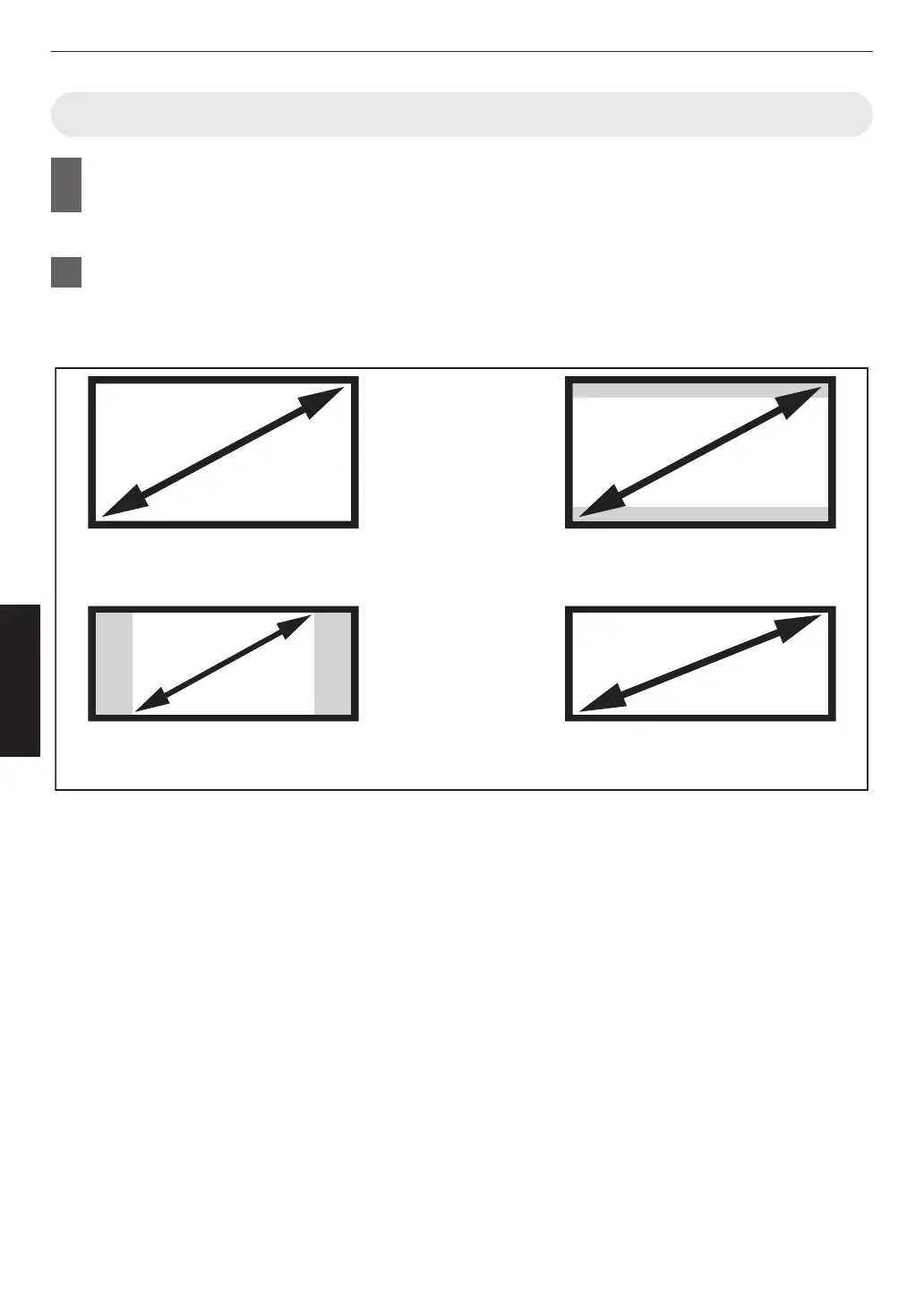
This configures the size of the screen for viewing when using “Theater Optimizer”. However, to project an
image with an aspect ratio other than 2.35:1 on a 2.35:1 screen, configure the size of the projected image.
Example on configuring the screen size
To project a 16:9 image on a 16:9
screen
Configure the size of the screen.
(a)
(c)
To project a 2.35:1 image on a 16:9
screen
Configure the size of the screen.
(b)
To project a 16:9 image on a 2.35:1
screen
Configure the size of the projected image.
To project a 2.35:1 image on a 2.35:1
screen
Configure the size of the screen.
(d)
48
Adjust/Set



 To Next Page
 Loading...