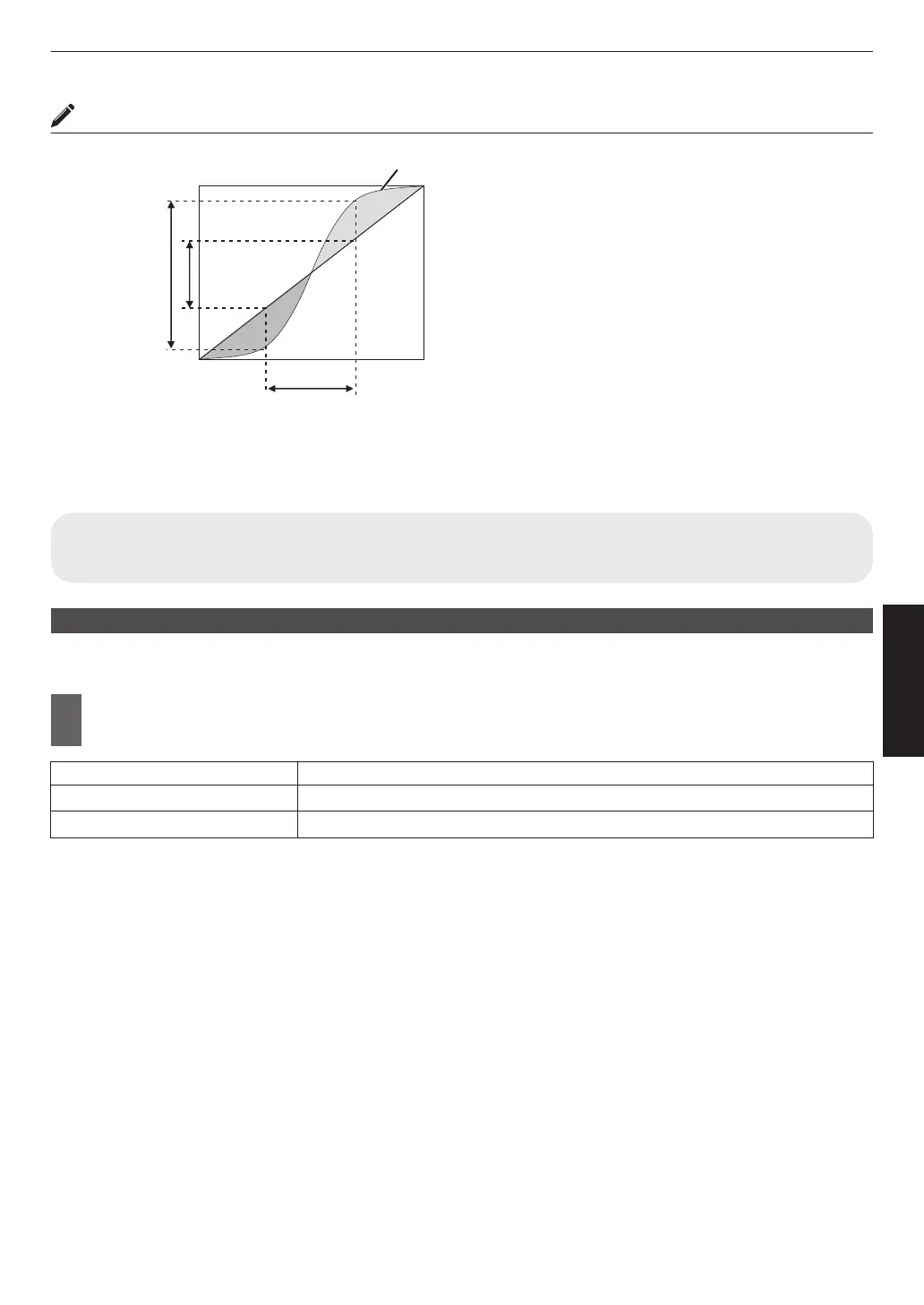
Gamma Adjustment
0
When the gamma curve is a straight line:
The brightness and contrast of the video input will be
the same as that of the video output.
0
Area for which the gamma curve is above the straight
line (A):
Video output appears brighter than the input.
0
Area for which the gamma curve is below the straight
line (B):
Video output appears darker than the input.
0
Area for which the slope of the gamma curve is steep
(midtone) (C):
The grayscale range of the video output becomes
wider, and the contrast increases (D"D’).
C
B
A
D
0 255
0
255
D”
Gamma Curve
Input Value
Output Value
Dark
Dark
Bright
Bright
Reducing the Delay and After-image of Fast-moving Images (Motion
Control)
Low Latency
For changing the low latency setting.
You are recommended to set to “On” for content requiring short latency such as games.
1
Press the [MENU] button to display the menu and select “Picture Adjust”"“Motion
Control”"“Low Latency”
Setting Description
Off Does not perform the low latency setting.
On Performs the low latency setting.
* “Low Latency” cannot be set when “Picture Mode” is set to “HDR10+”/“Frame Adapt HDR”.
* “Low Latency” cannot be configured when “Dynamic CTRL” is configured to a setting other than “Off”.
x
y z 5 6 7
* “Low Latency” cannot be configured when “Aperture” is configured to a setting other than “Manual”. 4 8
* “Clear Motion Drive” cannot be set when “Low Latency” is set to “On”.
* Even when “Low Latency” is set to “On”, delay will not become zero.
59
Adjust/Set



 To Next Page
 Loading...