60 EN
Master Page: Left
GR-DVX707EG_37-79.fm Page 60
You can make video clips in 160 x 120 pixels from
real-time camera image or recorded video footage
and store them in a memory card as files which can
be conveniently sent via E-Mail.
To make video clips from real-time camera
image
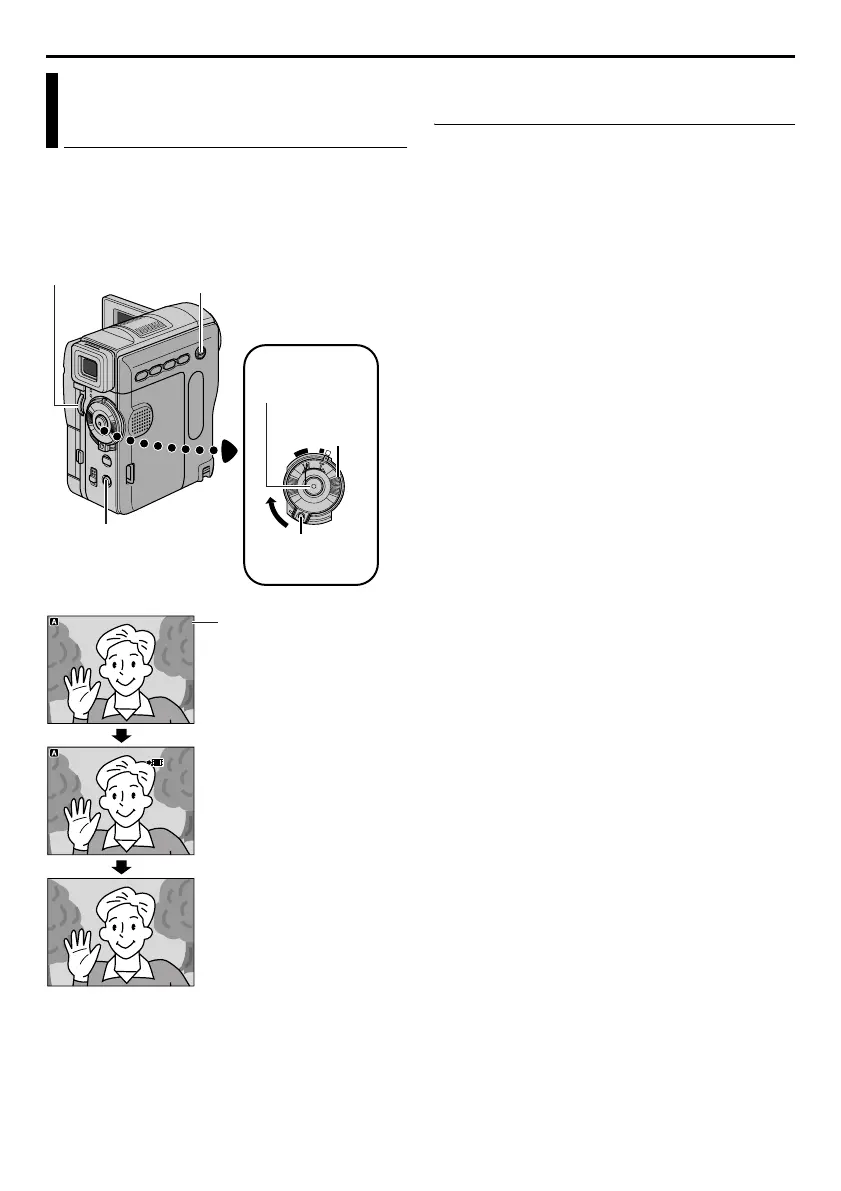
1
Load a memory card. (墌 pg. 17)
2 Set the VIDEO/MEMORY Switch to “MEMORY”.
3 Set the Power Switch to “A” or “M” while
pressing down the Lock Button located on the
switch.
4 Press E-MAIL to engage the E-Mail Clip Record-
Standby mode.
● “E-MAIL CLIP” appears.
5 Press the Recording Start/Stop Button to start
recording.
6 Press the Recording Start/Stop Button to stop
recording.
● “COMPLETED” is displayed, then the
camcorder re-enters the E-Mail Clip Record-
Standby mode.
7 Press E-MAIL to end E-Mail Clip Recording. The
normal screen reappears.
To view video clips stored in a memory card…
Refer to “Playback Of Video Clips (GR-DVX707
only)” (墌 pg. 29).
To delete unwanted video clips stored in a memory
card…
Refer to “Deleting Files” (墌 pg. 33).
E-Mail Clip Recording
(GR-DVX707 only)
OFF
P
L
A
Y
A
M
ILCLIAM
-
E P
ILCLIAM
-
E P
00 : 15
CER
16 0
35
00 : 00
STANDBY
m i n
1 06
ILCLIAM
-
EP
ILCLIAM
-
EP
e
00: 15
CER
160
3
mi n
5
00: 00
STANDBY
160 35
m i n
3
mi n
5
OC DPL ETM EOCDPLETME
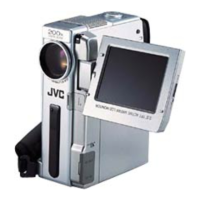
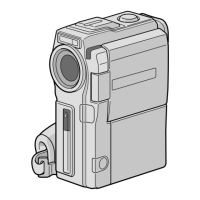
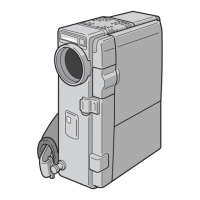
Lock Button
E-MAIL Button
VIDEO/MEMORY Switch
Power Switch
Shooting starts when the
Recording Start/Stop
Button is pressed.
Shooting stops when the
Recording Start/Stop
Button is pressed again.
Recording is complete.
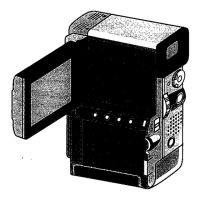
MENU Wheel
Recording Start/
Stop Button
Remaining time
FEATURES FOR RECORDING (cont.)
GR-DVX707EG_37-79.fm Page 60 Thursday, January 31, 2002 12:19 PM


 To Next Page