Masterpage:Left-FullCol
76 EN
Filename [HM-100U_Eng_05Index.fm]
OTHER USEFUL FUNCTIONS (cont.)
B Digital Manual Setting
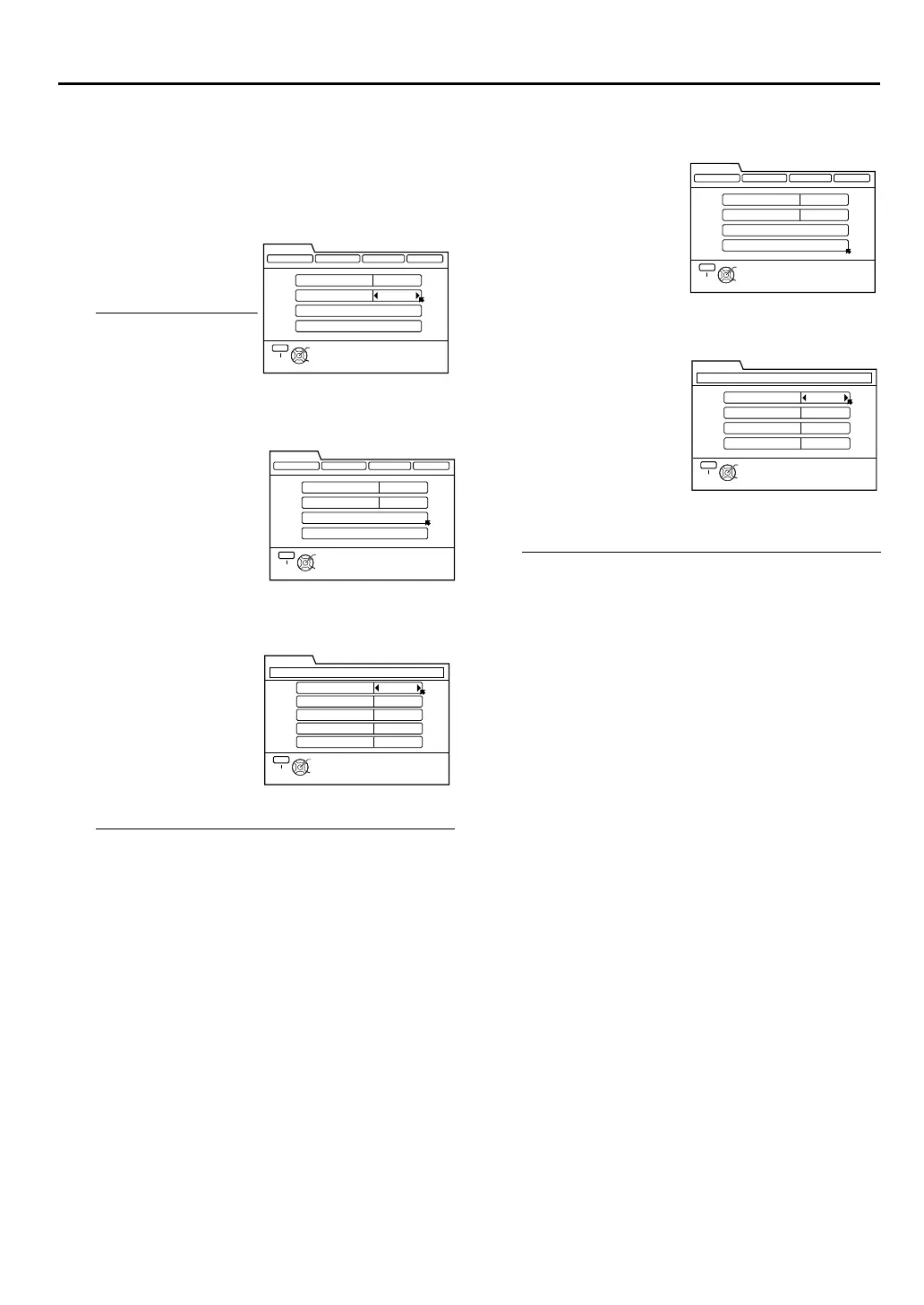
First follow steps 1 to 3 on page 75, then go to the
following steps.
4 Set manual mode
5 Access Font/Type menu screen
6 Select font/type
•The “FONT SIZE” item allows you to set the size
of the caption text. Each time you press [D E], the
font size changes as follows:
U “DEFAULT” U “STANDARD” U “SMALL” U
“LARGE” U (back to beginning)
•The “FONT STYLE” item allows you to set the font
of the caption text. Each time you press [D E], the
font style changes as follows:
U “DEFAULT” U “SERIF MONO” U “SERIF” U
“SANS MONO” U “SANS” U “CASUAL” U
“CURSIVE” U “SMALL CAPITAL” U (back to
beginning)
•To set the caption text to italic, underline or bold,
press [D E] to select “YES”.
7 Access Color menu screen
8 Select color
•The “TEXT COLOR” and “BKGND COLOR” items
allow you to set the color of the caption text and
its background respectively. Each time you press
[D E], the color changes as follows:
U “DEFAULT” U “BLACK” U “WHITE” U
“RED” U “GREEN” U “BLUE” U “YELLOW” U
“MAGENTA” U “CYAN” U (back to beginning)
•The “TEXT OPACITY” and “BKGND OPACITY”
items allow you to set the opacity for the caption
text and its background respectively. Each time
you press [D E], the opacity changes as follows:
U “DEFAULT” U “SOLID” U “TRANSPARENT”
U “TRANSLUCENT” U “FLASHING” U (back to
beginning)
9 Return to normal screen
Press [MENU].
NOTE:
When “DEFAULT” has been selected for the font/type and color setting, the setting for the individual item will be as follows:
“STANDARD” for Font Size, “WHITE” for Text Color, “SOLID” for Text Opacity, “BLACK” for Background Color and “SOLID” for
Background Opacity.
Press [
FG
] to move the
arrow to “CC DISPLAY”,
then press [
D E
] to
select “MANUAL”.
•The “FONT/TYPE”
and “COLOR” items
on the menu screen
will be enabled.
Press [FG] to move
the arrow to “FONT/
TYPE”, then press
[OK].
Press [FG] to select
the individual items
“FONT SIZE”, “FONT
STYLE”, “ITALIC”,
“UNDERLINE” and
“BOLD”, and press [D
E] to enter the desired
setting. Then press
[OK] upon completing
the necessary settings.
THEN PRESS [OK]
SELECT WITH ARROW KEYS
SELECT
OK
EXIT
MENU
DIGITAL SET UP
DIGITAL PROGRAM CLOSED CAPTION
TUNER PARENTAL
SERVICE TYPE
CC DISPLAY
FONT/TYPE
COLOR
1
MANUAL
THEN PRESS [OK]
SELECT WITH ARROW KEYS
SELECT
OK
EXIT
MENU
DIGITAL SET UP
DIGITAL PROGRAM CLOSED CAPTION
TUNER PARENTAL
SERVICE TYPE
CC DISPLAY
FONT/TYPE
COLOR
1
MANUAL
THEN PRESS [OK]
FONT SIZE
FONT STYLE
ITALIC
UNDERLINE
BOLD
SELECT WITH ARROW KEYS
SELECT
OK
EXIT
MENU
DEFAULT
DEFAULT
NO
NO
FONT/TYPE
DIGITAL SET UP
NO
Press [FG] to move
the arrow to
“COLOR”, then press
[OK].
Press [FG] to select
the individual items
“TEXT COLOR”, “TEXT
OPACITY”, “BKGND
COLOR” and “BKGND
OPACITY”, and press
[D E] to enter the
desired setting. Then
press [OK] upon
completing the
necessary settings.
THEN PRESS [OK]
SELECT WITH ARROW KEYS
SELECT
OK
EXIT
MENU
DIGITAL SET UP
DIGITAL PROGRAM CLOSED CAPTION
TUNER PARENTAL
SERVICE TYPE
CC DISPLAY
FONT/TYPE
COLOR
1
MANUAL
THEN PRESS [OK]
SELECT WITH ARROW KEYS
SELECT
OK
EXIT
MENU
COLOR
DIGITAL SET UP
TEXT COLOR
TEXT OPACITY
BKGND COLOR
BKGND OPACITY
DEFAULT
DEFAULT
DEFAULT
DEFAULT
HM-DH100U_Eng.book Page 76 Thursday, August 5, 2004 1:54 PM


 To Next Page
 Loading...