EN 29
ACCESS SHOW VIEW
PROGRAM SCREEN
3
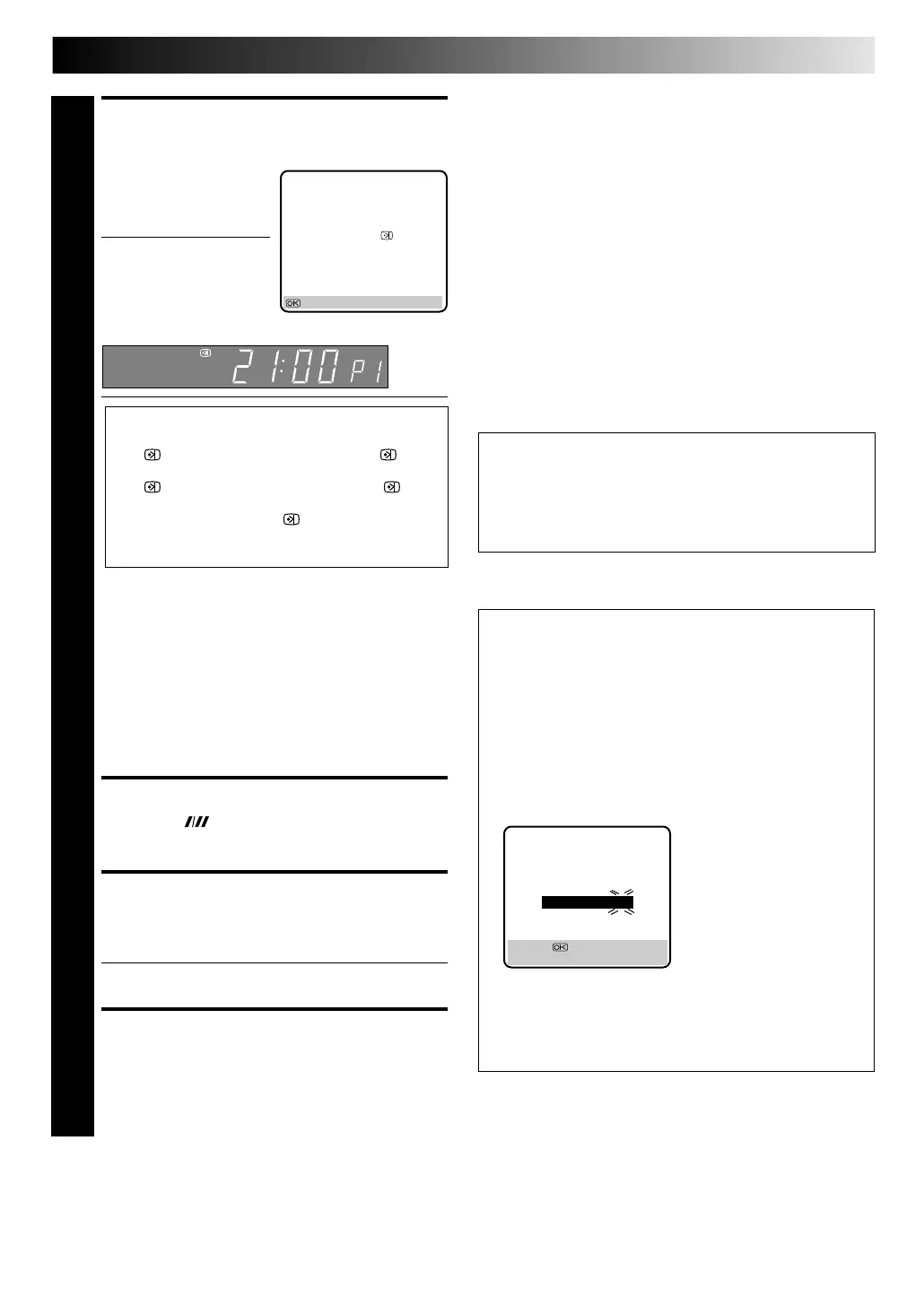
Press O K, and the
SHOW VIEW Program screen
appears (if you’re just
starting out, “P1” appears).
The display panel shows
the programme start time.
Pressing PRO G. CHECK
changes the display to the
programme stop time, then
the date and channel position.
IM PO RTANT
Be sure to confirm the setting of PDC/VPS recording.
● If " ON" is displayed on the screen or " " is lit
on the display panel, PDC/VPS is set to ON.
● If " OFF" is displayed on the screen or " " is
not lit on the display panel, PDC/VPS is set to OFF.
To change the setting, press : PDC/ VPS
(NUM BER key "7").
Z "PDC/VPS Recording" on page 33.
● Make sure the channel position number you wish to
record is displayed; if not, see "S
HOWVIEW Setup" on
page 10 and set the Guide Program number for that
SHOWVIEW number correctly.
● If the number you entered is invalid, "ERROR"
appears on the screen and "Err" appears on the
display panel. Press CAN CEL to backspace and input
a valid SHOW VIEW number.
● If "ERROR=GUIDE PROG" appears on the screen, see
"ATTENTION – Regarding Guide Program Number
Set" in the right column.
● If you are using the Illumi-Guide feature, O K blinks.
SET TAPE SPEED
4
Press SP/ LP ( ) to set the tape speed.
RETURN TO NORMAL
SCREEN
5
Press O K.
● Repeat steps 1 – 5 for each additional programme.
ENGAGE RECORDER’S
TIMER MODE
6
Press TIM ER. The recorder turns off automatically.
N OTE:
To Delay The Stop Time . . .
. . . press ADD TIM E (NU M BER Key "5") after pressing OK in
step 3. Each time you press, the Stop time is delayed by 5
minutes (meaning that 5 minutes of recording time is added).
You can easily compensate for anticipated programme schedule
delays this way.
To Timer-Record Weekly Or Daily Serials . . .
. . . after pressing O K in step 3, press W EEKLY (NU MBER key
“9” ) for weekly serials or DAILY (NUM BER key “8” ) for daily
serials (Monday–Friday). Either "WEEKLY" or "DAILY" appears
on the screen. Pressing the button again makes the correspond-
ing indication disappear.
You can programme this recorder to timer-record as many as 8
programmes. If you try to programme the recorder to record a
ninth, "PROGRAM FULL" appears on screen and "FULL" appears
on the front display panel. To record the extra programme, you
must first cancel any unnecessary programmes (Z pg. 32).
– P1 –
SHOWVIEW 123456789
START STOP
21:00 = 22:00
SP
ON
DATE TV PROG
25.12 1
ARD
: OK
SP
Satellite Tuner Users
To timer-record a satellite broadcast using SHOWVIEW,
perform steps 1 – 6 and, before the selected programme
begins, select the appropriate channel on the satellite tuner.
Then set the tuner's timer. If your satellite tuner doesn't
have a timer, leave the unit's power switched on.
ATTEN TIO N
Regarding Guide Program Number Set
"ERROR=GUIDE PROG" appears after performing step 3 on
the previous page if the Guide Program number for the
SHOWVIEW number you entered has not been set.
● If the recorder is in the stop or rewind or fast-forward
mode, the following screen will appear with "– –" under
"TV PROG" blinking.
• Press the N U M BER keys or PUSH JO G %fi to input the
channel position number you recorder receives that
station on, then press O K.
• Press M ENU , then try again from step 1.
● If the recorder is in a mode other than the above mentioned
modes, press M EN U first and input the correct Guide
Program number for that S
HOWVIEW number (Z pg. 10,
"SHOWVIEW Setup"), then try again from step 1.
GUIDE PROG SET
GUIDE PROG TV PROG
2 – –
[5
∞
] =
[MENU] : EXIT
(Ex.) To timer-record a ZDF
programme with SHOW VIEW
* If your recorder receives
ZDF on the channel
position 2, press O K after
entering "2".
Downloaded from: https://www.usersmanualguide.com/



 To Next Page