2
[ MENU]
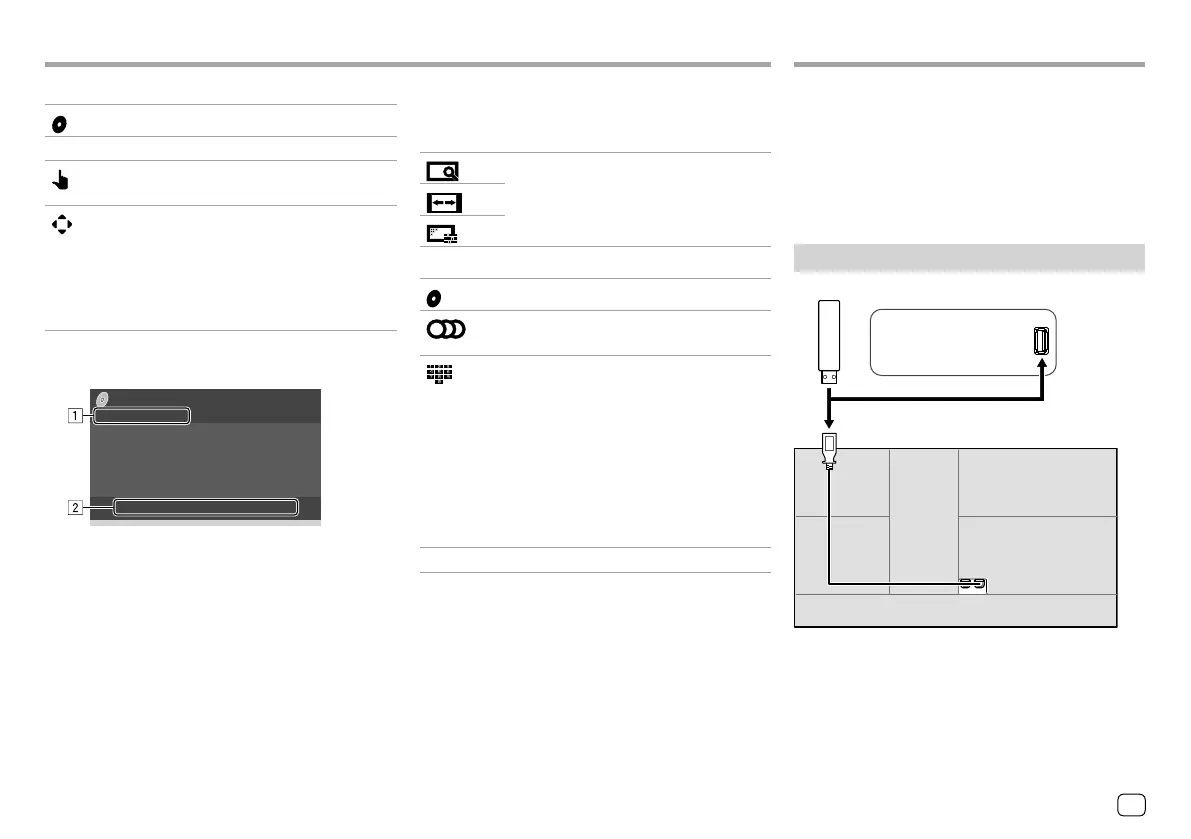
Displays the disc menu (DVD).
[T MENU] Displays the disc menu (DVD).
[
]
Switches to the direct disc menu mode.
Touch the target item to select.
[
]
Displays the menu/scene selection
screen.
• [
J] [K] [H] [I]: Selects an item.
• [Enter]: Confirms the selection.
• [Return]: Returns to the previous
screen.
Video playback for VCD
Menu Control
E.g. Video menu control screen for KW-V240BT
VideoVideo USBUSB
You can connect a USB mass storage class device such
as a USB memory, digital audio player, etc. to the unit.
• For playable file types and other information, see
pages 55 and 58.
• You cannot connect a PC or portable HDD to the
USB input terminal.
• You cannot connect a USB device via a USB hub.
Connecting a USB device
USB device (commercially available)
KW-V340BT
: On the rear panel
KW-V140BT/KW-V240BT
:
On the monitor panel
The source changes to “USB” and playback starts.
• All tracks in the USB device will be played repeatedly
until you change the source or disconnect the USB
device.
Touching the operation keys performs the following
actions:
1
[ ]
Refer to “Video playback except VCD” on
page 12.
[
]
[
]
2
[ MENU]
Displays the disc menu.
[
]
Selects the audio channel
(ST: stereo, L: left, R: right).
[
]*
Displays or hides the direct selection
buttons.
1 Touch [DIR/CLR] to select a track
directly on a VCD.
2 Touch the numbers ([0], [1] to [9]) to
select the desired track.
3 Touch [Enter] to confirm.
To delete the last entry, touch [DIR/
CLR].
[Return] Displays the previous screen or menu.
* You need to stop playback to deactivate the PBC function when
playing a VCD with PBC activated.
13ENGLISH
ENKW-V2018STKR.indb13ENKW-V2018STKR.indb13 2017/05/259:042017/05/259:04


 To Next Page