Selecting a preset station
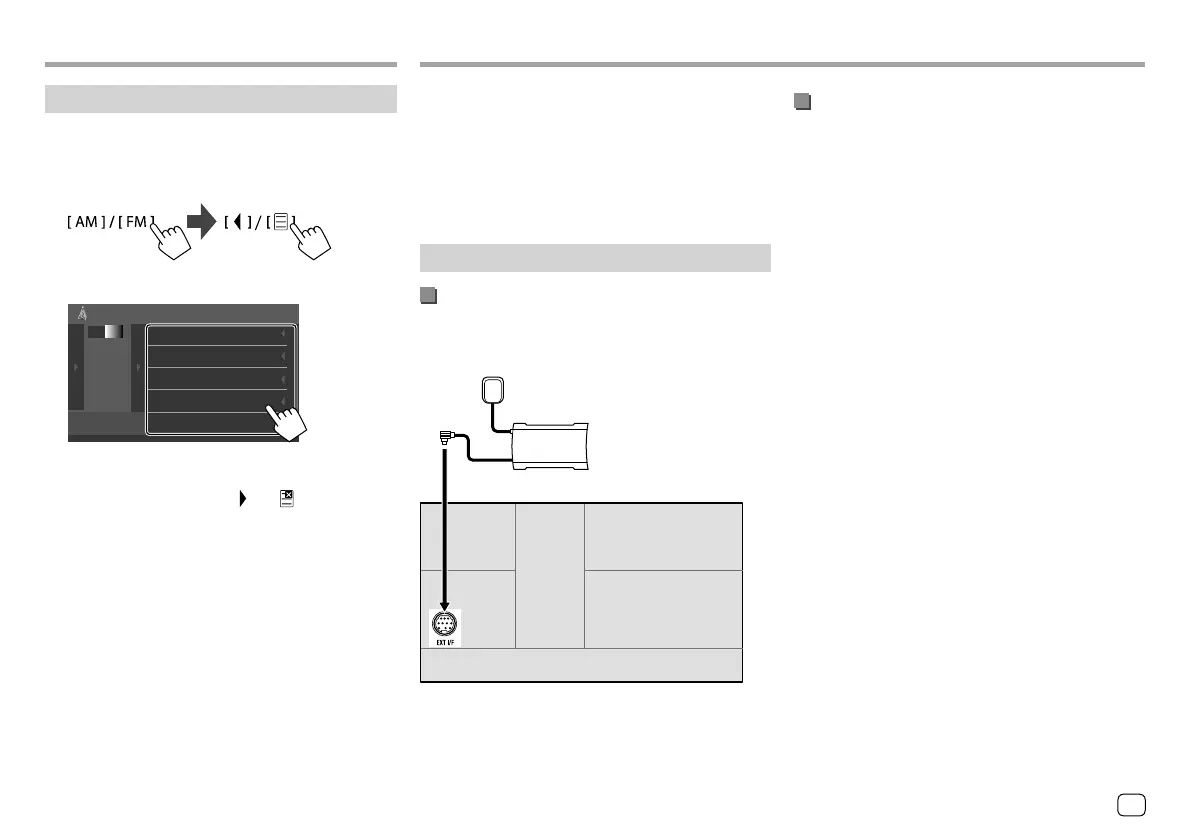
1 Select the band, then display the preset
station window.
On the source control screen, touch as follows:
2 Select a preset station.
AM FM1
FM1
P1
FM1
P2
FM1
P3
FM1
P4
FM1
P5
Tuner
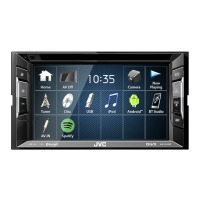
E.g. Preset station window for KW-V240BT
To hide the window: Touch [
] or [ ] .
TunerTuner SiriusXM® Satellite RadioSiriusXM® Satellite Radio (Only for KW-V340BT)
Only SiriusXM® brings you more of what you love
to listen to, all in one place. Get over 140 channels,
including commercial-free music plus the best sports,
news, talk, comedy and entertainment. Welcome to
the world of satellite radio. A SiriusXM Connect Vehicle
Tuner and subscription are required.
For more information, visit <www.siriusxm.com>.
Preparation
Connecting the SiriusXM Connect Vehicle
Tuner
Perform this installation when you install the unit for
the first time.
Antenna
SiriusXM Connect Vehicle
Tuner (commercially
available)
Rear panel
Activating subscription
1 Check your Radio ID.
The SiriusXM Satellite Radio ID is required
for activation and can be found by tuning to
Channel 0 as well as on the label found on the
SiriusXM Connect Vehicle Tuner and its packaging.
• The Radio ID does not include the letters I, O, S or
F.
2 Activate the subscription.
For users in the U.S.A:
• Online: Visit <www.siriusxm.com/activatenow>
• Phone: Call SiriusXM Listener Care at
1-866-635-2349
For users in Canada:
• Online: Visit <www.siriusxm.ca/activatexm>
• Phone: Call XM Customer Care at 1-877-438-9677
3 Confirm the activation.
A confirmation message appears. Touch [Return].
19
ENGLISH
ENKW-V2018STKR.indb19ENKW-V2018STKR.indb19 2017/05/259:042017/05/259:04


 To Next Page