SpotifySpotify
4
[ ]
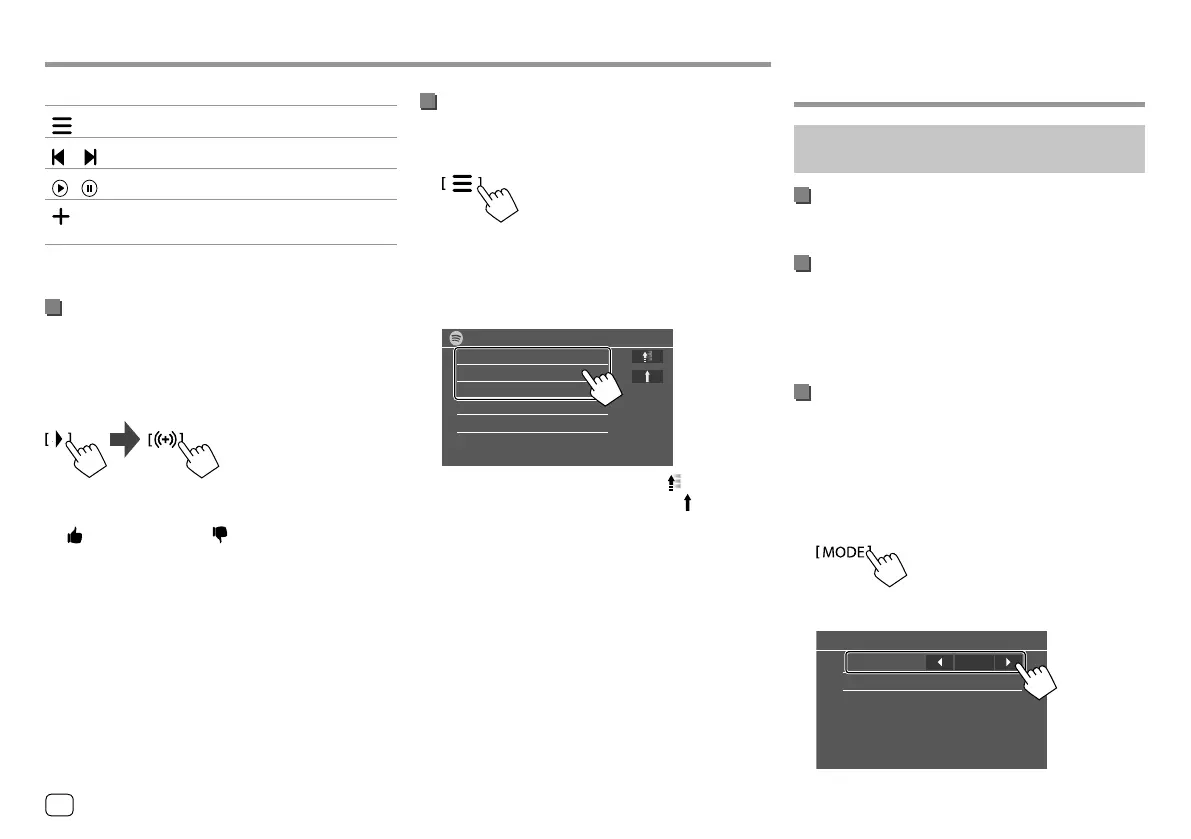
Displays the Spotify menu screen.
[
]*[ ]
Selects a track.
[
][ ]
Starts (
I)/pauses (W) playback.
[
]
Saves the current track/artist to <Your
Music>.
* Available only for premium account users.
Creating your station (Start Radio)
Start Radio is to start a radio channel based on the
currently played track.
Create your station.
On the source control screen, touch as follows:
Station is created and playback starts automatically.
• You can personalize your station using thumb up
([ ]) or thumb down ([ ] ).
– You cannot thumb up or down while playing tracks
in a playlist.
– Personalizing stations may not be available
depending on the track.
Selecting a track
1 Display the Spotify menu screen.
On the source control screen, touch as follows:
2 Select the list type, then select a desired
item.
• The list types displayed differ depending on the
information sent from Spotify.
Spotify
Your Music
Browse
Radio
• To return to the top layer, touch [ ].
• To return to the upper layer, touch [ ] .
Other External Other External
ComponentsComponents
AV-IN
(Only for KW-V240BT Region 4)
Connecting an external component
See page 55 for more information.
Starting playback
1 Select “AV-IN” as the source.
2 Turn on the connected component and
start playing the source.
Changing the AV-IN name
You can change the AV-IN name displayed on the
source control screen.
• This setting does not affect the source name
displayed on the Home screen.
1 Display the <VIDEO Mode> screen.
On the source control screen, touch as follows:
2 Select an AV-IN name
VIDEO Mode
AV-IN Name
VIDEO
32 ENGLISH
ENKW-V2018STKR.indb32ENKW-V2018STKR.indb32 2017/05/259:042017/05/259:04


 To Next Page