Bluetooth®Bluetooth®
Making a call
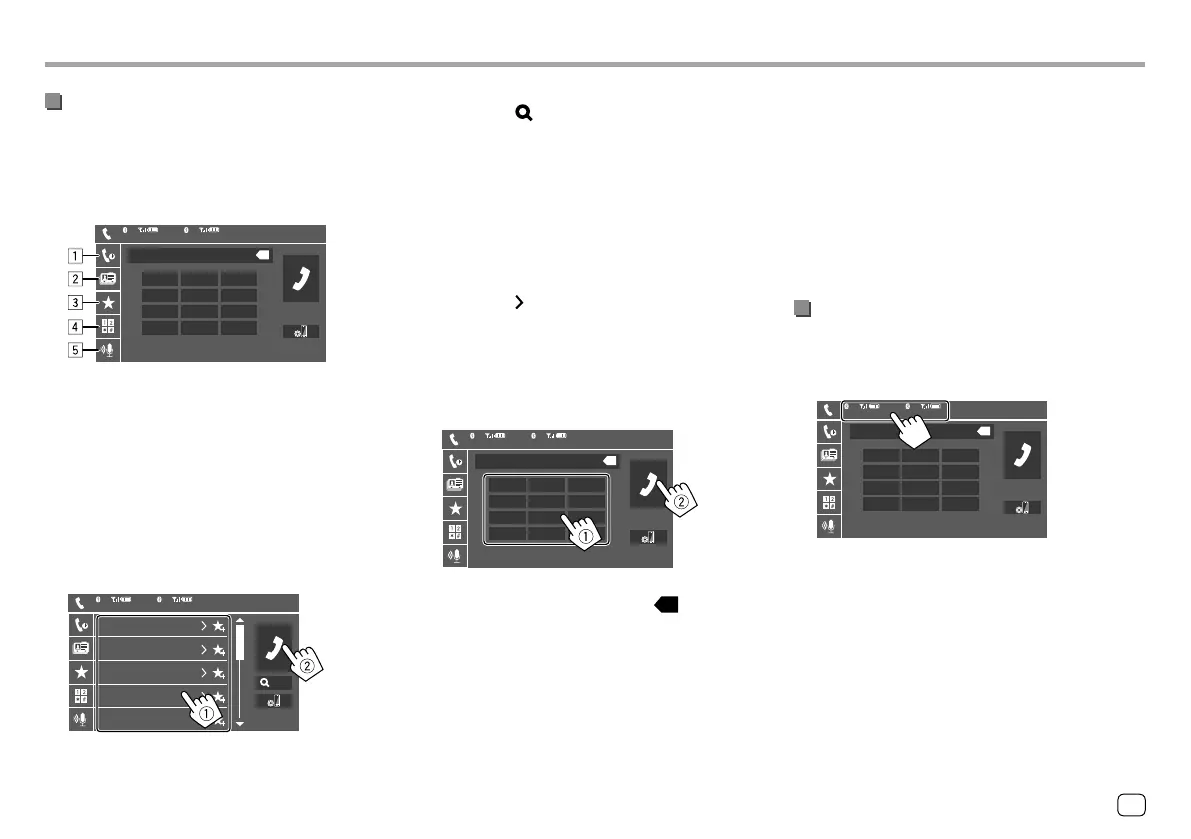
1 Display the phone control screen.
On the Home screen, touch [Phone]. (See also
page 6.)
2 Select a method to make a call.
Device Name 1
1
Device Name 2
2
1234XXXXXX
12 3
45 6
78 9
*
0/+ #
X
1 From the call history* (missed calls/received
calls/dialed calls)
2 From the phone book*
3 From the preset list (Page 38)
4 Use direct number entry
5 Use voice dialling
* Applicable only for mobile phone compatible with PBAP (Phone
Book Access Profile).
3 Select a contact (1), then make a call (2).
When item 1, 2 or 3 is selected in step 2:
Device Name 1
1
Device Name 2
2
Name 1
1234XXXXXX
Name 2
2345XXXXXX
Name 3
3456XXXXXX
Name 4
4567XXXXXX
Name 5
8901XXXXXX
A-Z
To use alphabet search in the phone book
1 Touch [ A-Z].
2 Touch the first letter you want to search for on
the keypad.
To search for a number, touch [1,2,3...].
3 Select a contact you want call from the list.
To display other phone numbers in the same
contact
You can store up to 10 phone numbers per
contact.
1 Touch [ ] .
2 Select a contact you want call from the list.
When item 4 is selected in step 2:
Enter the phone number (1), then make a
call (
2).
Device Name 1
1
Device Name 2
2
1234XXXXXX
12 3
45 6
78 9
*
0/+ #
X
• To enter “+”, touch and hold [0/+].
• To delete the last entry, touch [
X
].
When item 5 is selected in step 2:
Say the name of the person you want to
call.
• Available only when the connected mobile
phone has a voice recognition system.
• If the unit cannot find the target, “Please speak
into the microphone” appears. Touch [Start],
then say the name again.
• To cancel voice dialling, touch [Cancel].
Switching between two connected devices
You can change the device to use when 2 devices are
connected.
On the phone control screen:
Device Name 1
1
Device Name 2
2
1234XXXXXX
12 3
45 6
78 9
*
0/+ #
X
The active device is highlighted.
37
ENGLISH
ENKW-V2018STKR.indb37ENKW-V2018STKR.indb37 2017/05/259:042017/05/259:04


 To Next Page