WWW.KAARTA.COM 59
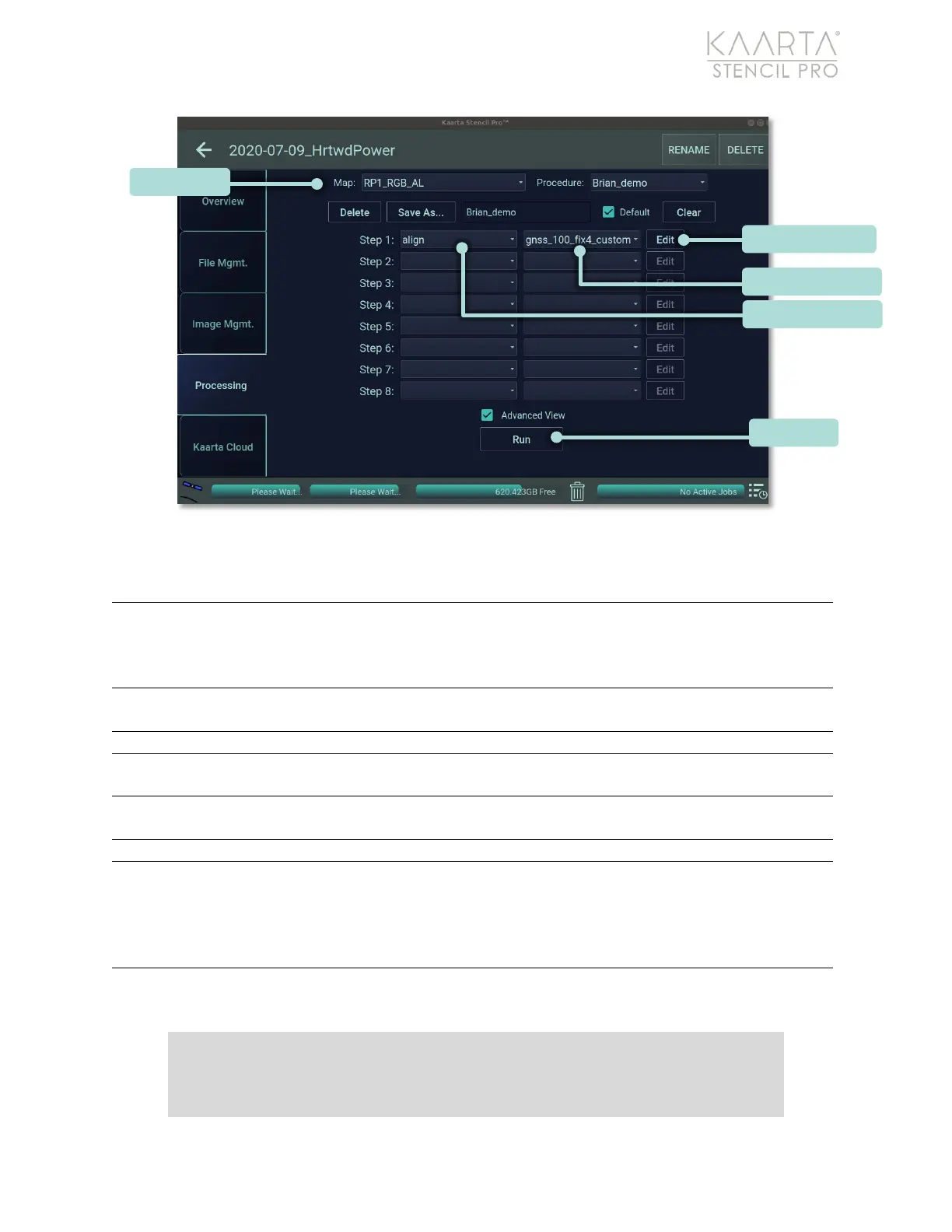
Figure 41: Processing in Advanced View.
PROCESSING OPTIONS – ADVANCED VIEW
Select a map for processing; the original unaltered scan is the preview. If any
processing has been performed, such as playback or align, the map will be
designated by an abbreviation of the process. See
Scan Folder Contents on
page 26 for scan name designations.
Procedures are saved settings for processing. These can be saved for each
process individually or as a chain of processes to run sequentially.
Deletes the procedure selected in the Procedures dropdown menu.
Type the name of a new procedure in the text box to the right of the Save As
button. Click Save As to commit the save.
Checkbox to make the current procedure the default settings for future
processing sessions.
Clear empties the contents of the Advanced View.
Select process to perform on currently selected map. Processes available
include align, color, convert to LAS, filter, GNSS correct, create image poses,
playback, prefilter, relabel panoramas, stitch panoramas, subsample, or zip.
See
Figure 42 and the following Summary of Available Processes, Presets, and
Configuration Options table for more details.
Once a process is selected, presets for that process become available for
selection in the right-hand column of Advanced View.
Note: You can create your own individualized presets and settings for Stencil Pro.
The presets described in this manual refer to those that are included with Stencil
Pro software. For information on saving and utilizing your own presets, see Create


 To Next Page