EasyManua.ls Logo

Kaba RAC 4 - User Manual

Kaba RAC 4
36 pages
Print Icon
To Next Page IconTo Next Page
Loading...
INSTALLATION GUIDE
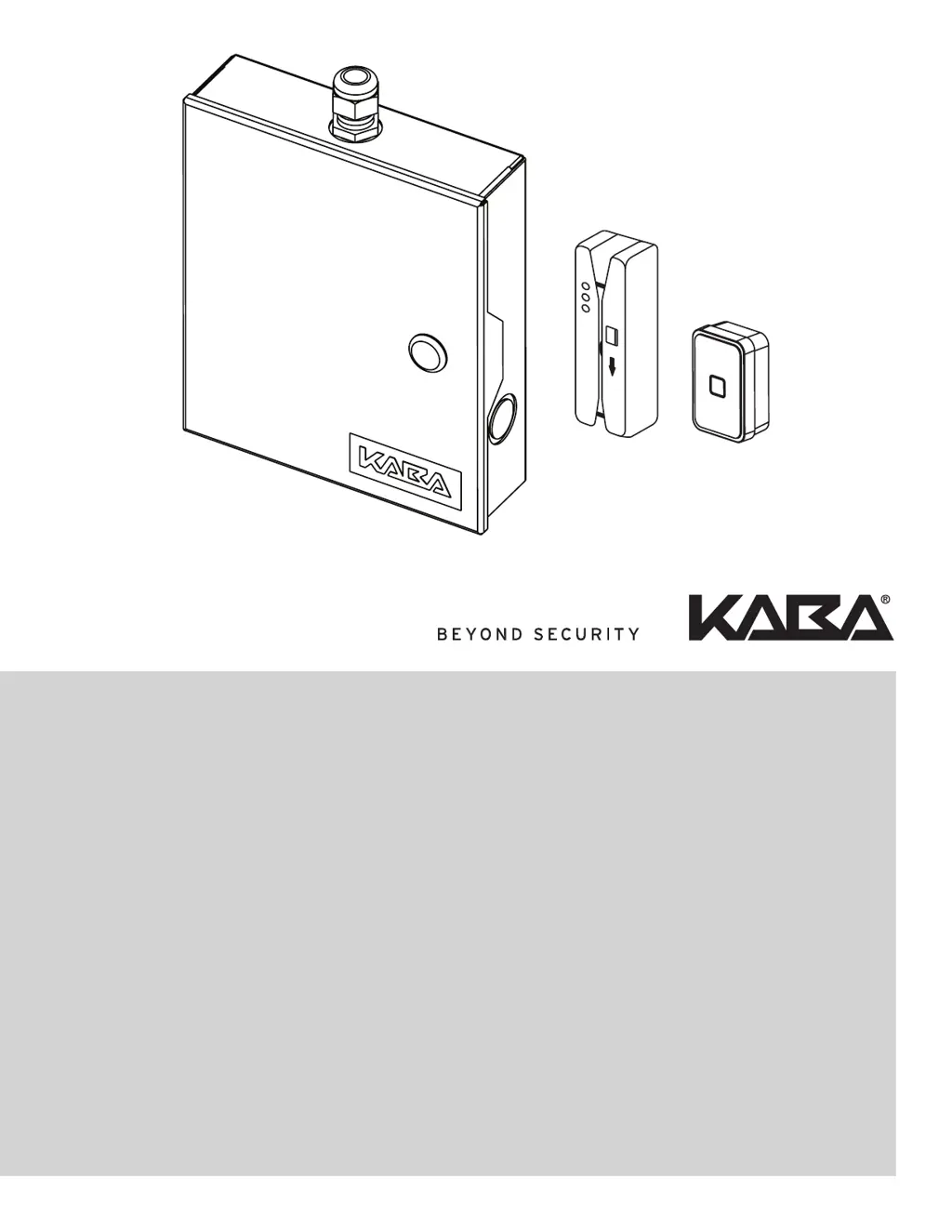
Remote Access Controller - RAC 4

Questions and Answers

  • J
    Jamie DonovanAug 16, 2025
    What to do if Kaba RAC 4 swipe reader has no feedback with programmed card?
    • R
      Robert WarnerAug 17, 2025
      If you're not getting feedback from the swipe reader when using a programmed card with your Kaba IP Access Controllers, here are a few things to check: * First, make sure the RAC 4 controller is active by checking if the Functionality 1 (D45) and Functionality 2 (D46) LEDs are blinking. If they aren't, try resetting the controller by pressing the Reset switch (SW1) or disconnecting and reconnecting the power. * Check the wiring to the reader. * Ensure the data present LED (D34) illuminates during swiping. * Verify that the card is encoded properly. * Confirm the time is correct on both the RAC 4 and the FDU (or Atlas). If it's not, perform a Reset Lock Time. * Consider re-programming the RAC 4.
  • C
    Christopher FosterAug 19, 2025
    Why Kaba RAC 4 locking device does not unlock?
    • D
      Dennis BatesAug 19, 2025
      If the locking device on your Kaba IP Access Controllers isn't unlocking, consider these potential causes: * If the Locking Device Relay LED (D31) turns on, ensure the Fire Alarm input is not active, meaning the input contact is not closed, and the Fire Alarm LED (D47) is off. * Check the wiring to the locking device and verify the polarity of any installed diode. * If the Locking Device Relay LED (D31) does not turn on, verify that the Request to Exit or Remote Unlock activation unlocks the door. * Also, make sure the card is encoded properly, the RAC 4 is not in Lockout mode, and is programmed correctly.
  • J
    Jessica WrightAug 22, 2025
    How to fix Kaba IP Access Controllers when unable to program or audit RAC 4?
    • L
      Linda SellersAug 22, 2025
      If you're having trouble programming or auditing your Kaba IP Access Controllers RAC 4, check the following: * First, ensure the RAC 4 controller is active. Look for blinking Functionality 1 (D45) and Functionality 2 (D46) LEDs. If they're not blinking, reset the controller by pressing the Reset switch (SW1) or disconnecting and reconnecting the power. * Verify the cable connection between the RAC 4 and the FDU or IPM. * If the RAC 4 is not initialized (Initialization LED, D41, is OFF), create an Initialization card with the FDU or Atlas and swipe it to initialize the RAC 4. The Initialization LED (D41) should turn on. * If the RAC 4 was already initialized, it may need to be re-initialized.
  • A
    Amanda ScottAug 25, 2025
    What to do if Kaba IP Access Controllers locking device is always unlocked?
    • D
      Dylan AtkinsAug 25, 2025
      If the locking device on your Kaba IP Access Controllers is always unlocked, consider these potential reasons: * If the Locking Device Relay LED (D31) on the RAC 4 controller is ON, verify that the delay setting of the DIP switch (SW2) is correct. * Make sure that the lock is not in Passage Mode. * If the Locking Device Relay LED (D31) on the RAC 4 controller is OFF, verify that the Bypass switch is not active (Bypass LED, D21, is OFF). * Ensure the Fire Alarm input is not active (Input contact closed, Fire Alarm LED, D47, is ON). * Also, verify the wiring to the locking device.
  • C
    Christopher PooleAug 27, 2025
    What to do if Kaba RAC 4 IP Access Controllers initialization card not accepted?
    • N
      Nicole RowlandAug 28, 2025
      If your Kaba IP Access Controllers are not accepting the initialization card, it could be due to a couple of reasons: * The RAC 4 might have already been initialized. * If the Initialization LED (D41) on the RAC 4 controller is OFF, create a new Initialization card with the FDU or ATLAS and swipe it in the card reader. The Initialization LED (D41) should now be on.
  • P
    Paula LynchAug 30, 2025
    Why Kaba IP Access Controllers fire alarm does not unlock the door?
    • J
      Jason HodgesAug 30, 2025
      If the fire alarm is not unlocking the door on your Kaba IP Access Controllers, check the following: * Verify that the Fire Alarm input is connected to a Normally Closed contact. * Ensure that the Fire Alarm LED (D47) is normally on and turns off when the Fire Alarm is present. * Confirm that the 12V_Lock output of the RAC 4 controller is connected to the COMMON of the locking device relay.
  • D
    Diane BradfordSep 1, 2025
    What to do if Kaba RAC 4 remote unlock does not work?
    • S
      Sandra RoySep 2, 2025
      If the remote unlock feature isn't working on your Kaba IP Access Controllers, verify that the Remote Unlock LED (D36) on the RAC 4 controller turns on when the button is pressed. If it doesn't, check the wiring to the Remote Unlock button.
  • M
    Mia BowersSep 4, 2025
    How to troubleshoot Kaba IP Access Controllers request to exit not working?
    • D
      donna34Sep 4, 2025
      If the Request to Exit function isn't working on your Kaba IP Access Controllers, verify that the REX LED (D33) on the RAC 4 controller turns on when the button is pressed. If it doesn't, check the wiring to the Request to Exit button.
  • T
    Taylor AllenSep 7, 2025
    Why Kaba IP Access Controllers RAC 4 Controller PCB resets when relay activates?
    • N
      Nicole PayneSep 7, 2025
      If the RAC 4 Controller PCB resets when the relay is activated in your Kaba IP Access Controllers, check for the following: * Verify that there is no short-circuit on the locking device wiring. * If a diode is installed on the locking device, verify the polarity.
  • N
    Natalie SullivanSep 10, 2025
    How to fix Kaba IP Access Controllers swipe reader green arrow LED is off?
    • A
      Andrea ParkerSep 10, 2025
      If the green arrow LED on the swipe reader of your Kaba IP Access Controllers is off: * Verify that the RAC 4 is powered. * Verify the wiring to the card reader.

Summary

1.0 Introduction and Disclaimers

Target Audience

Describes the intended users of the installation guide.

Warnings and Cautions

Highlights important safety and installation precautions.

Safety Procedures

Outlines general safety protocols to follow during installation.

Technical Support and Compliance

Provides technical assistance contact and regulatory statements.

2.0 Product Description

2.1 Features

Lists the key features and capabilities of the RAC 4 system.

2.2.1 Controller Box

Details the RAC 4 enclosure and its internal components.

2.2.2 Card Readers

Describes the different types of card readers supported by the system.

2.2.3 Locking Devices

Explains the types of locking mechanisms compatible with the RAC 4.

2.2.4 Optional Peripherals

Lists additional peripherals that can be used with the RAC 4.

3.0 Checklist and Exploded Views

3.1 Parts and Tools List

Lists all necessary parts and tools for installation.

3.2 Exploded View

Provides a visual breakdown of the system components.

4.0 System Installation Overview

4.1 Pre-Installation Procedures

Steps to prepare before installing the system.

4.2 Installation & Wiring Procedures

Detailed steps for installing and wiring the system.

5.0 Settings and Operation

5.1 Testing

Procedures for verifying the system's functionality after installation.

5.2 Hotel ID Initialization

Steps to initialize the system with the hotel's identification code.

5.3 Hotel ID Re-initialization

Process for re-initializing the system if the hotel ID changes.

5.4 Programming and Auditing

Guidelines for programming the system and reviewing audit logs.

5.5 Power Failure

Explains system behavior and recovery during power outages.

5.6 Loading Recommendations

Guidance on load limitations for system components.

5.7 System Deactivation

Steps to safely deactivate the card reader control panel.

6.0 Annex A Wiring Diagram and Tables

Table 1: RAC 4 Card Reader Connections

Details wiring configurations for different card reader types.

Table 3: RAC 4 Peripherals Connections

Maps peripheral connections to the controller board.

Table 4: Access Delay Settings

Configuration table for access delay settings via DIP switches.

Table 2: PCB Status LEDs

Explains the function of status LEDs on the controller board.

6.0 Annex B Peripheral Wiring Diagrams

Contactless Reader Wiring Diagrams

Diagrams for wiring various contactless card readers.

Insert and Swipe Reader Wiring Diagram

Diagram for wiring insert and swipe card readers.

Strike Wiring Diagrams (Fail Secure;Safe)

Wiring diagrams for electric strikes.

Electromagnetic Lock Wiring Diagram

Wiring diagram for electromagnetic locks.

Externally Powered Locking Device Wiring

Wiring for external power locking devices.

REX and Remote Unlock Button Wiring

Wiring diagrams for REX and Remote Unlock buttons.

Motion Detector Wiring Diagram

Wiring diagram for motion detector installation.

Remote Programming Interface (RPI) Wiring

Diagram for connecting the Remote Programming Interface.

Fire Alarm Panel Wiring Diagram

Wiring diagram for connecting to a fire alarm panel.

6.0 Annex C Protection from Electromagnetic Interference

Shielded Cable Recommendations

Guidance on using shielded cables to prevent interference.

6.0 Annex D Quick Troubleshooting Guide

1. Power Troubleshooting

Troubleshooting steps for power-related issues.

2. Card Reading Troubleshooting

Troubleshooting steps for card reader issues.

3. External Inputs Troubleshooting

Troubleshooting steps for REX and Remote Unlock inputs.

4. Locking Device Troubleshooting

Troubleshooting steps for locking device problems.

5. Programming and Auditing Troubleshooting

Troubleshooting steps for programming and auditing issues.

6.0 Annex E Drilling Templates for Swipe Card Reader

Swipe Reader R71-6 XX Drilling Template

Provides dimensions for drilling swipe card reader mounting holes.

Swipe Reader Drilling Template (2 Holes Pattern)

Drilling template for swipe readers with a two-hole pattern.

6.0 Annex F Drilling Template for Insert Card Reader

R71-4 Insert Reader Drilling Template

Dimensions for drilling insert card reader mounting holes.

6.0 Annex G Drilling Template for Contactless Card Reader

790 Lock Series Wall Mount Module Drilling Template

Drilling template for contactless card readers (wall mount).

6.0 Annex H Drilling Template for Contactless Card Reader

RFID Wall Reader R79 K Surface Mount Module Drilling Template

Drilling template for RFID wall readers (surface mount).

Kaba RAC 4 Specifications

General IconGeneral
BrandKaba
ModelRAC 4
CategoryIP Access Controllers
LanguageEnglish

Related product manuals