23
2.3.4 Using the Virtual Keyboard to Enter Your Password
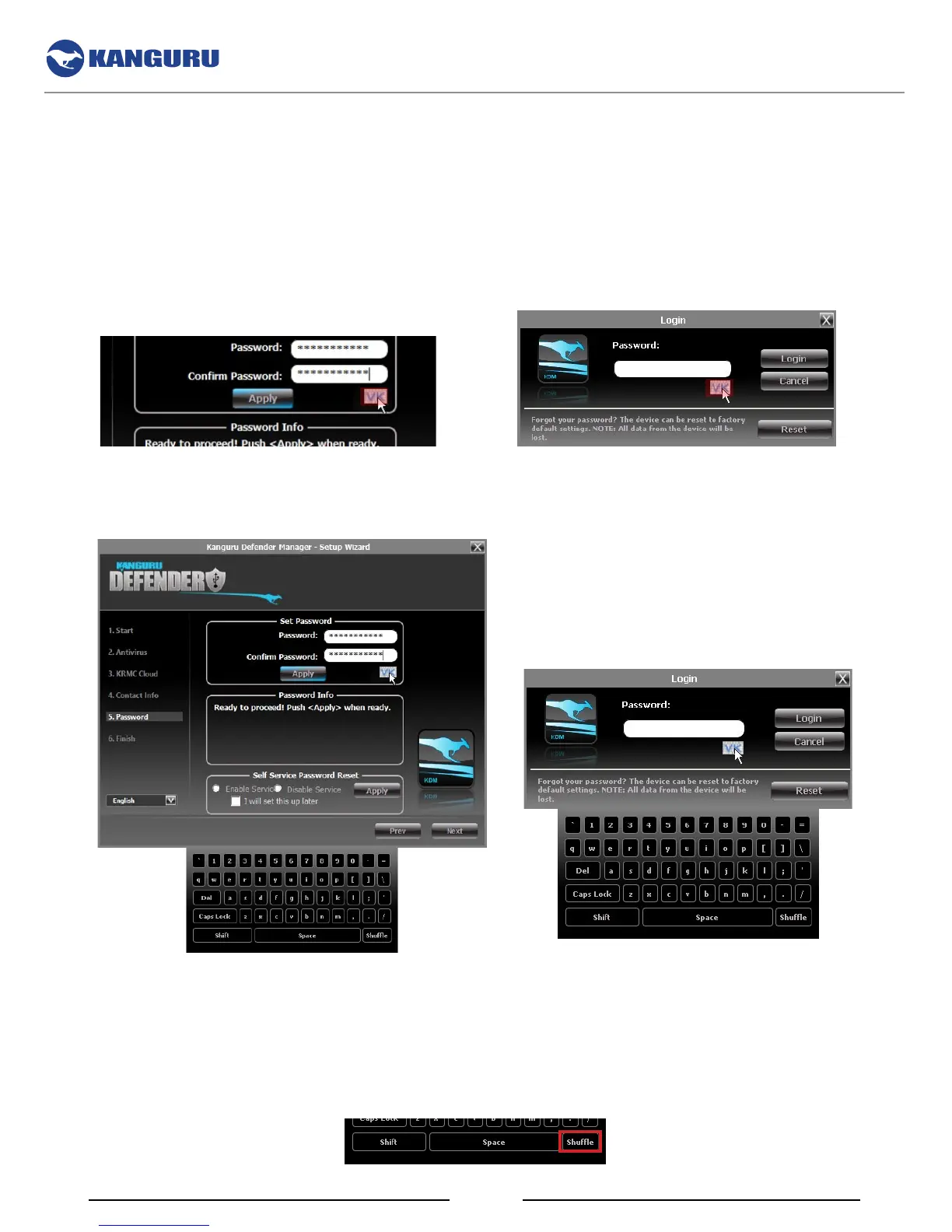
The virtual keyboard feature can be accessed anytime you are required to enter your password in order to
prevent key logging applications from recording your key strokes and potentially stealing your password.
To use the virtual keyboard to enter your password:
1. Click on the VK button which is located near the password entry field.
2. The virtual keyboard will appear below the Setup Wizard window. Click on the keys on the virtual
keyboard to enter your password.
3. Click on the VK button again to close the virtual keyboard.
Note: You can click on the Shuffle key on the bottom right corner of the virtual keyboard to randomize
the virtual keyboard layout. Randomizing the keyboard layout protects your password from mouse
tracking programs designed to thwart virtual keyboards.
The Setup Wizard



 To Next Page