25
2.4.1 Encrypting Files and Folders
A key feature of the Defender flash drive is drag & drop encryption; allowing you to simply drag files
that you want encrypt directly onto the drive. The Defender flash drive automatically encrypts these files
as they are transferred to the secure partition, ensuring that your data stays safe and private.
To open the secure partition:
1. Start KDM.
2. Login to KDM to gain access to the secure partition.
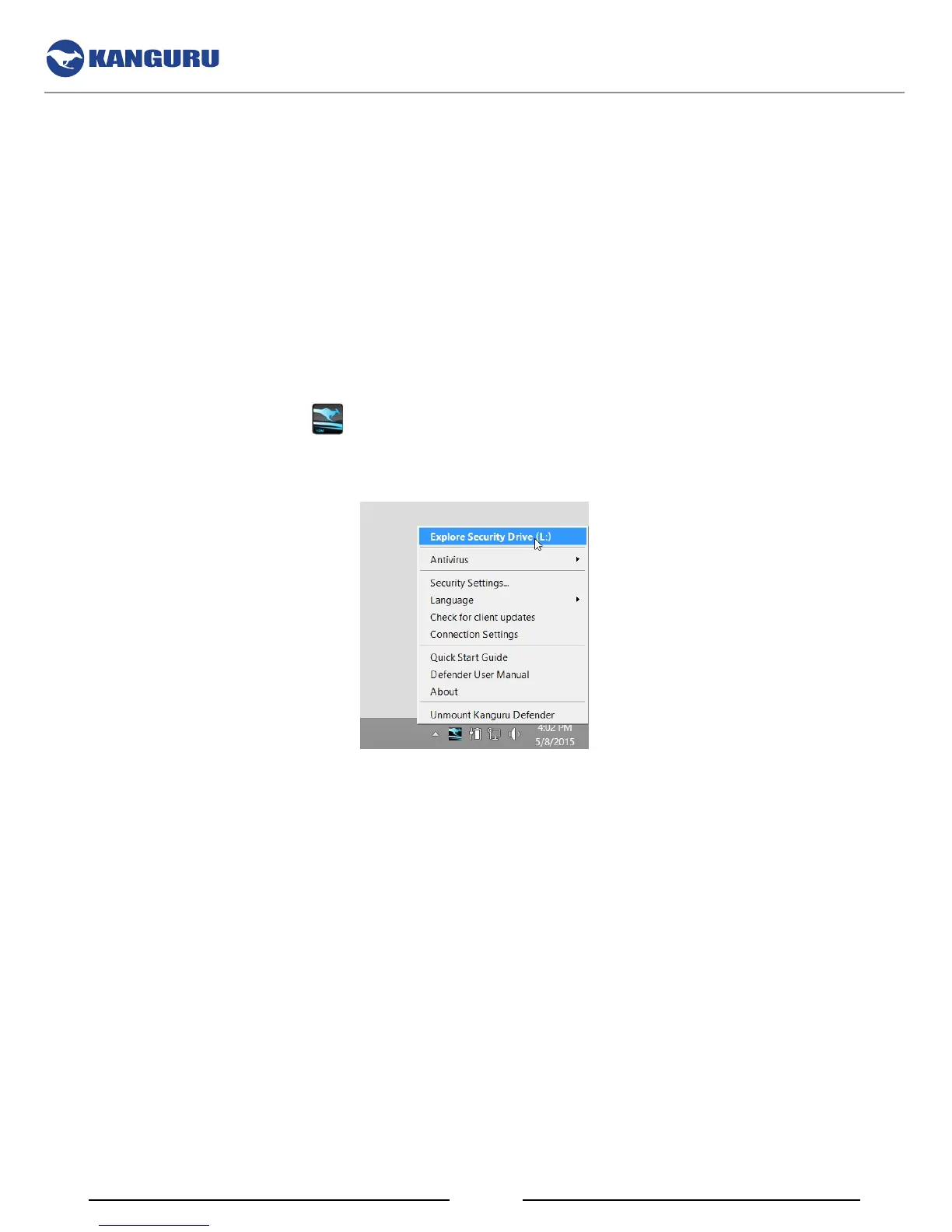
3. Click on the KDM icon
located in the task bar and then select ‘Explore Security Drive’ from
the popup menu.
The secure partition appears in a new window. We recommend using either the drag & drop action, right-
click copy/paste action, or the shortcut keys (Ctrl+C and Ctrl+V) to copy and paste files and folders
directly to and from the secure partition.
Note: Data saved on the Defender’s secure partition are only accessible after you have successfully
logged into KDM.
The KDM Taskbar Menu


 To Next Page