31
2.4.4 Changing Your Password
You can change your security password through the Security Settings.
To change your password:
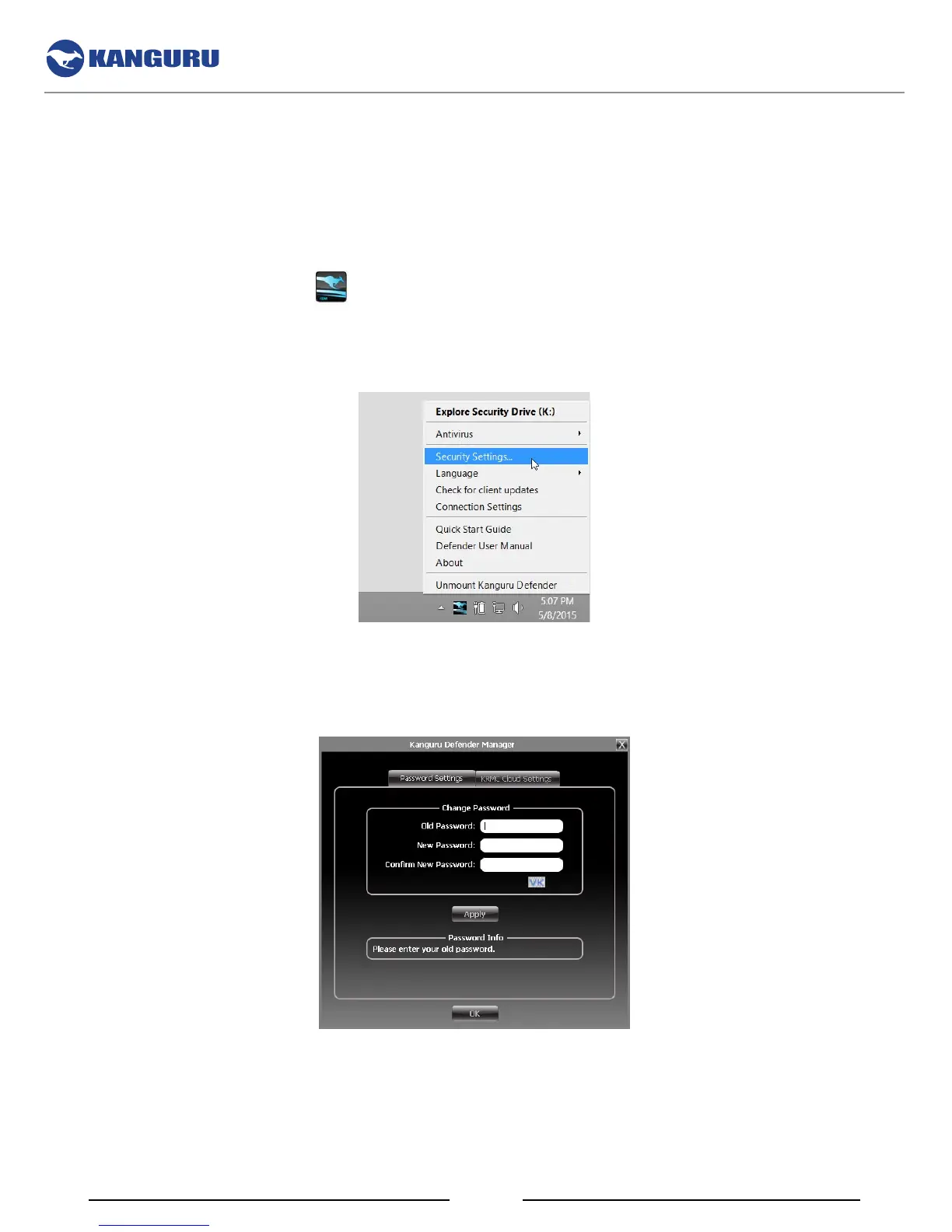
1. Click on the KDM icon
located in the task bar and then click on ‘Security Settings…’ from
the popup menu.
Note: Linux users must right-click on the KDM icon in the task bar.
2. The ‘Password Settings’ window opens. Enter your current password in the ‘Old Password’ field.
Enter your new password in the ‘New Password field’ and then enter it again in the ‘Confirm New
Password’ field.
3. When you are ready to proceed, click on the Apply button to set your new password.
4. Once your new password has been set, a confirmation window appears informing you that your
password has been successfully changed. Click on the OK button to close the ‘Password Setting’
window.
The KDM Taskbar Menu



 To Next Page