SmartVision & SmartVision LITE – User Guide (Rev. 2.7) – Version 1943.4105 24
The virtual keypad
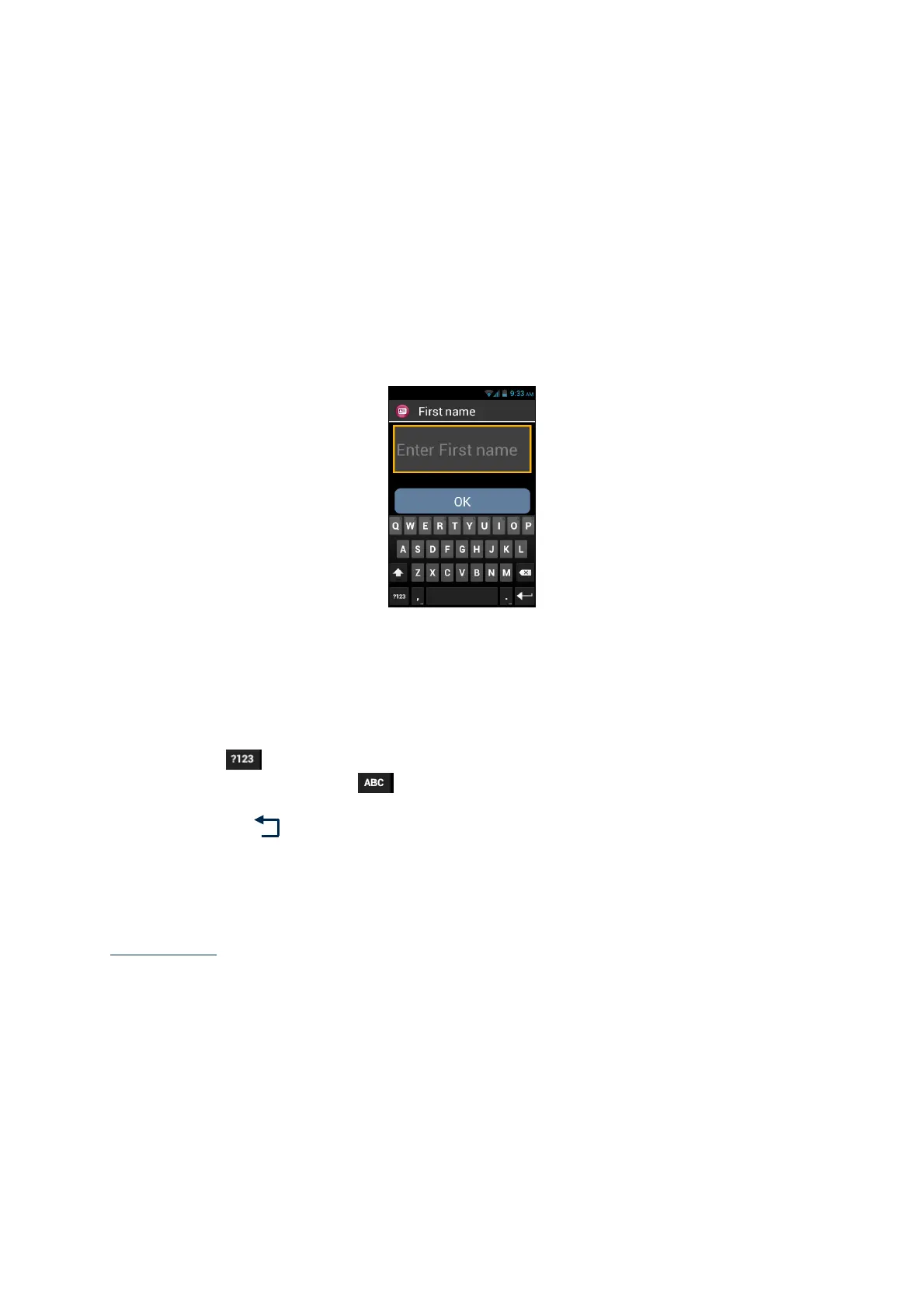
To enter text into the input field, you can use the real keypad but also the virtual
keypad.
To access the virtual keypad, move your finger until you touch the input field, then
press "OK" key without removing your finger from the screen.
The virtual keypad appearance changes from numeric to alphabet to suit the content
of SmartVision’s input field.
Select the character to be entered by sliding your finger on the bottom virtual keypad,
and confirm the character by pressing the keypad "OK" key without removing your
finger from the screen.
If you want to enter a digit while only alphabetical characters are available, press the
“Symbol” key at the bottom left of the virtual keypad, then to switch back to the
alphabet, press the “ABC” key .
Pressing "Back"
will close the virtual keypad.
To open the virtual keypad when “explore by touch” is off, simply press the input filed
on the screen. Then press the various keys of the virtual keypad to enter your text.
Please note: use the "C" key on the physical keypad to erase a typing mistake at
anytime.



 To Next Page