SmartVision & SmartVision LITE – User Guide (Rev. 2.7) – Version 1943.4105 59
Updating the SmartVision
Updates for your smartphone will be notified on the home screen with the red bubble
over the "Settings"
icon.
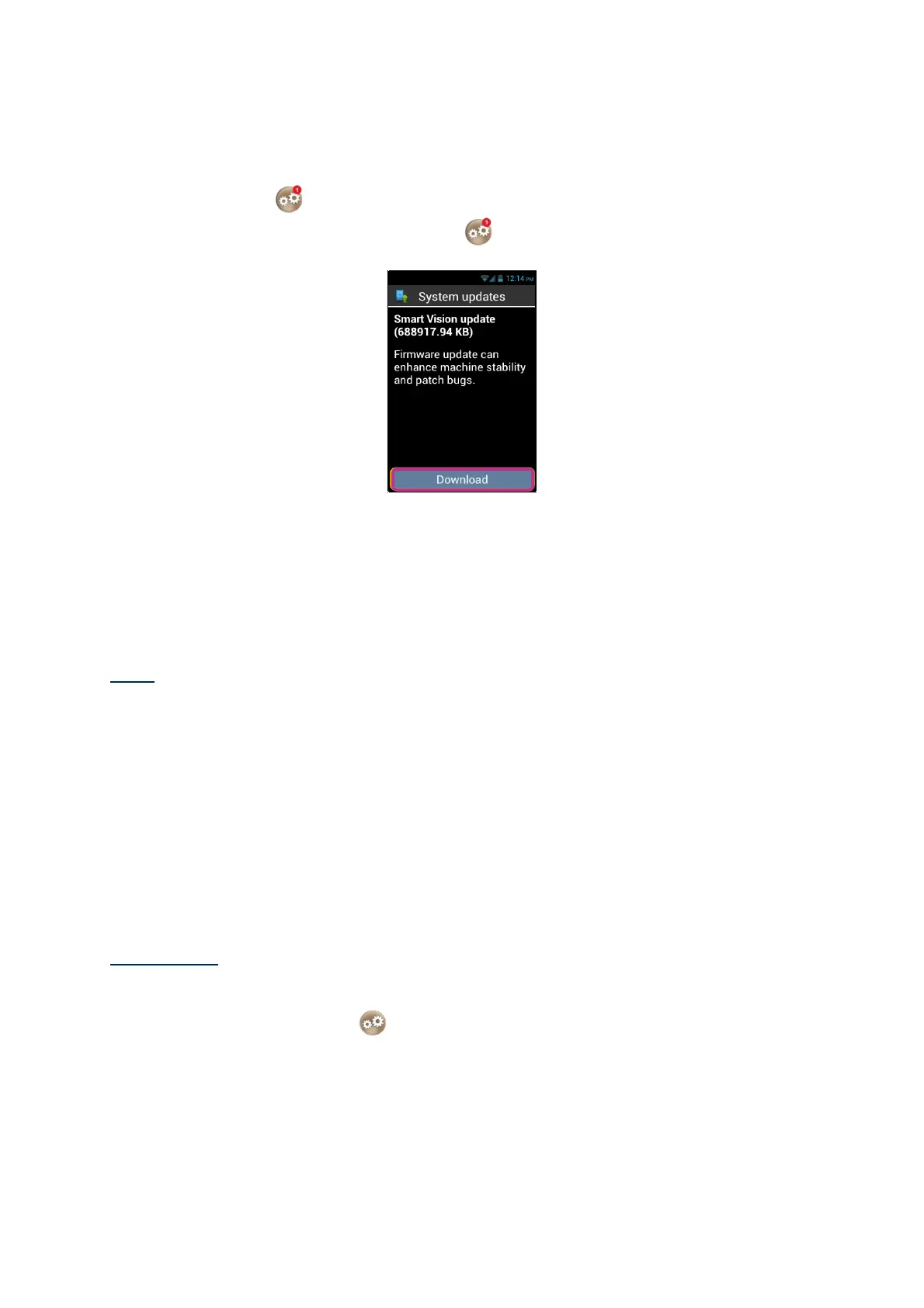
To activate the update, click on "Settings" .
Select "Download".
Download will start automatically and will last for about 30 to 40 minutes depending
of your network bandwidth. Subsequently, the device will reboot automatically until
“Home screen” is displayed and announced.
Note:
- You must have data connection, Wi-Fi or 3G enabled to download the
software update. Because of important size of this update, we recommend to
use the Wi-Fi connection for downloading.
- Please do not use SmartVision when the download is in progress.
- If the device goes to sleep mode during the download process, just make a
short press on ON/OFF button to wake-up the device, then when the
download is complete, the upgrade process will start automatically.
- If an error occurs during the download, check your Wi-Fi connection and
restart the download (Settings> About phone> System Update).
Please note: as SmartVision checks for updates on a regular basis, you will be
instantly informed whenever an update is available. However, you can also check for
available updates manually by selecting the "About phone "option, and "System
updates" from the "Settings" application.



 To Next Page