12
Table of ContentsSetting UpWi-Fi StreamingUsing KEF Connect AppFAQ and Troubleshooting
4.3.3 Using Android Devices with Google Play Service
1. Make sure your mobile device is connected to your local Wi-Fi network.
2. Launch and login to the KEF Connect App on your mobile device.
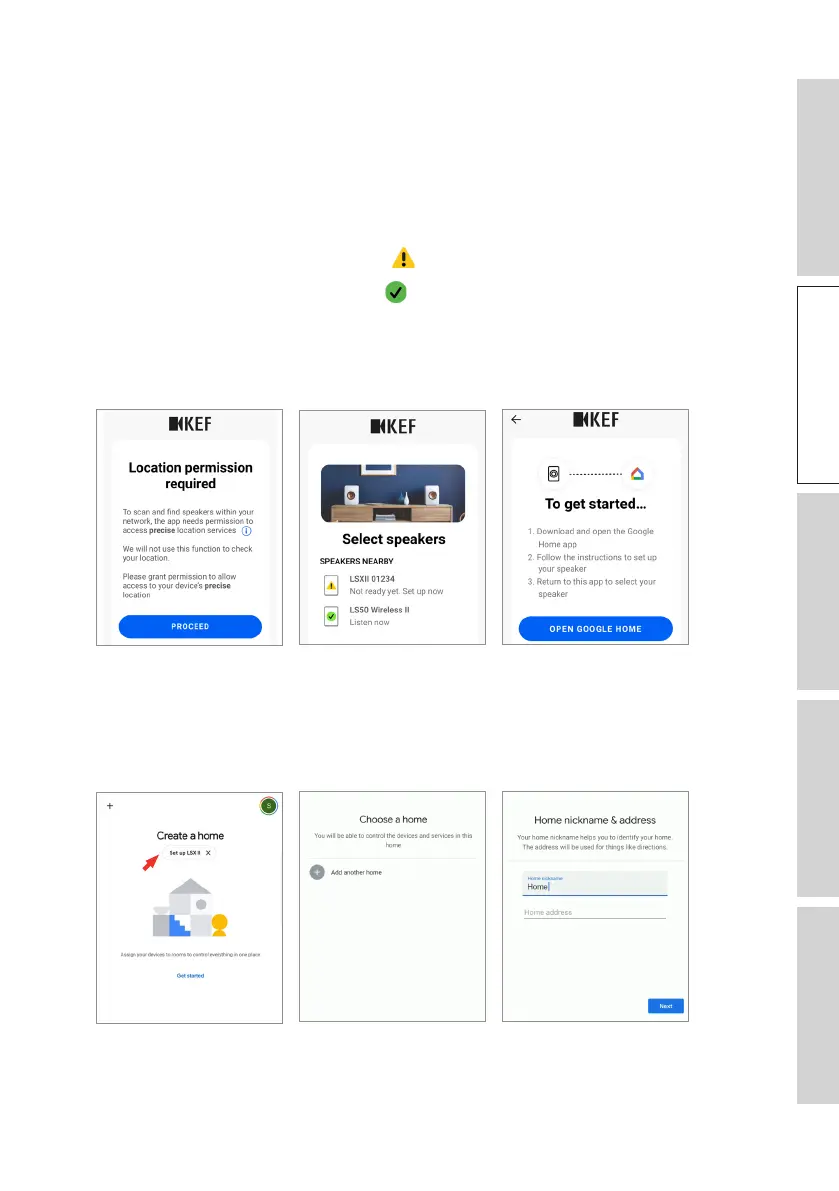
3. Allow the app to access your device’s location when requested.
4. Select “LSX II” under “Speakers nearby”.
The speakers with the warning sign ( ) are not set up yet.
The speakers with the check mark ( ) are ready for use.
5. Tap “Open Google Home” to proceed. If your mobile device does not have Google
Home, you will be prompted to download and install the app on your device.
[Step 3–5]
6. Tap “Set up LSX II” at the top of the screen.
7. Tap “Add another home”.
8. Create a nickname for the home and then tap “Next”.
[Step 6–8]
Google Home will start to look for and connect to the speakers. Follow the
instructions on the screen to assign a use location (e.g home) and connect the
speakers to your local Wi-Fi network.


 To Next Page