Date and clock settings
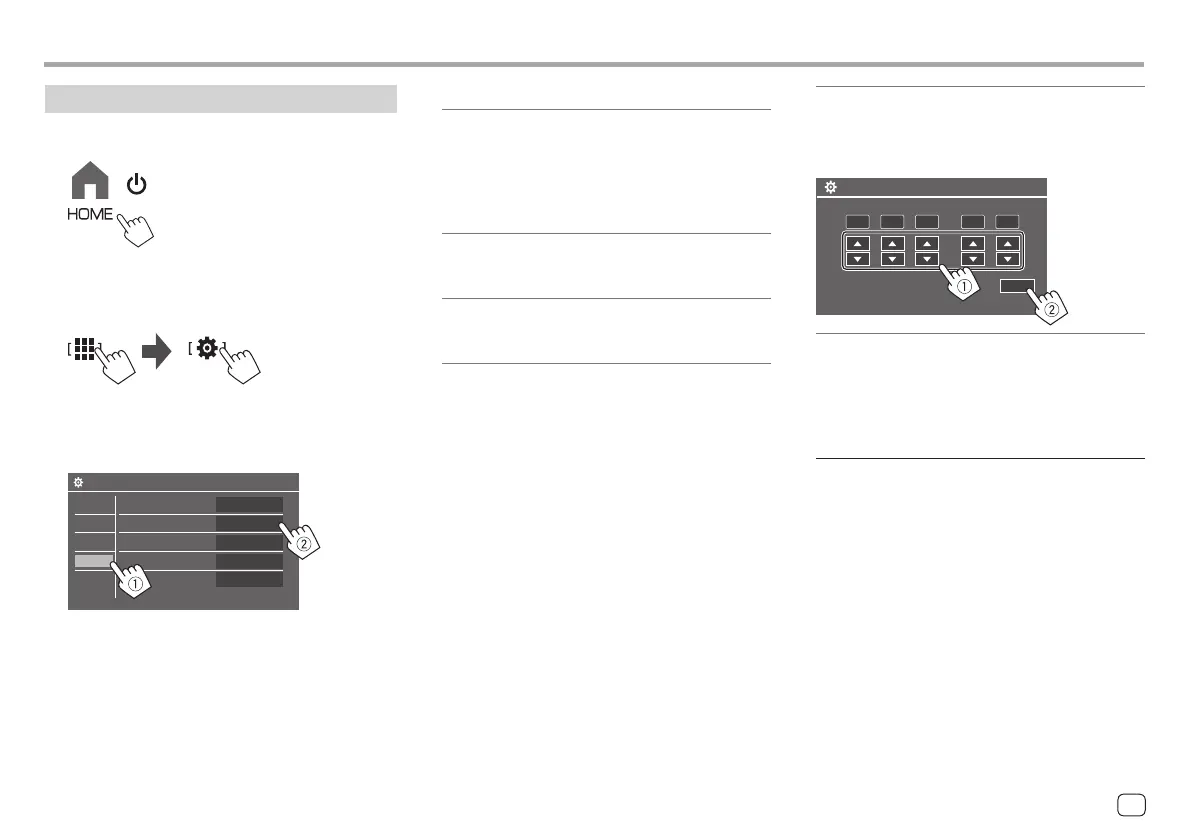
1 Display the Home screen.
2 Display the <SET-UP> screen.
From the Home screen (page 3), touch as
follows:
3 Display the <System> screen (1), and
then enter the item-setting screen you
want to change (
2).
SET-UP
Language
Clock
Time Format
Time Zone
Clock Adjust
Enter
English(UK)
Enter
Enter
Enter
Audio
Display
Input
System
Eg. When selecting <Clock>
4 Set or adjust the date and clock items.
<Clock>*
Select the method to set the date and clock.
• GPS-SYNC (Initial): Synchronises the clock time
with GPS.
• Manual: Sets the clock manually using <Clock
Adjust>. See the following.
<Time Format>
Select the time display format.
• [12-Hour]/[24-Hour] (Initial)
<Time Zone>
Select the time zone for your residential area.
• London, Dublin (Initial)/Amsterdam, Berlin, etc.
Component Names and Basic OperationsComponent Names and Basic Operations
<Clock Adjust>
Touch [J]/[K] (1) to adjust the date (year/month/
date), and adjust the hour/minute. Touch [SET] (2)
to finish setting the clock.
Year Month Date Hour Minute
/ /
1
:
Clock Adjust
2022
1
12 0
SET
<Daylight Saving Time>
(Not used when the clock is set manually)
Activate this by selecting the additional time for
Daylight Saving Time (if available in your residential
area).
• OFF (Initial)/30min/1Hr
* You can also display the
<Clock>
screen by touching the clock
area if shown on the Home screen.
5ENGLISH
00DMX7722DABSE.indb500DMX7722DABSE.indb5 2022/10/1716:192022/10/1716:19




 To Next Page