EasyManua.ls Logo

Kodak C310 - EASYSHARE Digital Camera - User Manual

Kodak C310 - EASYSHARE Digital Camera
94 pages
Print Icon
To Next Page IconTo Next Page
Loading...
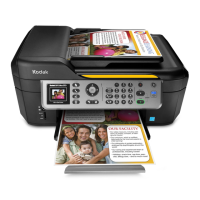
KODAK ESP C310
All-in-One Printer
Extended User Guide

Table of Contents

Questions and Answers

  • S
    stephanie04Jul 26, 2025
    What to do if there's an issue with the ink cartridge on my Kodak C310 - EASYSHARE Digital Camera All in One Printer?
    • J
      Jessica Mitchell DVMJul 26, 2025
      If you are experiencing issues with the ink cartridge on your Kodak All in One Printer: * Check that KODAK Ink Cartridge(s) are installed. Do not use non-Kodak brand or refilled ink cartridges. * Remove, then install the cartridges again. Make sure the cartridges click into place.
  • T
    Troy PatelJul 31, 2025
    What to do if my Kodak C310 - EASYSHARE Digital Camera has a paper jam?
    • L
      Lindsay TurnerJul 31, 2025
      If your Kodak All in One Printer has a paper jam, here's what to do: * Open the access door. * Gently pull the paper out from the front, reaching through the opening above the paper output tray. * If you cannot access the paper from the front, gently pull the jammed paper up from the paper input tray. * Make sure the paper in the input tray is free of tears or creases. * Make sure you do not overload the paper input tray.
  • C
    christopher92Aug 10, 2025
    How to improve print quality on my Kodak C310 - EASYSHARE Digital Camera All in One Printer?
    • J
      Jonathan HayesAug 10, 2025
      To improve the print quality on your Kodak All in One Printer: * For best results, use paper with the COLORLOK Technology logo. * Make sure the paper is loaded correctly. * Clean the printhead: * Press Home. * Select Maintenance, then press OK. * Select Clean Printhead, then press OK. * Calibrate the printer: * Press Home. * Select Maintenance, then press OK. * Select Calibrate Printer, then press OK.
  • J
    josephrodriguezAug 15, 2025
    How to fix a Kodak C310 - EASYSHARE Digital Camera that does not power on?
    • J
      Jose AndersonAug 15, 2025
      If your Kodak All in One Printer does not power on: * Make sure you are using the power cord that came with your printer. * Make sure that the power cord is connected to the AC adapter, the power cord is plugged into an outlet or power strip, and the LED on the AC adapter is lit.
  • C
    Catherine GarzaAug 20, 2025
    How to resolve a carriage jam in my Kodak C310 - EASYSHARE Digital Camera?
    • S
      Stephanie CollinsAug 20, 2025
      To resolve a carriage jam in your Kodak All in One Printer: * Open the printer access door and clear any obstructions. * Check that the printhead and ink cartridges are installed correctly. (The printhead and ink cartridges are installed correctly when you hear them click into place.)
  • A
    Alison WoodNov 3, 2025
    Why is my Kodak C310 - EASYSHARE Digital Camera not detected?
    • C
      Cheryl BruceNov 4, 2025
      If your Kodak All in One Printer is not being detected, ensure the printer is plugged in and turned on. If using a USB cable: * Ensure it is a USB 2.0 high-speed cable. * Ensure it is connected to both your printer and your computer. * Restart the computer if the USB cable was disconnected from the printer then reconnected, or if power to the printer was interrupted. If using a wireless connection: * Ensure the Wi-Fi connectivity LED on the printer is glowing steadily. * Ensure the printer is connected to your wireless network. To check, on the printer: * Press Home. * Select Network Settings, then press OK. * Select View Network Configuration, then press OK. Ensure that the Active Connection Type is Wi-Fi, and that the IP Address is not 0.0.0.0. * Ensure y...

Summary

Printer Overview

Control Panel Overview

Details the functions of the printer's control panel buttons and LCD screen.

Configuring Printer Settings

Guides on how to adjust basic printer settings like date, time, and language.

Networking Your Printer

Connecting to a Wireless Network

Guides on connecting the printer to a wireless Wi-Fi network.

Connecting to a WPS Wireless Router

Instructions for connecting the printer to a WPS-enabled wireless router.

Viewing Network Configuration

How to check the printer's current network settings and connection status.

Installing Printer on Additional Computers

Guide to install the printer software on multiple computers on the network.

Changing from USB to Wireless Connection

Instructions to switch the printer connection from USB to a wireless network.

Online Printer Management Tool

Accessing the Online Printer Management Tool

Methods to access and use the printer's web-based management tool.

Setting Up Cloud Printing

Guide to register the printer for cloud printing services like Google Cloud Print.

Printing

Printing Documents

Basic steps to print documents from a computer.

Printing Two-Sided Documents

Instructions for manual duplex printing of documents.

Printing Pictures

Overview of printing pictures from various sources.

Printing from Memory Card

Steps to print pictures directly from a memory card.

Changing Picture Print Settings

How to adjust print options for individual pictures or groups.

Mobile Printing

Printing Using Google Cloud Print

How to print to the printer using Google Cloud Print from mobile devices.

Printing Using Kodak Email Print Service

Guide to print via email attachments to the printer.

Printing Pictures from Mobile Device

General instructions for printing photos from smartphones and tablets.

Copying

Copying Documents

Basic steps to copy documents using default settings.

Copying Photographs

Basic steps to copy photographs using default settings.

Scanning

Changing Scan Settings

How to adjust scan settings from the printer control panel or software.

Scanning from Computer

Instructions for scanning documents or pictures using computer software.

Scanning from Control Panel

Steps to initiate scanning directly from the printer's control panel.

Maintaining Your Printer

Replacing Ink Cartridges

Step-by-step instructions for replacing black and color ink cartridges.

Troubleshooting

Common Printer Problems

Solutions for issues like print quality, ink cartridges, and paper jams.

Product and Safety Specifications

Kodak C310 - EASYSHARE Digital Camera Specifications

General IconGeneral
BrandKodak
ModelC310 - EASYSHARE Digital Camera
CategoryAll in One Printer
LanguageEnglish

Related product manuals