EasyManua.ls Logo

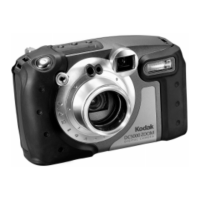
Kodak DC4800 - User Manual

Kodak DC4800
124 pages
Print Icon
To Next Page IconTo Next Page
Loading...
DC4800_UGcover.fh (Converted)-1 6/13/00 4:03 PM Page 1
Composite
C M Y CM MY CY CMY K
User’s Guide Cover
Mechanical
TITLE
DESC
VENDOR JOB #
FILE
MODIFIED
MKT
VERSION
DC4800 Digital Camera
-------
DC4800 User’s Guide Cover
3/28/00
PRINTING COLORS / 4 color process + 1 spot (Pantone 123C)
Black
Magenta
Yellow
Cyan
Kodak Yellow (PMS 123C)
MATCH COLORS
English
P/N
000000
Users
Guide
Eastman Kodak Company
Rochester, NY 14650
© Eastman Kodak Company, 2000.
Kodak is a trademark of
Eastman Kodak Company
P/N 6B5282
DC4800
Zoom Digital Camera
What You Can Do…
Your Computer
KODAK
Personal
Picture
Maker
Kiosk
Prints, Mug Transfers,
T-Shirt Transfers, etc.
World Wide Web –
Play, order prints,
t-shirts, gifts
Send
postcards
Send photos to friends
and family via e-mail

Table of Contents

Questions and Answers

  • S
    Stacey SimmonsSep 9, 2025
    Why is the green Picture Card access light blinking and the Kodak DC4800 won't take a picture?
    • D
      David BuckSep 10, 2025
      If the green Picture Card access light is blinking on your Kodak Digital Camera and it doesn't take a picture, it means the picture is being processed and saved to the Picture Card. Wait for the light to stop blinking.
  • K
    Karen LewisSep 8, 2025
    Why is the orange light blinking on my Kodak Digital Camera?
    • A
      ashleekruegerSep 8, 2025
      If the orange light on your Kodak Digital Camera is blinking, it's a slow shutter warning, indicating a lack of light or camera shake. Use a tripod to steady the camera. If in Manual Mode, adjust the shutter speed.
  • A
    Allison LyonsSep 7, 2025
    What does it mean when the orange ready light comes on my Kodak DC4800?
    • B
      Brian RodriguezSep 7, 2025
      If the orange ready light comes on your Kodak Digital Camera, it indicates that the Picture Card is full. To resolve this, transfer pictures to your computer, delete pictures on the Picture Card, or insert a card with available memory.
  • R
    Raymond CarpenterAug 22, 2025
    How to fix a Kodak DC4800 Digital Camera that won't turn on?
    • Z
      zdixonAug 22, 2025
      If your Kodak Digital Camera does not turn on, make sure the battery is properly installed. Remove and reinstall the battery. If that doesn't work, the battery may not be charged. Try replacing or recharging the battery.
  • D
    Dawn MckinneySep 4, 2025
    Why won't the green ready light turn on and the Kodak DC4800 doesn't work?
    • R
      rickyandersonSep 4, 2025
      If the green ready light does not turn on and the Kodak Digital Camera does not work, the battery is likely low or dead; replace or recharge it. Also, ensure that the camera is turned on.
  • L
    Laura AndersonSep 3, 2025
    Why won't my Kodak Digital Camera take a picture when the green light is on?
    • K
      kennethbridgesSep 4, 2025
      If the green ready light on your Kodak Digital Camera comes on but it doesn't take a picture, the battery may be low; try replacing or recharging it. Also, the Picture Card might be full. In that case, transfer pictures to your computer, delete pictures from the Picture Card, or insert a card with available memory.
  • M
    Michael SmithSep 2, 2025
    Why is the green ready light blinking on my Kodak Digital Camera?
    • M
      Mary HuntSep 2, 2025
      If the green ready light on your Kodak Digital Camera is blinking, it indicates that the focus and exposure are not locked. Release the Shutter button and recompose the picture.
  • C
    Cassandra DuranSep 1, 2025
    How to adjust monitor display settings for Kodak Digital Camera?
    • J
      Jennifer PalmerSep 1, 2025
      If the image on your monitor appears jagged or has inappropriate colors when using your Kodak Digital Camera, the monitor settings may not be configured correctly. Adjust your monitor display settings.
  • T
    Timothy SmithAug 31, 2025
    What to do if my Kodak Digital Camera does not recognize the Picture Card?
    • M
      Matthew ParkerAug 31, 2025
      If your Kodak Digital Camera isn't recognizing the Picture Card, it might not be CompactFlash certified, so consider purchasing a certified card. It could also be corrupt or formatted for use in other digital cameras; try reformatting the Picture Card. Ensure the Picture Card is properly inserted into the camera.
  • A
    Adrian JonesAug 29, 2025
    Why doesn't the shutter button work on my Kodak DC4800 Digital Camera?
    • S
      Shannon AdamsAug 29, 2025
      If the shutter button on your Kodak Digital Camera isn't working, first ensure that the camera is powered on. If the Picture Card access light is blinking, it means the camera is processing a picture; wait until it stops before taking another one. Also, check the Status Display; if it reads 'Full', transfer pictures to your computer, delete some from the Picture Card, or insert a card with available memory.

Summary

Getting Started

Attaching the Neck Strap

Instructions for attaching the neck strap to the camera for secure carrying and handling.

Loading the Battery

Step-by-step instructions for correctly inserting the battery into the camera.

Charging the Battery

Procedure for charging the camera's battery using the AC adapter.

Inserting a Picture Card

Instructions on how to insert the KODAK Picture Card into the camera for storing images.

Removing a Picture Card

Steps for safely removing the Picture Card from the camera.

Turning the Camera On and Off

How to power the camera on and off using the power button.

Checking the Battery

How to check the current battery level and interpret the status display.

Taking Pictures

Choosing a Capture Mode

Guide to selecting the appropriate capture mode for different shooting scenarios.

Taking a Picture

Basic steps for capturing a photograph using the camera's shutter button.

Shooting in Fully Automatic Mode

How to use the Programmed AE mode for effortless picture taking.

Shooting in Manual Mode

Instructions for controlling exposure settings like f-number and shutter speed.

Setting the f-number

How to set the aperture (f-number) to control depth of field.

Setting the Shutter Speed

Procedure for selecting shutter speed for motion control and exposure.

Shooting in Aperture Priority Mode

Using Aperture Priority mode to control depth of field while camera sets shutter speed.

Customizing Manual Settings

Adjusting the Exposure Compensation

How to adjust exposure compensation for brighter or darker images.

Reviewing Your Pictures

Personalizing Your Camera

Installing Your Software

Installing the Software

Step-by-step guide for installing the KODAK camera software on your computer.

Transferring Pictures To Your Computer

Using a USB Cable Connection

Instructions for connecting the camera to a computer via USB cable.

Tips and Troubleshooting

Troubleshooting

Common problems and solutions for camera and computer monitor issues.

Getting Help

Telephone Customer Support

Information and numbers for contacting Kodak customer support.

Warranty and Regulatory Information

Appendix

DC4800 Zoom Camera Specifications

Technical specifications for the KODAK DC4800 Zoom Digital Camera.

General Safety

Important safety precautions to follow when using the camera.

Using Your Battery

Precautions and guidelines for safely handling and using the camera battery.

Kodak DC4800 Specifications

General IconGeneral
BrandKodak
ModelDC4800
CategoryDigital Camera
LanguageEnglish

Related product manuals