Working with pictures/videos
www.kodak.com/go/support
19
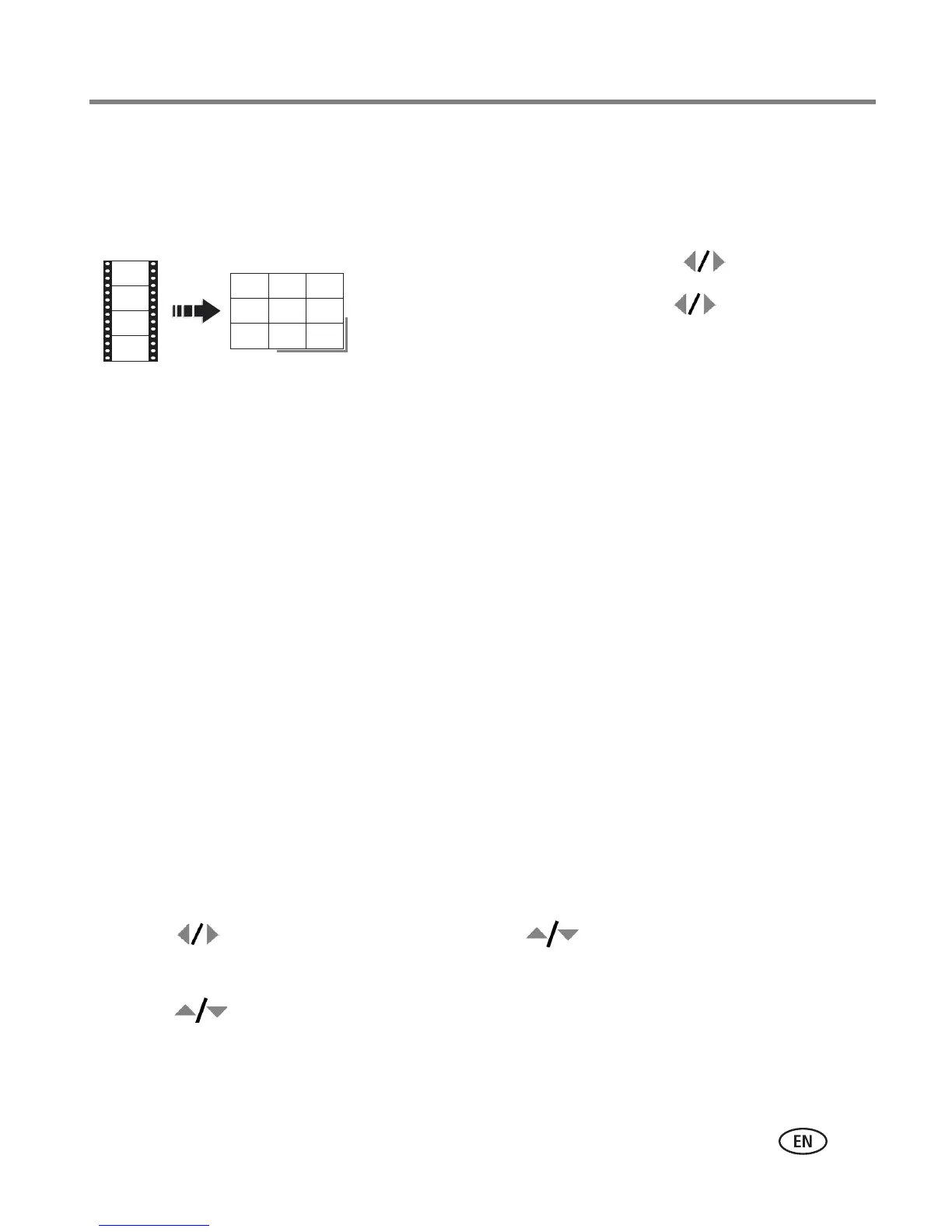
Making a video action print
From a video, you can make a 4-, 9-, or 16-up picture, suitable for a 4 x 6-inch
(10 x 15 cm) print.
1 Press the Review button, then to find a video.
2 Press the Menu button, then to choose the
Edit tab. Choose Action Print, then press the OK
button.
3 Choose an option, then press the OK button.
Auto: The camera includes the first and last frames,
then 2, 7, or 14 equally spaced frames.
Manual: You choose the first and last frames; the
camera chooses 2, 7, or 14 equally spaced frames.
Full Manual: You choose 4, 9, or 16 frames.
Use Bookmarks: Bookmarked frames are used.
A 4-, 9-, or 16-up picture is created. If you have less
than 4 or 9 bookmarks, equally spaced video frames
are used.
■ Press the Menu button to exit the menu.
Running a slide show
Use Slide Show to display your pictures/videos on the LCD.
1 Press the Review button, then the Menu button.
2 Press to choose the Review tab. Press to highlight Slide Show, then
press the OK button.
3 Press to highlight Begin Show, then press the OK button.
Each picture/video is displayed once.
■ To interrupt the Slide Show, press the OK button.
Video
4-, 9-, or
16-up picture




 To Next Page