Created by Hotline Support
Konica Minolta Hotline Support (UK)
19
8) Ensure that ‘E-mail TX Setting’ and ‘Scan to E-mail’ are turned ‘ON’
9) Enter in the IP address or Host Name of the E-mail server
10) Enter a ‘Device Mail Address’
11) If required, turn on ‘SMTP Authentication’ and enter a user name and
password of a user set up on the e-mail server. It is recommended that if you
need to use this setting, that a new e-mail account for the Konica Minolta device
is created on the e-mail server.
12) Ensure that ‘Binary Division’ is turned ‘OFF’
13) Click ‘OK’ and log out of Administrator Mode
CREATING A ONE TOUCH BUTTON
1) Log in to the web interface as a ‘Public User’
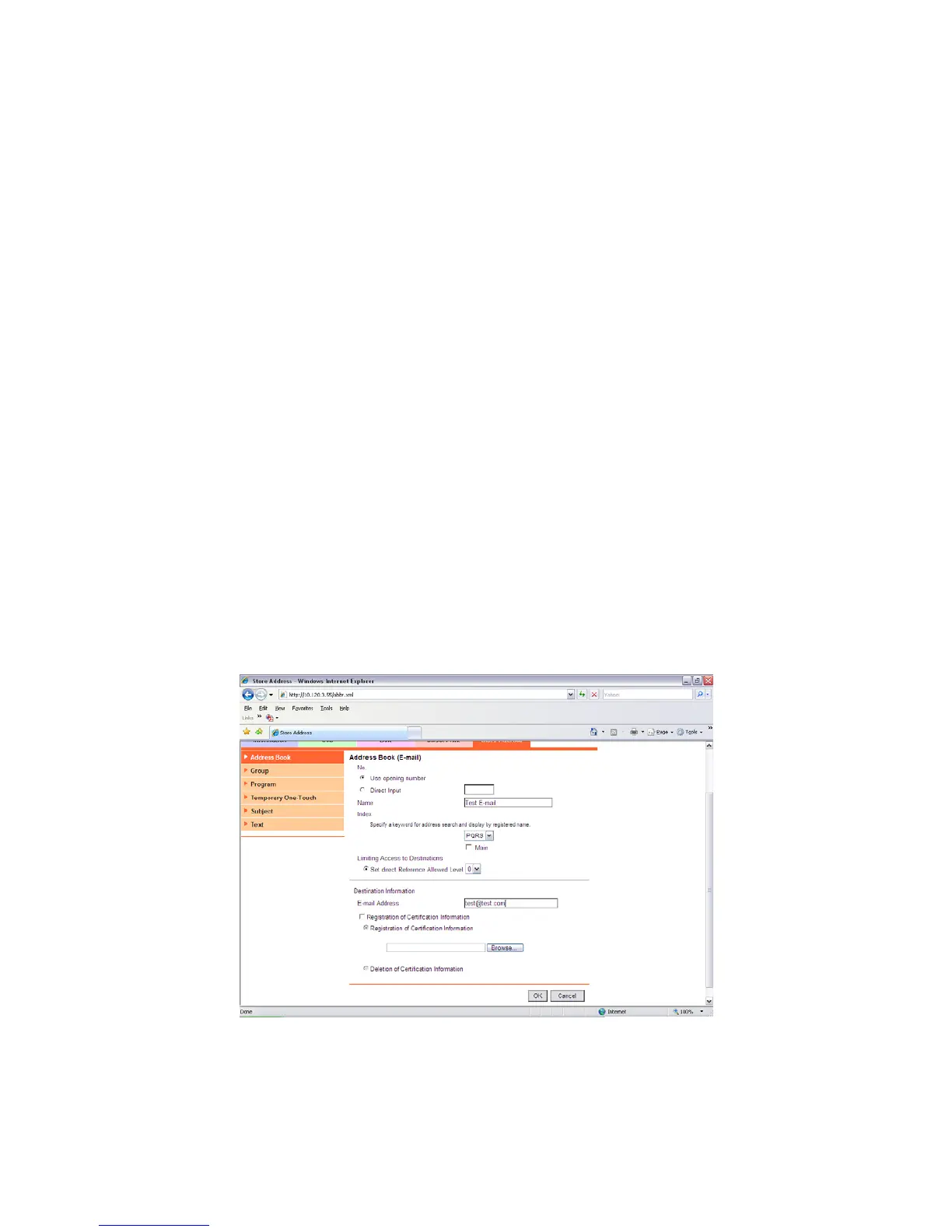
2) Click on the ‘Store Address’ tab
3) Click on ‘New Registration’ and choose ‘E-mail’ from the next screen.
4) Enter a ‘Name’ for your button. (This is the name of the button that will
appear on the machine.
* Choose the ‘Index’ under which this button will appear
* Enter the e-mail address of the recipient
5) Click ‘OK’ and then ‘OK’ again
Your button is now configured.







 To Next Page