36 Basic image processing
Basic image processing
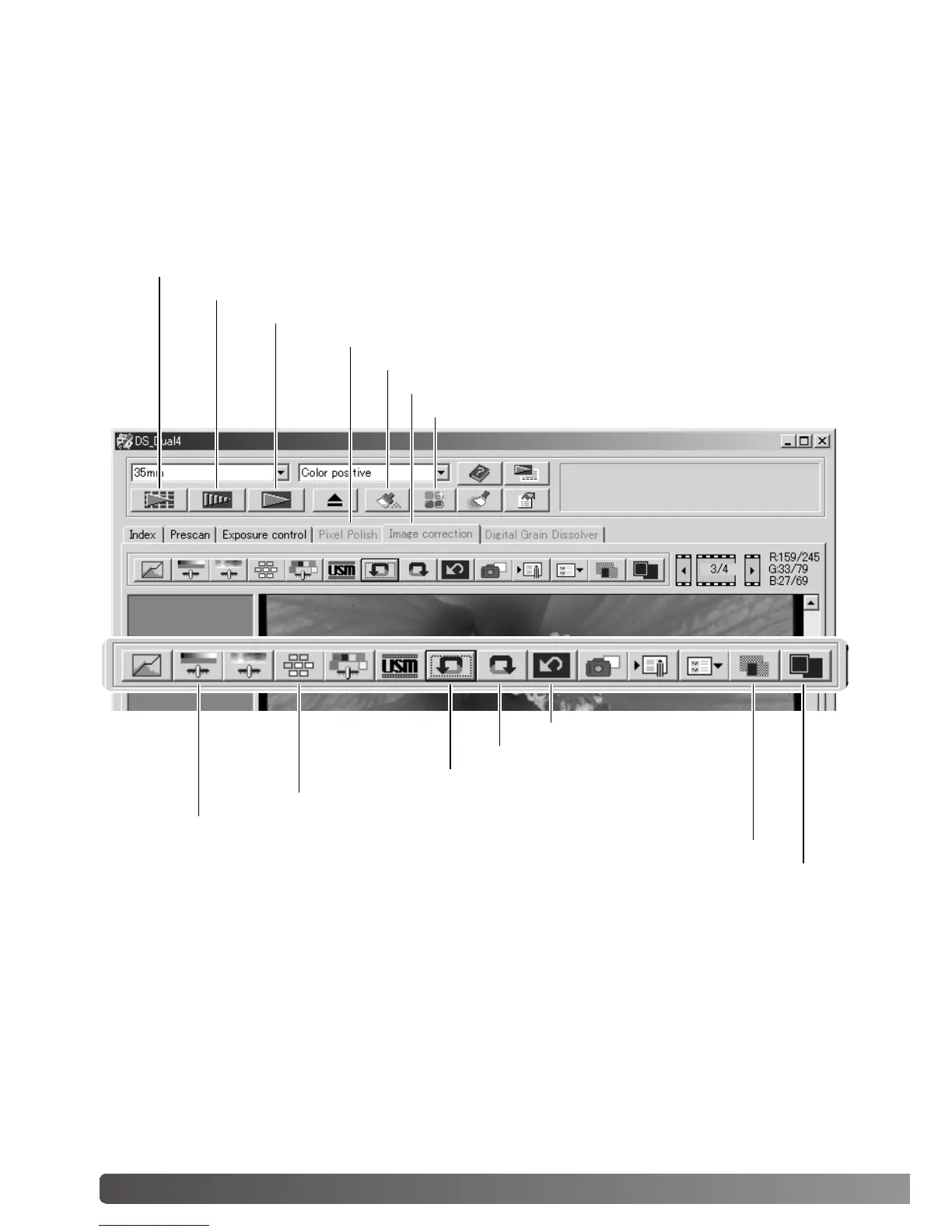
Main window and image-correction tab
Prescan button (p. 32)
Index Scan button (p. 30)
Scan button (p. 34)
Image-correction tab
Fit-to-window button (p. 31)
Display area
Comparison display button (p. 42)
Reset-all button (p. 42)
Redo button (p. 42)
Undo button (p. 42)
Variation button (p. 39)
Brightness, contrast, and color-balance button (p. 40)
This section contains details on the basic image-processing tools. For descriptions of the
advanced tools, see pages 58 though 73. The prescan image or a selected index image can be
displayed in the image correction window by simple clicking the tab. If the image has not been
prescanned, a prescan will be made automatically.
The utility window can be resized by clicking and dragging the bottom right corner. If the fit-to-
window function is active, the displayed image will automatically adjust to fit the display area. If
any changes are made to the image using Pixel Polish or the image-correction tab, the tab will
turn red (Windows) or an asterisk will be displayed (Macintosh).
Pixel Polish tab
Auto Dust Brush button (p. 38)
Pixel Polish button (p. 37)


 To Next Page
 Loading...