EasyManua.ls Logo

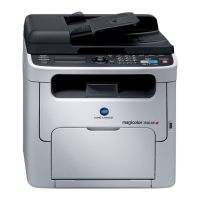
Konica Minolta magicolor 1690MF - User Manual

Konica Minolta magicolor 1690MF
285 pages
Print Icon
To Next Page IconTo Next Page
Loading...
magicolor 1690MF
Printer / Copier /
Scanner User’s
Guide
A0HF-9571-02A

Table of Contents

Other manuals for Konica Minolta magicolor 1690MF

Questions and Answers

  • D
    Donald ButlerSep 16, 2025
    What to do if my Konica Minolta magicolor 1690MF All in One Printer makes unusual noises?
    • G
      Gary JonesSep 16, 2025
      If your Konica Minolta All in One Printer is making unusual noises, it could be due to the machine not being level, the tray not being installed correctly, or a foreign object stuck inside. Try these solutions: - Place the machine on a flat, hard, level surface. - Remove the tray that you are printing from and reinsert it completely into the machine. - Turn off the machine and remove the object.
  • J
    Jose RussellAug 25, 2025
    What to do if Konica Minolta magicolor 1690MF All in One Printer shows 'Connect error ! Change to off-line edit mode'?
    • J
      Jesse AlvarezAug 25, 2025
      If your Konica Minolta All in One Printer displays a 'Connect error ! Change to off-line edit mode' message, it means the connection was lost. This can happen if the USB cable is disconnected or the user machine is turned off during USB connection. To fix this, reconnect the USB cable or turn on the user machine.
  • J
    Juan KingAug 25, 2025
    Why Konica Minolta magicolor 1690MF All in One Printer says 'Password is not correct !'?
    • H
      Hannah GuerraAug 26, 2025
      If your Konica Minolta All in One Printer displays 'Password is not correct !', it means the password entered in the “Administrator” of “Utility Setting” is incorrect. Please re-enter the correct administrator password to proceed.
  • M
    Mr. Robert Fuller DDSAug 26, 2025
    How to resolve 'Error opening USB Port !' on Konica Minolta magicolor 1690MF All in One Printer?
    • P
      piercemargaretAug 27, 2025
      If your Konica Minolta All in One Printer displays 'Error opening USB Port !', it means the specified USB port cannot be used with the computer currently in use. Try using a different USB port that is compatible with your computer.
  • A
    Ashley PattersonSep 18, 2025
    What to do if media mis-feed message stays on Konica Minolta All in One Printer?
    • N
      Natalie Massey MDSep 18, 2025
      If the media mis-feed message stays on, it may be because the scanner unit needs to be opened and closed again to reset the machine, or some media remains misfed in the machine. Try opening and closing the scanner unit again. Also, check the media path again to make sure that you have removed all of the misfed media.
  • J
    Julie HenrySep 23, 2025
    What causes toner smudges on my Konica Minolta All in One Printer?
    • K
      karen57Sep 23, 2025
      Toner smudges or residual images on your Konica Minolta All in One Printer might be caused by one or more of the toner cartridges being defective or installed incorrectly. Remove the toner cartridges and check for damage.
  • T
    Tiffany WallsSep 8, 2025
    What to do if Konica Minolta magicolor 1690MF All in One Printer prompts 'E-Mail address must be specified !'?
    • M
      mirandacatherineSep 8, 2025
      If your Konica Minolta All in One Printer shows 'E-Mail address must be specified !', it means you haven't entered anything in the E-mail address field. Enter a valid E-mail address.
  • A
    arogersSep 9, 2025
    What causes 'Machine timeout' on Konica Minolta magicolor 1690MF and how to fix it?
    • P
      Pamela FisherSep 9, 2025
      If your Konica Minolta All in One Printer displays 'Machine timeout', it indicates a timeout occurred during connection with the user machine. Try reconnecting the user machine to resolve the issue.
  • S
    Susan ShannonSep 2, 2025
    How to resolve Letter-size paper request when using Mac OS X 10.4 with a custom paper size of 21.6 cm width on Konica Minolta magicolor 1690MF?
    • B
      Bryan MorrisSep 2, 2025
      Change the width of the custom paper size to 21.59 cm, and then try sending the job again.
  • J
    John HuffmanAug 31, 2025
    How to fix Konica Minolta magicolor 1690MF All in One Printer not detected by Rendezvous/Bonjour?
    • E
      Edwin RodriguezSep 1, 2025
      Using Administrator mode in PageScope Web Connection, select the Enable from the Bonjour list on the Bonjour page.

Summary

Control Panel and Configuration Menu

About the Control Panel

Details the control panel layout, keys, and display indications for Copy, Scan, and Fax modes.

Checking the Machine Status and Settings

Explains how to check toner status, change modes, and view reports for printer functions.

Configuration Menu Overview

Provides an overview of the machine's settings accessible through the UTILITY menu.

Media Handling

Print Media

Details specifications and types of media supported for printing, including paper, envelopes, and labels.

Loading Media

Provides instructions for loading paper and other media types into the machine's trays.

Using the Printer Driver

Printer Driver Settings

Details the various tabs and options within the printer driver interface for configuring print jobs.

Using the Copier

Making Basic Copies

Explains the procedure for making standard copies, including settings like quality and zoom.

Replacing Consumables

Replacing a Toner Cartridge

Step-by-step guide for replacing toner cartridges in the machine.

Replacing the Imaging Cartridge

Detailed procedure for replacing the imaging cartridge.

Replacing the Fuser Unit

Instructions for safely replacing the fuser unit, noting hot components.

Troubleshooting

Clearing Media Misfeeds

Step-by-step procedures for removing misfed media from various machine parts.

Solving Problems with Media Misfeeds

A table listing symptoms, causes, and solutions for media misfeed issues.

Installing Accessories

Installing Tray 2

Step-by-step guide for installing the optional lower feeder unit (Tray 2).

Installing the Duplex option

Step-by-step guide for installing the duplex option.

Konica Minolta magicolor 1690MF Specifications

General IconGeneral
Print technologyLaser
Maximum resolution1200 x 600 DPI
Time to first page (black, normal)14 s
Time to first page (color, normal)23 s
Print speed (black, normal quality, A4/US Letter)20 ppm
Print speed (color, normal quality, A4/US Letter)5 ppm
Digital senderNo
Number of print cartridges4
Maximum copy resolution600 x 600 DPI
Maximum number of copies99 copies
Copy speed (black, normal quality, A4)20 cpm
Copy speed (color, normal quality, A4)5 cpm
Dimensions (WxDxH)405 x 427 x 432 mm
Power requirementsAC 220/240V (±10%), 50/60Hz ( ±3 %)
Networking features10-Base-T/100-Base-TX Ethernet
All-in-one functionsCopy, Fax, Scan
Media types supportedplain paper, recycled paper, envelope, labels, postcard, thick paper, letterhead
Color all-in-one functionscopy, print, scan
Compatible operating systemsMicrosoft Windows 2000/Server 2003 (32/64)/XP (32/64)/Vista (32/64), Macintosh OS X 10.2
FaxingMono faxing
Modem speed33.6 Kbit/s
Total input capacity200 sheets
Total output capacity100 sheets
Sound power level (standby)35 dB
Sound pressure level (printing)52 dB
Envelopes sizesC6, DL
Maximum print size215 x 355 mm
Media weight (tray 1)60 - 209 g/m²
Non-ISO print media sizesLegal
ISO A-series sizes (A0...A9)A4, A5
ISO B-series sizes (B0...B9)B5
Maximum ISO A-series paper sizeA4
Ethernet LANYes
Standard interfacesEthernet, USB 2.0
Power consumption (standby)170 W
Power consumption (PowerSave)14 W
Power consumption (average operating)410 W
Operating temperature (T-T)10 - 35 °C
Operating relative humidity (H-H)15 - 85 %
Market positioningBusiness

Related product manuals