EasyManua.ls Logo

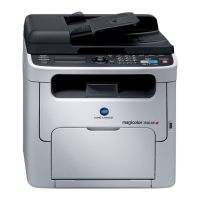
Konica Minolta magicolor 1690MF - User Manual

Konica Minolta magicolor 1690MF
285 pages
Print Icon
To Next Page IconTo Next Page
Loading...
magicolor 1690MF
Printer / Copier /
Scanner User’s
Guide
A0HF-9571-02A

Table of Contents

Other manuals for Konica Minolta magicolor 1690MF

Questions and Answers

  • R
    randall36Sep 12, 2025
    What does “ ” is not a valid integer value !' mean on Konica Minolta magicolor 1690MF?
    • R
      Rebecca GonzalezSep 12, 2025
      If your Konica Minolta All in One Printer displays “ ” is not a valid integer value !', it means you've entered characters other than numeric values, or the field is blank. Ensure that you only enter numeric values.
  • A
    Amanda SmithSep 12, 2025
    How to fix 'File format is error! Please select valid format !' on Konica Minolta All in One Printer?
    • T
      travisdanielSep 12, 2025
      If your Konica Minolta All in One Printer displays 'File format is error! Please select valid format !', it indicates that the format of the file name list is incorrect. Check the file format and select a valid one.
  • K
    Karen ChristensenSep 10, 2025
    Why does my Konica Minolta magicolor 1690MF All in One Printer say 'Machine busy'?
    • K
      Kimberly MillerSep 10, 2025
      If your Konica Minolta All in One Printer displays 'Machine busy', it means the user machine is currently in use, preventing a new connection. Wait until the user machine is free before attempting to connect.
  • A
    arogersSep 9, 2025
    What causes 'Machine timeout' on Konica Minolta magicolor 1690MF and how to fix it?
    • P
      Pamela FisherSep 9, 2025
      If your Konica Minolta All in One Printer displays 'Machine timeout', it indicates a timeout occurred during connection with the user machine. Try reconnecting the user machine to resolve the issue.
  • T
    Tiffany WallsSep 8, 2025
    What to do if Konica Minolta magicolor 1690MF All in One Printer prompts 'E-Mail address must be specified !'?
    • M
      mirandacatherineSep 8, 2025
      If your Konica Minolta All in One Printer shows 'E-Mail address must be specified !', it means you haven't entered anything in the E-mail address field. Enter a valid E-mail address.
  • B
    Billy JonesSep 7, 2025
    Why Konica Minolta All in One Printer says 'Phone number must be specified !'?
    • I
      iflynnSep 7, 2025
      If your Konica Minolta All in One Printer displays 'Phone number must be specified !', it indicates that a telephone number must be entered. Enter a valid telephone number to resolve this.
  • B
    Benjamin GonzalezAug 23, 2025
    Why does 'Media type error' appear on my Konica Minolta All in One Printer?
    • S
      stephenscodyAug 23, 2025
      A media type error appears, and the printer stops, if a media type, such as “Transparency”, is specified for Tray 1. Be sure to specify a media type supported by Tray 1.
  • J
    jesus30Sep 5, 2025
    What to do if Konica Minolta magicolor 1690MF All in One Printer displays 'Invalid password : must be within 0000 to 9999 !'?
    • K
      Kelly MuellerSep 5, 2025
      If your Konica Minolta All in One Printer shows 'Invalid password : must be within 0000 to 9999 !', the password you entered is not correct. Make sure to enter a valid password between 0000 and 9999.
  • D
    dthompsonSep 4, 2025
    How to fix 'E-Mail address is invalid !' error on Konica Minolta magicolor 1690MF?
    • C
      Cathy CuevasSep 4, 2025
      If your Konica Minolta All in One Printer shows an 'E-Mail address is invalid !' error, it means the email address you entered is incorrect. Double-check the email address for typos or formatting errors, and correct it.
  • Y
    yhawkinsSep 3, 2025
    Why are the settings in the saved presets not applied on my Konica Minolta magicolor 1690MF?
    • K
      Kelly ClarkSep 3, 2025
      Depending on the functions selected for the printer, some preset settings are not saved.

Summary

Control Panel and Configuration Menu

About the Control Panel

Details the control panel layout, keys, and display indications for Copy, Scan, and Fax modes.

Checking the Machine Status and Settings

Explains how to check toner status, change modes, and view reports for printer functions.

Configuration Menu Overview

Provides an overview of the machine's settings accessible through the UTILITY menu.

Media Handling

Print Media

Details specifications and types of media supported for printing, including paper, envelopes, and labels.

Loading Media

Provides instructions for loading paper and other media types into the machine's trays.

Using the Printer Driver

Printer Driver Settings

Details the various tabs and options within the printer driver interface for configuring print jobs.

Using the Copier

Making Basic Copies

Explains the procedure for making standard copies, including settings like quality and zoom.

Replacing Consumables

Replacing a Toner Cartridge

Step-by-step guide for replacing toner cartridges in the machine.

Replacing the Imaging Cartridge

Detailed procedure for replacing the imaging cartridge.

Replacing the Fuser Unit

Instructions for safely replacing the fuser unit, noting hot components.

Troubleshooting

Clearing Media Misfeeds

Step-by-step procedures for removing misfed media from various machine parts.

Solving Problems with Media Misfeeds

A table listing symptoms, causes, and solutions for media misfeed issues.

Installing Accessories

Installing Tray 2

Step-by-step guide for installing the optional lower feeder unit (Tray 2).

Installing the Duplex option

Step-by-step guide for installing the duplex option.

Konica Minolta magicolor 1690MF Specifications

General IconGeneral
Print technologyLaser
Maximum resolution1200 x 600 DPI
Time to first page (black, normal)14 s
Time to first page (color, normal)23 s
Print speed (black, normal quality, A4/US Letter)20 ppm
Print speed (color, normal quality, A4/US Letter)5 ppm
Digital senderNo
Number of print cartridges4
Maximum copy resolution600 x 600 DPI
Maximum number of copies99 copies
Copy speed (black, normal quality, A4)20 cpm
Copy speed (color, normal quality, A4)5 cpm
Dimensions (WxDxH)405 x 427 x 432 mm
Power requirementsAC 220/240V (±10%), 50/60Hz ( ±3 %)
Networking features10-Base-T/100-Base-TX Ethernet
All-in-one functionsCopy, Fax, Scan
Media types supportedplain paper, recycled paper, envelope, labels, postcard, thick paper, letterhead
Color all-in-one functionscopy, print, scan
Compatible operating systemsMicrosoft Windows 2000/Server 2003 (32/64)/XP (32/64)/Vista (32/64), Macintosh OS X 10.2
FaxingMono faxing
Modem speed33.6 Kbit/s
Total input capacity200 sheets
Total output capacity100 sheets
Sound power level (standby)35 dB
Sound pressure level (printing)52 dB
Envelopes sizesC6, DL
Maximum print size215 x 355 mm
Media weight (tray 1)60 - 209 g/m²
Non-ISO print media sizesLegal
ISO A-series sizes (A0...A9)A4, A5
ISO B-series sizes (B0...B9)B5
Maximum ISO A-series paper sizeA4
Ethernet LANYes
Standard interfacesEthernet, USB 2.0
Power consumption (standby)170 W
Power consumption (PowerSave)14 W
Power consumption (average operating)410 W
Operating temperature (T-T)10 - 35 °C
Operating relative humidity (H-H)15 - 85 %
Market positioningBusiness

Related product manuals