EasyManua.ls Logo

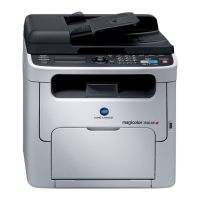
Konica Minolta Magicolor 1680MF - User Manual

Konica Minolta Magicolor 1680MF
169 pages
Print Icon
To Next Page IconTo Next Page
Loading...
magicolor 1680MF
Printer / Copier /
Scanner User’s
Guide
A0HF-9561-13A

Table of Contents

Other manuals for Konica Minolta Magicolor 1680MF

Questions and Answers

  • W
    Wanda MontesSep 23, 2025
    What does 'THE PARTY IS FULL' mean on Konica Minolta All in One Printer?
    • C
      chrisfreemanSep 23, 2025
      If your Konica Minolta All in One Printer displays 'THE PARTY IS FULL', it means you are trying to register more than 50 destinations. Reduce the number of destinations to under 50.
  • A
    Alicia YoderAug 23, 2025
    Why is the custom paper size different from the set size on my Konica Minolta Magicolor 1680MF All in One Printer?
    • S
      Sheena ElliottAug 25, 2025
      The custom paper size settings on your Konica Minolta All in One Printer may change slightly due to operating system round off errors in unit conversion. For example, 5.80" may change to 5.79".
  • J
    jwoodsAug 25, 2025
    Why are the settings in the saved presets not applied on my Konica Minolta Magicolor 1680MF All in One Printer?
    • V
      Virginia StoneAug 26, 2025
      Depending on the functions selected for the printer, some preset settings are not saved on your Konica Minolta All in One Printer.
  • N
    Nicholas GriffinAug 26, 2025
    What to do if Konica Minolta All in One Printer shows 'Connect error ! Change to off-line edit mode'?
    • W
      William LeonardAug 26, 2025
      If your Konica Minolta All in One Printer displays a 'Connect error ! Change to off-line edit mode' message, it means the connection was lost. This can happen if the USB cable is disconnected or the user machine is turned off during USB connection. To fix this, reconnect the USB cable or turn on the user machine.
  • C
    cookmarcusAug 27, 2025
    Why Konica Minolta Magicolor 1680MF All in One Printer says 'Password is not correct !'?
    • A
      Adrian BrowningAug 27, 2025
      If your Konica Minolta All in One Printer displays 'Password is not correct !', it means the password entered in the “Administrator” of “Utility Setting” is incorrect. Please re-enter the correct administrator password to proceed.
  • A
    angelasimpsonSep 15, 2025
    How to fix 'File format is error! Please select valid format !' on Konica Minolta Magicolor 1680MF All in One Printer?
    • A
      Alexis WigginsSep 15, 2025
      If your Konica Minolta All in One Printer displays 'File format is error! Please select valid format !', it indicates that the format of the file name list is incorrect. Check the file format and select a valid one.
  • R
    Rebecca MendozaSep 12, 2025
    What causes 'Machine timeout' on Konica Minolta Magicolor 1680MF and how to fix it?
    • S
      Stephanie WhiteSep 13, 2025
      If your Konica Minolta All in One Printer displays 'Machine timeout', it indicates a timeout occurred during connection with the user machine. Try reconnecting the user machine to resolve the issue.
  • A
    alexandrajohnsonSep 14, 2025
    Why does my Konica Minolta Magicolor 1680MF All in One Printer say 'Machine busy'?
    • M
      Mary AndersonSep 14, 2025
      If your Konica Minolta All in One Printer displays 'Machine busy', it means the user machine is currently in use, preventing a new connection. Wait until the user machine is free before attempting to connect.
  • S
    Shannon BullockSep 5, 2025
    How to avoid output starting on the first page after removing paper when 'OUTPUT TRAY FULL REMOVE PAPER' is displayed on Konica Minolta Magicolor 1680MF All in One Printer?
    • C
      callahandebraSep 5, 2025
      To avoid the output starting on the first page after removing paper when the 'OUTPUT TRAY FULL REMOVE PAPER' message appears on your Konica Minolta All in One Printer, remove the paper from the output tray before the error message is displayed. This issue is a limitation of the operating system.
  • R
    Robert BautistaSep 2, 2025
    What to do if pages are not correctly collated or the print job is cancelled while printing from Acrobat Reader on Konica Minolta Magicolor 1680MF All in One Printer?
    • J
      James StoneSep 2, 2025
      If you encounter printing errors with Acrobat Reader on your Konica Minolta All in One Printer, print using the preview feature provided by the operating system.

Summary

Introduction to the magicolor 1680 MF

Getting Acquainted with Your Machine

Overview of the machine, including space requirements, part names, and software.

System Requirements

Details the hardware and operating system requirements for using the machine.

Control Panel and Configuration Menu

About the Control Panel

Explains the control panel layout, indicators, and keys.

Display Indications

Describes the various messages and status indicators on the machine's display.

Checking the Machine Status and Settings

Guides users on how to view and check the machine's current status and settings.

Configuration Menu Overview

Provides an overview of the machine's configuration menus and settings.

Media Handling

Print Media Specifications

Details specifications for various print media types supported by the machine.

Printable Area

Describes the printable area dimensions and page margins for different media.

Loading Media

Instructions on how to load various types of media into the machine's tray.

Media Storage

Guidelines for proper storage of printing media to maintain quality.

Using the Printer Driver

Selecting Printer Driver Options;Defaults

How to verify and change default printer driver settings for Windows.

Uninstalling the Printer Driver

Procedure for removing the printer driver from a Windows system.

Displaying Printer Driver Settings

Steps to view the current printer driver settings for different Windows versions.

Printer Driver Settings

Explanation of common buttons and tabs within the printer driver interface.

Using the Copier

Making Basic Copies

Procedure for making standard copies, including quality and density settings.

Specifying the Copy Quality Setting

How to select document type and adjust copy density for optimal results.

Specifying the Zoom Ratio

Options for adjusting the zoom ratio for copying, including presets and custom input.

Making Advanced Copies

Details on special copy functions like ID card, repeat, and poster copying.

Using the Scanner

Scanning From a Computer Application

Instructions for scanning documents using computer applications.

Windows TWAIN Driver Settings

Configuration options for the Windows TWAIN scanner driver.

Windows WIA Driver Settings

Configuration options for the Windows WIA scanner driver.

Scanning With the Machine

How to perform scanning operations directly from the machine.

Replacing Consumables

About Toner Cartridges

Information about the toner cartridges, including types and handling precautions.

Replacing a Toner Cartridge

Step-by-step guide for replacing a toner cartridge.

Removing All Toner Cartridges

Procedure for ejecting and removing all toner cartridges simultaneously.

Replacing the Imaging Cartridge

Instructions for replacing the imaging cartridge.

Replacing the Fuser Unit

Guide for replacing the fuser unit, including safety precautions.

Maintenance

Maintaining the Machine

General guidelines for maintaining the machine's condition and longevity.

Cleaning the Machine

Instructions for cleaning the exterior parts of the machine.

Media Rollers

Procedures for cleaning the media feed rollers to prevent misfeeds.

Print Head Window

Steps to clean the print head window to ensure print quality.

Troubleshooting

Printing a Configuration Page

How to print the machine's configuration page for diagnostics.

Preventing Media Misfeeds

Recommendations and precautions to avoid media misfeeds.

Clearing Media Misfeeds

Detailed procedures for removing misfed media from the machine.

Solving Problems with Printing Quality

Guides to identify and resolve common printing quality issues.

Status, Error, and Service Messages

Explanation of machine messages and how to respond to them.

Installing Accessories

Dust Cover Installation

Instructions for installing the optional dust cover accessory.

Appendix

Technical Specifications

Detailed technical specifications of the magicolor 1680MF.

Consumable Life Expectancy Chart

Expected lifespan for user-replaceable and service-replaceable parts.

Konica Minolta Magicolor 1680MF Specifications

magicolor 1680MF

Operating Environment IconOperating Environment
temperature10 ~ 35 °C
humidity15 ~ 85 % RH
noise levels printing/copying50 dB or less
noise levels standby38 dB or less
Consumables IconConsumables
pre-installed toner yield cyan, magenta and yellow500 pages
pre-installed black toner yield1, 000 pages
imaging unit monochrome yield45, 000 pages
imaging unit colour yield11, 250 pages
standard toner yield cyan, magenta and yellow1, 500 pages
Scan IconScan
scan technologyCIS image sensor, flat bed
scan speed monochrome20 opm
scan speed colour3.3 opm
resolution600 x 600 dpi
scan modesTWAIN scan, Windows WIA scan
Electrical IconElectrical
input voltage range220 ~ 240 V ( [+]– 10 %)
frequency50 ~ 60 Hz ( [+]– 3 %)
power consumption colour printing410 W or less
power consumption monochrome printing560 W or less
power consumption stand by170 W or less
Weight and Dimensions IconWeight and Dimensions
dimensions (W x D x H)405 mm x 427 mm x 375 mm
weight19.2 kg with consumables

magicolor 1690MF

Operating Environment IconOperating Environment
temperature10 ~ 35 °C
humidity15 ~ 85 % RH
noise levels printing49 dB or less
noise levels copying52 dB or less
noise levels standby38 dB or less
Consumables IconConsumables
pre-installed toner yield cyan, magenta and yellow500 pages
pre-installed black toner yield1, 000 pages
imaging unit monochrome yield45, 000 pages
imaging unit colour yield11, 250 pages
standard toner yield cyan, magenta and yellow1, 500 pages
Scan IconScan
scan technologyCIS image sensor, flat bed
scan speed monochrome20 opm
scan speed colour3.3 opm
resolution600 x 600 dpi
scan modesScan-to-Email, Scan-to-FTP, Scan-to-USB, Scan-to-SMB, TWAIN scan, Windows WIA scan
Electrical IconElectrical
input voltage range220 ~ 240 V ( [+]– 10 %)
frequency50 ~ 60 Hz ( [+]– 3 %)
power consumption colour printing410 W or less
power consumption monochrome printing560 W or less
power consumption stand by170 W or less
Weight and Dimensions IconWeight and Dimensions
dimensions (W x D x H)405 mm x 427 mm x 432 mm
weight20.8 kg with consumables

magicolor 1690MF-d

Electrical IconElectrical
input voltage range220 ~ 240 V ( [+]– 10 %)
frequency50 ~ 60 Hz ( [+]– 3 %)
power consumption colour printing410 W or less
power consumption monochrome printing560 W or less
power consumption stand by170 W or less
Weight and Dimensions IconWeight and Dimensions
dimensions (W x D x H)405 mm x 451 mm x 493 mm
weight24 kg with consumables

magicolor 1690MF-dt

Electrical IconElectrical
input voltage range220 ~ 240 V ( [+]– 10 %)
frequency50 ~ 60 Hz ( [+]– 3 %)
power consumption colour printing410 W or less
power consumption monochrome printing560 W or less
power consumption stand by170 W or less
Weight and Dimensions IconWeight and Dimensions
dimensions (W x D x H)405 mm x 565 mm x 548 mm
weight26.3 kg with consumables

Related product manuals