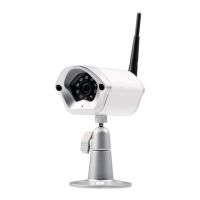
E. Android – Setup uCare Cam WiFi
There are two methods to set up the uCare Cam to connect to a new WiFi Router.
Method 1: Use WPS (WiFi Protected Setup)
Available if your WiFi router supports WPS and it is set to use WPA or WPA2 security encryption. WEP
security encryption is not supported for WPS mode. An easy way to check if your router supports WPS is to
look for a button that says “WPS” on the router. It may also be called “AOSS” or “QSS”.
1. Press and hold the WPS/REST button for 10 seconds at the back of the camera. It will reset and restart
the uCare Cam. After about 60 seconds, the LED colour should flash green and red.
2. Press “WPS” button on WiFi router
3. Press the WPS/REST button on the back of the uCare Cam for 2 seconds.
• If the uCare Cam has entered the WPS connection mode
, the status LED colour will turn a fast
blinking green.
4. The uCare Cam will try for up to 2 minutes to connect to the WiFi Router using WPS.
5. If the LED colour changes to orange, your uCare Cam has successfully connected to your router. If the
LED does not change to orange, the setup has failed. Please make sure the uCare Cam is within WiFi
distance of your Router, press the WPS/REST button for 10 seconds to reset the uCare Cam, and try the
setup again.
6. Use the smartphone App to add the uCare Cam into Camera list. See instruction manual – “Android - Add
uCare Cam (already connected to router) to App”.
Method 2: Use Router Mode
Please have your WiFi password readily available as you will need it in this process.
1. Open the Smartphone APP “uCare Cam”
and click on
the tab at the bottom of the screen that says “WiFi Setting”.
2. Click on “Router mode”.
3. Make sure the status LED on the uCare Cam is blinking red and
green. If the status LED is not blinking red and green, please
press and hold the WPS/REST button for 10 seconds to reset
the uCare Cam. Wait for 1-2 minutes for it to restart and the LED
should turn red and green.
4. Click “Next”. Your smartphone will start to search for the uCare
Cam. Once it finds it, you will see live video. Click on “Next”
button.
5. Your smartphone will search for nearby WiFi signals. Once they
are found, you will see a list of routers.
6. Click on your router name and enter your WiFi password in the
pop-up screen.
8


 To Next Page