7.
Please enter a Camera name (2 to 20 characters) and the
default password “0000”. You are encouraged to change the
default password after setup for security purposes. Then click
“OK” in the top right corner.
8. The camera will restart and the Smartphone App will
automatically connect to the camera in Live View.
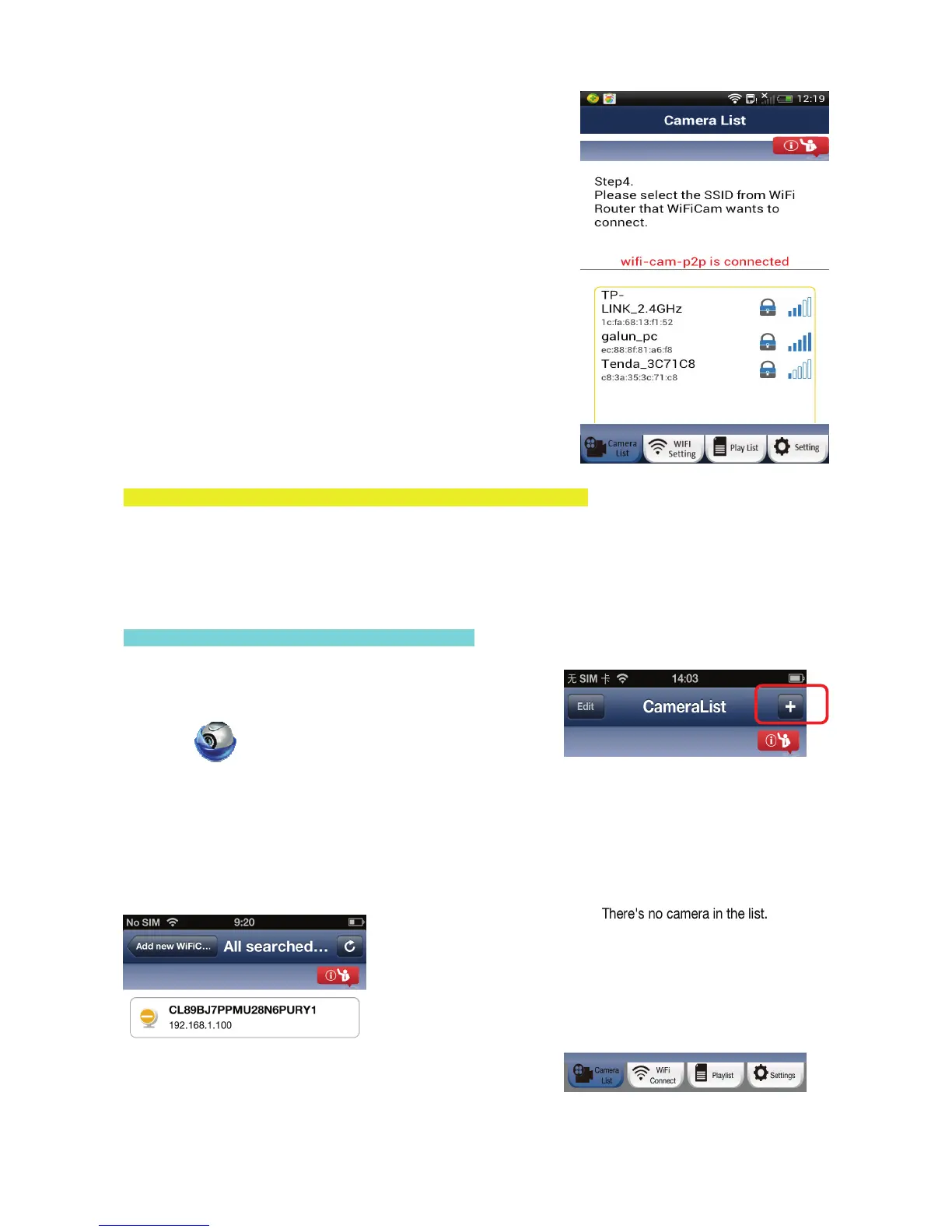
9. When the uCare Cam successfully connects to your router, the
status LED colour will turn orange. It may take up to 10 minutes.
If the status LED colour does not turn orange, please check your
router and make sure the uCare Cam is within the signal area of
your WiFi Router. Then try the setup again.
10. If the setup is successful, the uCare Cam will be automatically
added to your Camera List window and you can click on the
camera name to view Live Video.
F. iOS – Add the uCare Cam (already connected to Router) to App
There are three ways to add a uCare Cam to the Camera List view if the uCare Cam is already connected to
the internet. You can:
• Scan for the uCare Cam in local intranet
• Scan QR code at the back of the uCare Cam
• Type in 20 digit code
Method 1: Scan for the uCare Cam in local intranet
1. Make sure your smartphone is connected to the same router
as your uCare Cam. Open up the Smartphone App “uCare
Cam”
and click on the “+” at the top right of the
screen.
2. Click on “Scan Camera’s UID in intranet”.
3. You will see a list of UIDs that were found on your local
intranet.
4. Click on the UID you would like to add.
5.
Please enter a Camera name (2 to 20 characters) and the camera password. The default password is
0000. Click “Done” on the top right of window.
9


 To Next Page